
Managing Amazon listings can be overwhelming, especially if you have hundreds or thousands of products. Flat file templates simplify this process by allowing you to bulk upload, update, or delete listings efficiently. These pre-formatted spreadsheets are tailored to specific product categories like Electronics, Clothing, or Home & Kitchen, ensuring your data aligns with Amazon’s requirements.
Key Benefits of Amazon Flat Files:
- Handle up to 15,000 products or 50MB of data in one upload.
- Reduce errors with standardized fields for SKUs, prices, inventory, and more.
- Use Amazon’s "Inventory File Error Report" to quickly fix issues after uploading.
How to Download Templates:
- Log in to Seller Central (Professional plan required).
- Go to Catalog > Add Products via Upload.
- Click Download Spreadsheet and select your category.
- Choose your marketplaces and download the file.
Flat files come in two views:
- Default view: Basic required fields.
- Advanced view: Optional attributes for detailed information.
Accurate data entry is crucial – use the correct date formats (YYYY-MM-DD), decimal points, and units. Validate your file using Amazon’s tools before uploading to avoid errors.
Flat files save time and streamline catalog management, making them essential for Amazon sellers. Start small, follow Amazon flat file best practices, and use tools like FlatFilePro to simplify the process further.
Flat Files Made Simple: How to Update Your Amazon Listings Like a Pro (TUTORIAL)
sbb-itb-ed4fa17
How to Download Amazon Flat File Templates
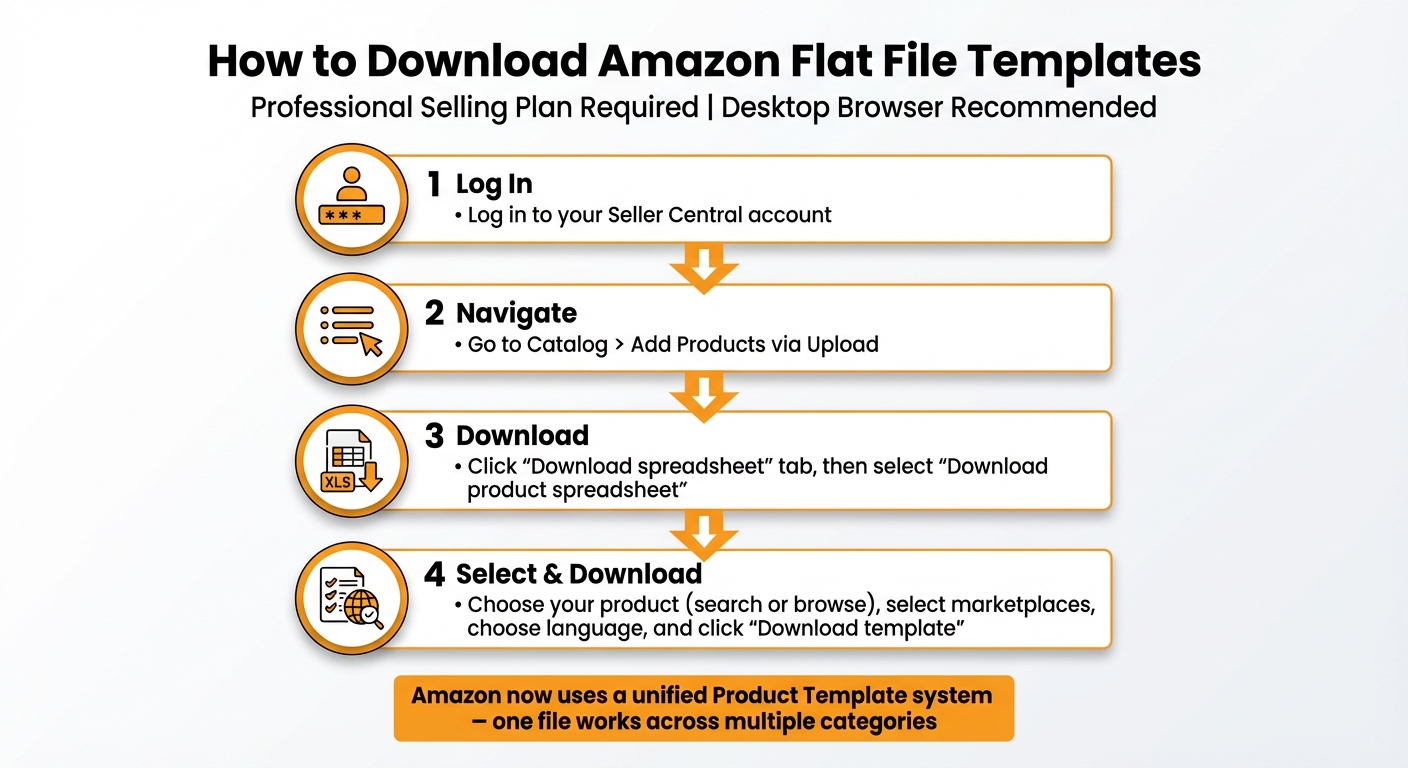
How to Download Amazon Flat File Templates: 4-Step Guide
Managing your Amazon catalog effectively starts with downloading the right flat file templates. Here’s how you can do it step by step.
Step-by-Step Download Guide
To access inventory file templates, you’ll need a Professional selling plan [3]. Make sure you’re using a desktop browser and have a spreadsheet program like Microsoft Excel ready.
- Log in to your Seller Central account.
- Navigate to Catalog > Add Products via Upload.
- Click on the Download spreadsheet tab and then select Download product spreadsheet [2].
Amazon now uses a unified "Product Template" system, replacing the older "Category-specific" and "Book Loader" templates. This means you can now list products across multiple categories using a single file [3].
To find the correct template, you can either:
- Use the Search tool by entering specific keywords like "wireless headphones" or a brand name.
- Browse through Amazon’s category tree to locate your product.
Once you’ve identified the right product, select the marketplaces where you want it listed, choose the listing language, and click Download template [3]. Following these steps ensures you get the correct template before diving into further options.
Template Types and Their Differences
Amazon templates come with two views:
- Default view (toggle "1"): Displays only the required fields for basic listings.
- Advanced view (toggle "2"): Includes optional attributes for more detailed product information [3].
"You must begin using the Product Templates. If you submit an old template, you may receive an error in your Processing Report." – Amazon [3]
Each template includes tabs like Instructions, Valid Values, and Browse Data. The Valid Values tab is particularly helpful, as it provides details about allowed variation themes (e.g., size or color) for your category [4]. If you’re setting up product families with variations, check this tab first to avoid errors during the upload process.
Still using an outdated template? Download the latest version by clicking Download Processing Summary next to your upload status in the "Check Upload Status" section [3].
Category-Specific Templates and Key Details
After downloading the appropriate files, it’s time to dive into the category-specific templates. These templates are tailored to meet the unique requirements of each product category. While they all include shared fields like SKU, price, and quantity, the category-specific templates add extra details to help shoppers make better-informed decisions[5].
"For every product category and each country, a distinct Flat File is designated." – Adrian Gmelch, Lengow[1]
Knowing which fields are essential for your category can save you time and reduce errors during the upload process. Let’s break down the key elements for Electronics, Clothing, and Home & Kitchen templates.
Electronics Flat File Template
For electronics, the template includes standard fields such as product_sku and item_name, alongside category-specific fields like variation_theme and voltage[1]. The variation_theme field groups product variations – like color or storage capacity – into a cohesive listing, while voltage ensures compliance with safety regulations.
Before uploading, check the "Valid Values" tab to confirm the accepted variation themes[1]. Mistakes in these fields can lead to rejections, so accuracy is key to keeping your catalog error-free.
Clothing and Apparel Flat File Template
Clothing and apparel templates emphasize attributes like size_name, color_name, and fabric_type, which are crucial for improving the shopping experience[1]. Consistent size labels, for example, make it easier for customers to find what they need.
Use the "Valid Values" sheet to ensure you’re using the correct terms[1]. For instance, Amazon may require "Large" instead of "L" or "Navy Blue" instead of "Blue." Paying attention to these details ensures consistency and avoids unnecessary listing issues.
Home & Kitchen Flat File Template
For Home & Kitchen products, templates highlight attributes like material_type and pattern_name, which describe both the product’s build and its visual appeal[1]. These details help customers filter their searches and better understand the product before clicking on the listing.
Including specific material details – such as wood, stainless steel, or ceramic – can make your products more searchable. Using these optional fields effectively can also enhance conversion rates while simplifying bulk listing management[1].
Best Practices for Populating Flat File Templates
Once you’ve got the correct template, the real challenge begins: filling it out accurately. Even small errors – like using the wrong date format or abbreviating units – can lead to rejections and delays in getting your listings live. Success comes down to following Amazon’s specific guidelines and catching mistakes before uploading.
Matching Data to Amazon’s Requirements
Amazon’s flat file templates come with strict formatting rules, and even minor deviations can cause issues. For instance:
- Dates: Always use the YYYY-MM-DD format. For example, February 10, 2026, should appear as 2026-02-10 [6].
- Decimals: Use a dot for decimal points – 19.99 is correct, but 19,99 will fail [6].
- Units of Measure: Spell out units in full. Write "pounds" instead of "lb" and "inches" instead of "in" [7].
The fulfillment channel field is another common stumbling block. For FBA items, enter DEFAULT, and leave it blank for merchant-fulfilled products. Using "amazon" for self-fulfilled items or "default" for FBA can trigger critical availability errors [6].
When dealing with variation families, ensure that child products have a valid 13-digit GTIN and that Parent/Child SKUs are mapped correctly. Errors in this section can disrupt the entire variation structure [6].
Brand names must also match Amazon’s records perfectly, including capitalization and punctuation. For example, if Amazon lists the brand as "ACME Products", entering "Acme Products" in your flat file will trigger Error 5665 [8]. To avoid this, consult the "Valid Values" tab in your template for accepted terms related to variation themes and attribute names [1].
Validating and Testing Your Flat Files
Before uploading your file, take advantage of the "Check My Data" tool in Seller Central. This tool generates a File Check Report that flags specific cell errors, saving you from upload failures later [6]. Once you’ve submitted your file, download the Processing Report from the "Add Products via Upload" section. This report provides a detailed summary of which items failed and the reasons behind it [1].
"Amazon Flat Files require precision, as even a small error can lead to upload failures or incorrect listings." – Adrian Gmelch, Tech and E-commerce Enthusiast, Lengow [1]
For minor updates, such as adjusting prices or titles, use the PartialUpdate command in the update_delete column. This ensures that only the intended fields are updated, preventing accidental overwrites or deletions of other product data [6]. Lastly, save your completed template as a CSV file before uploading – Amazon’s system only processes this format correctly [1].
Conclusion and Next Steps
Flat file templates offer Amazon sellers an efficient way to manage large product catalogs without relying on tedious manual updates. By downloading the appropriate category-specific template, adhering to Amazon’s formatting guidelines, and validating your data before uploading, you can save hours of effort while reducing errors that might lead to rejected listings. Accuracy is key.
Key Takeaways for Sellers
The advantages of using flat files go beyond just saving time. Bulk editing allows sellers to update prices, descriptions, and inventory levels for extensive catalogs in a single upload – an invaluable feature for handling large inventories or executing seasonal promotions. Category-specific templates ensure that unique product attributes – like clothing sizes or technical specifications for electronics – align with Amazon’s standardized requirements. This not only improves the customer experience but also reduces inconsistencies across your listings.
Start with a small batch to get comfortable with the process. Always check your submission statuses in Seller Central after each upload to catch errors like "Product ID Mismatch" or "Missing Required Attributes."
As Adrian Gmelch from Lengow’s Content Team explains:
"Amazon Flat Files are a powerful tool for managing your Amazon product listings. Although they may seem complex at first, understanding how to create, manage, and upload these files correctly can streamline your business operations, making your Amazon selling experience much smoother and more profitable." [1]
Once you’ve mastered the basics, consider integrating automation tools to streamline your workflow even further.
Using Tools for Better Results
To build on these practices, advanced tools like FlatFilePro can automate validation and error-checking before submission. Instead of manually scanning spreadsheets for formatting issues, FlatFilePro connects directly to your Seller Central account and performs automated checks. Its Reflection Engine monitors your listings nightly, alerting you to any changes that need attention.
For sellers managing hundreds of SKUs or operating on multiple marketplaces, FlatFilePro’s bulk editing dashboard and drag-and-drop variation manager simplify what could otherwise be a time-consuming process. Tasks like updating titles, bullet points, and pricing across your catalog can be completed in minutes. Plus, the tool’s direct API integration ensures your updates go live much faster than traditional flat file methods.
With a $99/month base plan and a risk-free trial, it’s worth exploring how automation could free up your time for more strategic activities, like product research or marketing.
FAQs
Which template should I use if my products span multiple categories?
To list your products accurately and efficiently on Amazon, use the category-specific flat file template that matches each product’s category. These templates are available for download on Amazon Seller Central and are tailored to fit the unique requirements of different product categories.
How do I fix the most common flat file upload errors fast?
To fix common Amazon flat file upload errors effectively, pay attention to data accuracy, proper formatting, and leveraging error reports. For instance, use the correct formats, such as MM/DD/YYYY for dates and appropriate decimal separators for prices. Missing fields, like product IDs or images, can often be resolved by reviewing mandatory details and ensuring they’re included. Make good use of error reports in Seller Central – they can help pinpoint specific issues, allowing you to address them quickly and improve your upload success rate.
When should I use Default view vs Advanced view fields?
When setting up product listings, you have two options: Default view fields and Advanced view fields.
- Default view fields cover the essentials, such as SKU, title, and price. These fields are perfect for creating straightforward, no-frills product listings quickly.
- Advanced view fields, on the other hand, include additional options like keywords and category-specific details. These are particularly helpful if you’re looking to improve search visibility, fine-tune rankings, or handle more intricate inventories.
Go with Default for simplicity, or opt for Advanced if you need more customization and better performance for your listings.