
Managing Amazon flat files is essential for sellers handling large catalogs. However, even small errors in these files can lead to suppressed listings, lost sales, and hours of troubleshooting. Here’s a quick rundown of common mistakes and how to avoid them:
- Wrong Templates: Always download the latest category-specific template from Seller Central to ensure all required fields are included.
- No Backups: Uploading without a backup can erase critical data. Export and save your current Amazon product catalog before making changes.
- Formatting Errors: Incorrect price formats, date entries, or measurement units often cause upload failures. Follow Amazon’s strict formatting rules.
- Blank Fields: Leaving fields empty can overwrite live data. Pre-fill fields from a fresh export to avoid accidental deletions.
Pro Tip: Tools like FlatFilePro can help automate error detection, bulk editing, and nightly health checks to keep your listings accurate and compliant.
Avoiding these mistakes ensures smoother uploads, fewer suppressed listings, and efficient catalog management.
What Are Amazon Flat Files and Why Do They Matter?

Definition and Purpose of Amazon Flat Files
An Amazon flat file is essentially a structured spreadsheet, typically in CSV, TXT, or XLSX format, that allows sellers to manage product listing data in bulk through Seller Central [1][2]. Instead of manually editing each product listing, flat files let you make changes to titles, descriptions, prices, and inventory levels for hundreds – or even thousands – of products at once.
One of the standout benefits of flat files is their ability to fix “stuck” attributes. For example, if a product’s brand name or title refuses to update through the usual Seller Central interface, uploading a flat file is often the most reliable solution [2].
"For sellers with more than a handful of SKUs, flat files are the only practical way to manage listings." – Jamin Mahmood-Wiebe, Founder, Flat Magic [4]
Now, let’s take a closer look at the different types of flat files available on Amazon.
Types of Flat Files in Seller Central

When working with flat files, it’s important to understand the two main types that sellers commonly use:
- Category-specific inventory templates: These templates are designed for creating new listings or updating existing ones. Each product category has its own unique template with specific required fields. For instance, the Clothing & Accessories template can include over 400 columns, covering fields like
size_map,color_map, anddepartment_name[1]. Other categories, such as Electronics or Health & Beauty, typically feature 250–350 columns, with fields tailored to technical specifications or compliance requirements. - Category Listing Reports (CLRs): These serve as the reverse of inventory templates – they allow you to export your current catalog data. Think of a CLR as a snapshot of your live product listings. They’re perfect for auditing your catalog’s health or creating backups before making bulk updates [2].
US Formatting Requirements for Flat Files
To avoid upload errors, it’s critical to follow Amazon’s strict formatting rules for US flat files. Amazon’s validation system will reject any file that doesn’t meet these standards [1]:
- Currency: Use the format $1,234.56.
- Dates: Follow the MM/DD/YYYY format (e.g., 06/12/2026).
- Measurements: Use US imperial units, such as inches and pounds, instead of metric units like centimeters or kilograms.
Additionally, many fields rely on controlled vocabularies, meaning Amazon only accepts pre-approved values. For example, the color_map field won’t accept a custom term like “ocean blue.” Instead, it requires an exact match from Amazon’s approved color list. Submitting anything outside the approved list will result in an automatic rejection [1].
Interestingly, more than 60% of Amazon upload errors are caused by incorrect data formatting, not missing fields [3]. Taking the time to ensure your file meets these basic requirements can save you a lot of headaches and prevent unnecessary delays in managing your listings.
sbb-itb-ed4fa17
Flat File Updates on Amazon? Avoid This Common Mistake!
Common Flat File Mistakes and How to Avoid Them
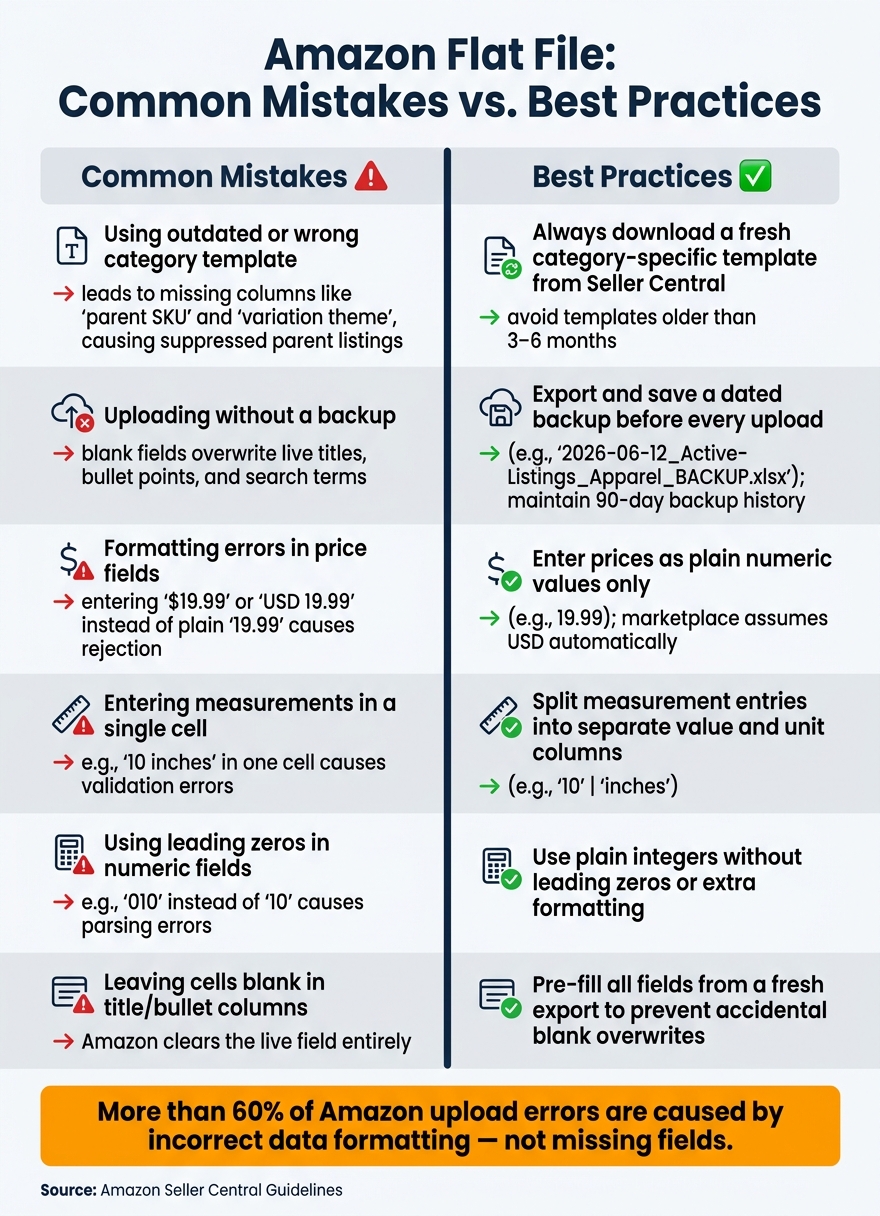
Amazon Flat File Mistakes vs. Best Practices
Selecting the Wrong Flat File Template
A common mistake many sellers make is using the wrong flat file template. This can happen when someone reuses an outdated file saved on their computer, downloads a generic inventory loader instead of a category-specific file, or picks the wrong product category from the dropdown menu in Seller Central [5].
This misstep can lead to serious issues. For example, if you’re managing a parent–child T-shirt listing with a "SizeColor" variation and use a generic template, key columns like "parent SKU" and "variation theme" might be missing. This could result in child SKUs being listed separately instead of as part of a parent listing – and in some cases, the parent listing might even get suppressed.
To prevent these headaches, always download a fresh template from Seller Central. Go to Inventory → Add Products via Upload → Download an Inventory File, then select the exact product category for your ASINs. Make sure to choose the "Category-specific inventory file" option and confirm you’re downloading for the Amazon.com marketplace. Also, avoid using templates that are older than 3–6 months, as Amazon regularly updates its required and optional fields [6].
Finally, always back up your live data before making any uploads.
Overwriting Live Listing Data Without a Backup
Uploading a flat file without a backup can lead to disaster. Many sellers mistakenly believe that leaving a field blank in the file will tell Amazon to ignore that data. Instead, it often results in Amazon clearing those fields entirely – causing optimized titles, bullet points, and search terms to vanish after a single upload.
To protect yourself, export your current listings before making any changes. In Seller Central, navigate to Inventory → Inventory Reports, request a category-specific or Active Listings Report for Amazon.com, and save the file with a clear, dated name as a read-only backup. Then, create a separate working copy for your edits. Only update the columns that need changes, and test your updates with a small batch of 5–10 listings. After uploading, review the processing report and check the live detail pages before scaling up to a full upload.
For long-term safety, maintain a backup history for at least 90 days in a secure cloud folder. Include a changelog that tracks the date, file name, and types of updates. This practice can save you hours of recovery work if something goes wrong [6].
Formatting Errors That Cause Upload Failures
Even with the right template and a solid backup, formatting errors can derail your upload. Amazon has strict formatting requirements, and even small mistakes can lead to file rejection. Common issues include errors in price fields, numeric values, and measurement entries.
Here’s how to avoid these pitfalls:
- Price fields: Enter prices as plain numeric values (e.g., 19.99). Avoid adding dollar signs, currency codes, or commas – Amazon automatically assumes USD for its US marketplace.
- Numeric fields: Use plain integers without leading zeros or extra text. For example, instead of "010", simply enter "10."
- Measurements: Many templates require you to separate the numeric value and unit into distinct columns. For instance, instead of entering "10 inches" in one cell, split it into "10" (value) and "inches" (unit).
Every flat file template includes a Data Definitions tab that outlines required fields, accepted values, character limits, and formatting rules. Reviewing this tab – especially for critical fields like variation themes – can help you catch errors before uploading. Also, disable auto-formatting in your spreadsheet tool. Programs like Excel or Google Sheets can accidentally alter dates, strip leading zeros, or change numeric values, which might break your upload.
| Formatting Mistake | Error Result | Solution |
|---|---|---|
| $19.99 or USD 19.99 in the price field | Amazon rejects non-numeric values | Enter 19.99 only (the marketplace assumes USD) |
| 10 inches in a single measurement cell | Validation error – unit and value must be separate | Enter "10" in the value column and "inches" in the unit column |
| 010 stored as text in a quantity field | Leading zero causes a parsing error | Use a plain integer (e.g., 10) without formatting |
| Blank cells in title or bullet columns | Amazon clears the live field | Pre-fill from a fresh export to avoid blank fields |
How to Manage Flat Files Accurately and Efficiently
Building a Reliable Backup Workflow
Before making any edits, it’s essential to create a backup of your current catalog from Seller Central. Export the catalog, save it with a dated filename (e.g., 2026-06-12_ActiveListings_Apparel_BACKUP.xlsx), and store it in a dedicated cloud folder. Always work from a separate copy to ensure the original stays intact. This habit not only safeguards your data but also aligns with best practices for protecting live information during bulk updates.
FlatFilePro simplifies this process by integrating directly with Seller Central to fetch your latest listing data. This ensures you’re working with the most up-to-date file rather than an outdated version sitting on your computer. Plus, its Activity Log automatically tracks every change made to your listings, providing a built-in audit trail without requiring additional steps.
Once you’ve established a reliable backup process, you can use FlatFilePro’s tools to automate error detection and editing, saving time and reducing mistakes.
Using FlatFilePro for Error Detection and Bulk Editing

manually managing flat files is tedious and prone to common flat file errors, especially when reviewing rows one by one. FlatFilePro’s AI-powered error detection scans your listings for issues like missing required fields, invalid SKUs, and incomplete parent-child variation relationships before they’re submitted to Amazon. Errors are grouped into categories such as Product Identity, Details, Shipping, and Safety, allowing you to prioritize and address the most pressing problems first.
The tool’s bulk editing capabilities are a game-changer. Instead of editing individual listings, you can update details like titles, bullet points, pricing, and keywords across hundreds – or even thousands – of SKUs in one go. For example, applying a seasonal promotion to over 1,000 listings can take less than 5 minutes with FlatFilePro, compared to the 40+ hours it would require in Seller Central.
After completing your updates, ongoing monitoring helps ensure your listings remain accurate and compliant.
Monitoring Listings to Prevent Suppression
Suppressed listings often go unnoticed until sales start to dip. To avoid this, regularly check the Suppressed and Inactive tabs in your Seller Central inventory dashboard for listings that require updates or compliance corrections.
FlatFilePro’s Reflection Engine enhances this process by performing nightly health checks. It compares your stored listing data with what’s live on Amazon, flagging any discrepancies with clear visual cues. This means you’ll be alerted to changes or suppressions within 24 hours, instead of discovering them weeks later when the revenue loss has already taken a toll. This proactive monitoring ties together the workflow of accurate backups and bulk editing, keeping your catalog in top shape over time.
Conclusion: Key Steps for Accurate Flat File Management
Managing Amazon flat files doesn’t have to be overwhelming. Sellers who succeed always start by downloading the correct category-specific template, double-checking their data before uploading, and keeping a backup of their work.
Paying close attention to formatting is crucial. Even a small mistake – like a misplaced decimal or an incorrect feed_product_type – can lead to suppressed listings and revenue loss. After every upload, always review the "Process Upload Results" section. This simple step can save you hours, if not days, of troubleshooting.
Frequent and accurate uploads also strengthen your standing with Amazon. As Sasha Zubatov, Senior Brand Evangelist, explains:
"By uploading these files often, you remind Amazon of your authority and they will up your score internally and you’ll have an easier and easier time making updates." [7]
For sellers managing large catalogs with hundreds or thousands of SKUs, handling everything manually is nearly impossible. Tools like FlatFilePro can simplify the process by automating error detection, bulk edits, and nightly health checks for your listings. This means fewer suppressed listings, quicker updates, and a catalog that stays accurate and organized. Following these steps can help ensure your Amazon catalog runs smoothly and efficiently.
FAQs
When should I use a Category Listing Report vs an inventory template?
Use a Category Listing Report (CLR) to get a complete overview of all product listings within a specific category. This is especially helpful when working with large catalogs containing multiple SKUs, as it allows for efficient analysis, cleanup, or bulk updates.
On the other hand, an inventory template works best for creating new listings or making precise updates to particular products or groups. By focusing on smaller, selected portions of your catalog, it minimizes the chances of mistakes.
How can I update listings without blank fields wiping live data?
To make updates to Amazon listings without risking blank fields overwriting your existing data, use the PartialUpdate option. Here’s how it works: in your flat file, set the "update_delete" column to PartialUpdate. Then, only fill in the fields you want to modify, leaving all other fields blank (unless they’re mandatory). This approach ensures your current data stays intact while applying updates, avoiding accidental overwrites or data loss.
What’s the fastest way to find the exact row causing an upload error?
To pinpoint the row causing an upload error, take a close look at the detailed error messages in the upload or processing report. These reports typically highlight the SKU and outline the specific data issue. Pay attention to error codes (like Error 8058) and any missing attributes to identify the exact row that requires fixing. By thoroughly reviewing this feedback, you can troubleshoot and make updates more efficiently.