
Managing an Amazon catalog with hundreds or thousands of ASINs can be overwhelming. Tasks like bulk price updates, fixing variations, or aligning seasonal content often lead to errors and wasted time. FlatFilePro simplifies this process by automating CSV downloads and uploads directly through Amazon’s API, saving you hours of manual effort.
Key Benefits of FlatFilePro:
- Automated Exports: One-click bulk downloads with real-time data syncing ensure accurate and up-to-date files.
- Error Detection: AI identifies and flags issues before exporting, reducing listing errors and suppressed products.
- Multi-Region Support: Centralized data management for marketplaces in the US, Canada, Mexico, Brazil, and Europe.
- Activity Tracking: Logs every change with timestamps, providing a clear audit trail.
With features like the Reflection Engine for visualizing listing health and customizable data fields, FlatFilePro makes managing Amazon product data faster and more efficient. Whether you’re handling bulk updates or expanding to new regions, this tool eliminates the hassle of manual CSV edits.
Bulk Flat Files to Create Loads of Amazon Listing at One Time
sbb-itb-ed4fa17
Why Download Amazon Product CSVs with FlatFilePro

Managing product data through Amazon Seller Central can quickly become a hassle as your catalog grows. FlatFilePro simplifies this process by connecting directly to your account via Amazon’s API, automating tedious tasks, and giving you easy access to your entire catalog in a clean, ready-to-use CSV format.
One standout feature is the Reflection Engine, which provides a clear visual overview of your listing health. Green checkmarks indicate optimized listings ready for export, while red X’s highlight errors that need fixing before downloading. This saves you from hours of manual data checks and ensures your CSV files are accurate and complete right from the start.
Save Time with Automated Exports
FlatFilePro’s automation features are a game-changer for busy sellers. With one-click bulk downloads, exporting CSV files becomes much faster. The platform also includes Nightly Checks, which automatically scan your catalog for unauthorized changes or competitor interference. This ensures that your exported data always reflects the most current and approved version of your listings [2].
If you’re selling across multiple regions, FlatFilePro makes life easier by centralizing product data from marketplaces in the US, Canada, Mexico, Brazil, and Europe. This allows for multi-region CSV exports, which is especially useful for sellers managing over 300 listings [2].
Reduce Errors with AI-Powered Detection
FlatFilePro’s Error Finder identifies potential issues – like errors that could suppress your listings or harm search rankings – before you export your CSV files. Problems are grouped into categories such as Product Identity, Details, Shipping, and Safety, so you can focus on the fixes that matter most [2]. With a 95% success rate in managing product variations [2], the platform ensures your parent-child relationships stay intact during bulk updates, avoiding the common pitfalls of manual CSV edits.
The bulk editing tools let you update multiple listings at once, keeping your catalog consistent. Plus, the Activity Log tracks every change with timestamps, creating an audit trail to verify data accuracy before exporting. This combination of error detection and change tracking ensures your CSV files are clean and reliable – perfect for inventory management, pricing updates, or expanding into new marketplaces.
Connect Directly to Amazon Seller Central

FlatFilePro takes things a step further by integrating directly with Amazon Seller Central. As an official Amazon Selling Partner Appstore application, it uses a secure API connection to eliminate the need for manual flat file downloads and uploads [2]. This integration pulls real-time data straight from Amazon’s servers, ensuring your CSV exports match exactly what shoppers see on your product pages.
With automated syncing several times a day, your exported files always reflect the latest inventory levels, pricing, and content updates. Whether you’re adjusting prices across thousands of SKUs or making other bulk changes, FlatFilePro delivers properly formatted CSV files that meet Amazon’s requirements – without the headaches of manual formatting.
How to Download Amazon Product CSVs Using FlatFilePro
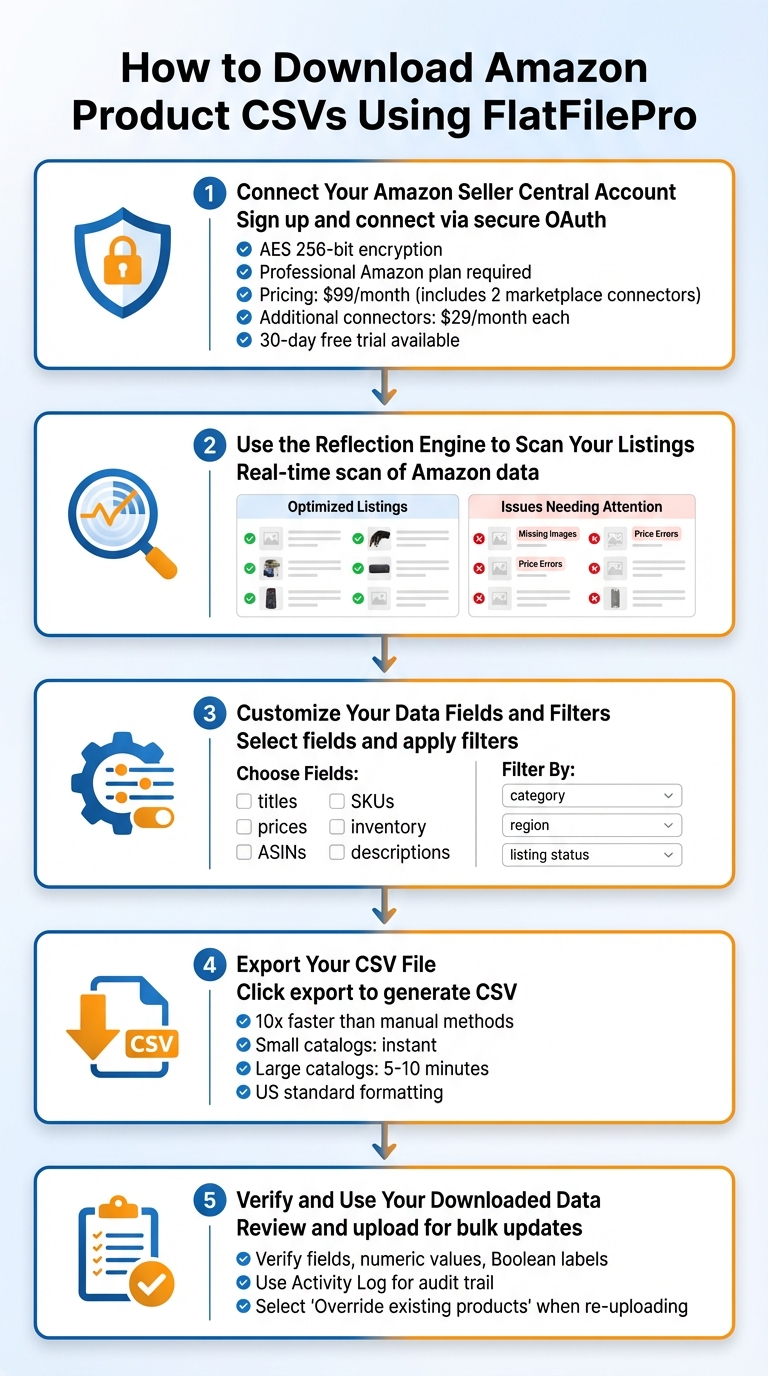
How to Download Amazon Product CSVs Using FlatFilePro in 5 Steps
FlatFilePro integrates directly with Amazon’s API, streamlining the process of extracting product data from Amazon Seller Central. To get started, you’ll need to securely connect your Amazon Seller Central account.
Step 1: Connect Your Amazon Seller Central Account
First, sign up on the FlatFilePro website and follow the prompt to "Connect to your Amazon Seller Central account" [3]. This initiates a secure OAuth process to protect your Amazon credentials. FlatFilePro uses API credentials with AES 256-bit encryption and FIPS 140-2 validated cryptographic modules to safeguard your catalog data [3]. Note that your Amazon account must be on the Professional plan, as this is required to use API tools.
For sellers managing multiple regions, the base subscription costs $99.00 per month and includes two marketplace connectors (e.g., US, Canada, Mexico, Brazil, or Europe). Additional connectors can be added for $29.00 per month each [2]. FlatFilePro offers a 30-day free trial, so you can test the service risk-free. Once connected, the platform automatically creates offsite backups of your Seller Central data, ensuring you have 24/7 access to a secure one-click restore feature [3].
Step 2: Use the Reflection Engine to Scan Your Listings
After linking your account, FlatFilePro’s Reflection Engine scans your Amazon data in real time and compares it to your live listings [2]. This tool visually highlights the status of your listings – green checkmarks indicate optimized listings, while red X’s point out areas needing attention. By grouping issues into categories, the engine helps you prioritize what to fix before exporting your CSV file.
Step 3: Customize Your Data Fields and Filters
FlatFilePro lets you tailor your CSV export to include only the product details you need. You can select fields like titles, prices, ASINs, SKUs, inventory levels, and descriptions, ensuring the file aligns with your workflow. Filters can also be applied by product category, marketplace region, or listing status, giving you control over the data included in your export [2]. Once you’ve made your selections, you’re ready to download the file.
Step 4: Export Your CSV File
When you’re ready, click the export button to generate your CSV file. FlatFilePro processes exports up to 10x faster than manual methods. For smaller catalogs, the download is nearly instant, while larger inventories may take 5–10 minutes to complete [1]. The exported file is formatted to US standards, including proper currency and numeric formatting. You can also check the export history log for a detailed breakdown of the process.
Step 5: Verify and Use Your Downloaded Data
After downloading the CSV file, open it in your preferred spreadsheet application. Check that only the fields relevant to your bulk update are included, numeric fields are clean (free of symbols), and Boolean values are labeled as ‘TRUE’ or ‘FALSE’. If any issues arise, use the error log to resolve them. When re-uploading the CSV for bulk updates, select the "Override existing products" option to ensure accurate matching with your current SKUs. FlatFilePro’s Activity Log tracks every change with timestamps, providing a clear audit trail [1]. This final review ensures your data is ready for seamless updates, making catalog management more efficient.
Fixing Common CSV Export Problems
CSV exports can sometimes run into issues, disrupting smooth catalog management. Here’s how to identify and fix these problems effectively.
Correct Field Errors and Missing Data
FlatFilePro helps pinpoint common CSV issues. For instance, matching errors can happen when column names don’t match Amazon’s required field names or when key columns are missing entirely[4]. Value errors are another common problem – they occur when data is too long, too short, or contains invalid characters. For example, text might show up in a numbers-only column, or numbers might be entered in a boolean field[4]. To avoid these issues, ensure:
- Numeric fields are free of unnecessary symbols.
- Boolean fields contain only "True" or "False", as specified during verification[4].
If data fields are incomplete or missing, FlatFilePro’s error detection feature can help you locate and address the gaps. Additionally, if the file appears corrupted after downloading, check that it’s saved in UTF-8 format[4]. Once you’ve resolved these errors, you can move on to monitoring any remaining issues using the Activity Log.
Track Issues with the Activity Log
The Activity Log is a powerful tool for keeping tabs on your CSV exports. It provides a detailed timeline of each export, complete with timestamps. This allows you to see exactly when files were created and whether any errors occurred during the process. If an export fails or yields unexpected results, the log can help you pinpoint whether the problem occurred during data selection, field mapping, or file generation. For instance, if an export fails due to file size, the Activity Log will recommend splitting the data into smaller batches[4]. By systematically reviewing the log, you can ensure your catalog updates stay on track and run efficiently.
Wrapping Up
Handling Amazon product CSVs doesn’t have to feel like an uphill battle. With FlatFilePro, tasks that used to take hours can now be completed in just minutes. In fact, the platform makes editing Amazon listings up to 17 times faster than using traditional inventory spreadsheets and cuts down Amazon cases and error codes by 8 times compared to manual efforts in Seller Central[3]. For sellers managing hundreds – or even thousands – of SKUs, these time savings can make a world of difference.
FlatFilePro combines automated exports, AI-powered error detection, and direct API synchronization to ensure your updates go live in minutes, not hours. Thanks to its Reflecting Panel, which uses red X’s to flag problems and green checkmarks to confirm fixes, you can resolve listing issues in as little as 90 seconds[3]. This level of speed and precision can transform your daily workflow, especially if you’re managing extensive product catalogs.
The platform’s Activity Log keeps you in the loop during every step of the export process. From selecting data to generating files, you’ll have full visibility into what’s happening and when. This means you can stay in control of your catalog updates and quickly address any issues that arise. Whether you’re adjusting prices across multiple marketplaces or fixing bulk errors, FlatFilePro equips you with the tools to get the job done smoothly.
For Amazon sellers managing 300 or more listings, FlatFilePro’s bulk management features are a game-changer. From a single interface, you can create, edit, or delete listings across various marketplaces, ensuring consistency without the hassle of manual entry. Plus, with features like automated backups, secure restore options, and team collaboration tools, FlatFilePro helps keep your catalog organized as your business grows[2].
FAQs
Which CSV fields should I export for a specific bulk update?
The article doesn’t list specific fields for bulk updates, but typically, you’ll want to include essential details such as product identifiers (like SKU or ASIN), titles, descriptions, prices, stock levels, and any other relevant attributes. For more specific instructions, check out FlatFilePro’s documentation or reach out to their support team. They offer tools and resources to make exporting the right fields for your updates straightforward.
How often does FlatFilePro sync my catalog data from Amazon?
Currently, there isn’t detailed information on how often FlatFilePro syncs catalog data from Amazon. For accurate and up-to-date guidance, it’s best to review the platform’s documentation or reach out directly to their support team.
What should I do if my CSV export fails or is missing data?
If your CSV export isn’t working or some data seems to be missing, start by verifying that the header row matches the number of columns in your data rows. Also, make sure there aren’t any empty lines before or between rows. Check that your headers and values are consistent and formatted correctly.
If you’ve double-checked everything and the problem continues, reach out to support. Provide your Space ID, a sample file, and a clear explanation of the expected results versus what you’re seeing.