
If you’re managing Amazon listings, extracting image URLs efficiently can save you time and improve your workflow. Whether you’re running promotions, syncing with Shopify, or creating ads, there are three main ways to get image links:
- FlatFilePro: Uses Amazon’s SP-API for fast, automated image link extraction. It’s ideal for large catalogs and offers features like live data sync and bulk exports.
- Amazon Flat Files: A manual method using inventory reports from Seller Central. Best for smaller catalogs or those needing precise control.
- Google Sheets + ImportFromWeb: A browser-based approach for scraping image links, useful for medium-sized catalogs or competitor analysis.
Quick Comparison
| Method | Time for 100 ASINs | Best For | Cost |
|---|---|---|---|
| FlatFilePro | <5 minutes | Large catalogs | $99/month |
| Amazon Flat Files | 30–60 minutes | Small catalogs | Free |
| Google Sheets | 10–20 minutes | Medium catalogs | Free (basic) |
FlatFilePro is the fastest and most scalable option, while flat files and Google Sheets work better for smaller or less frequent tasks. Choose based on your catalog size, budget, and technical comfort.
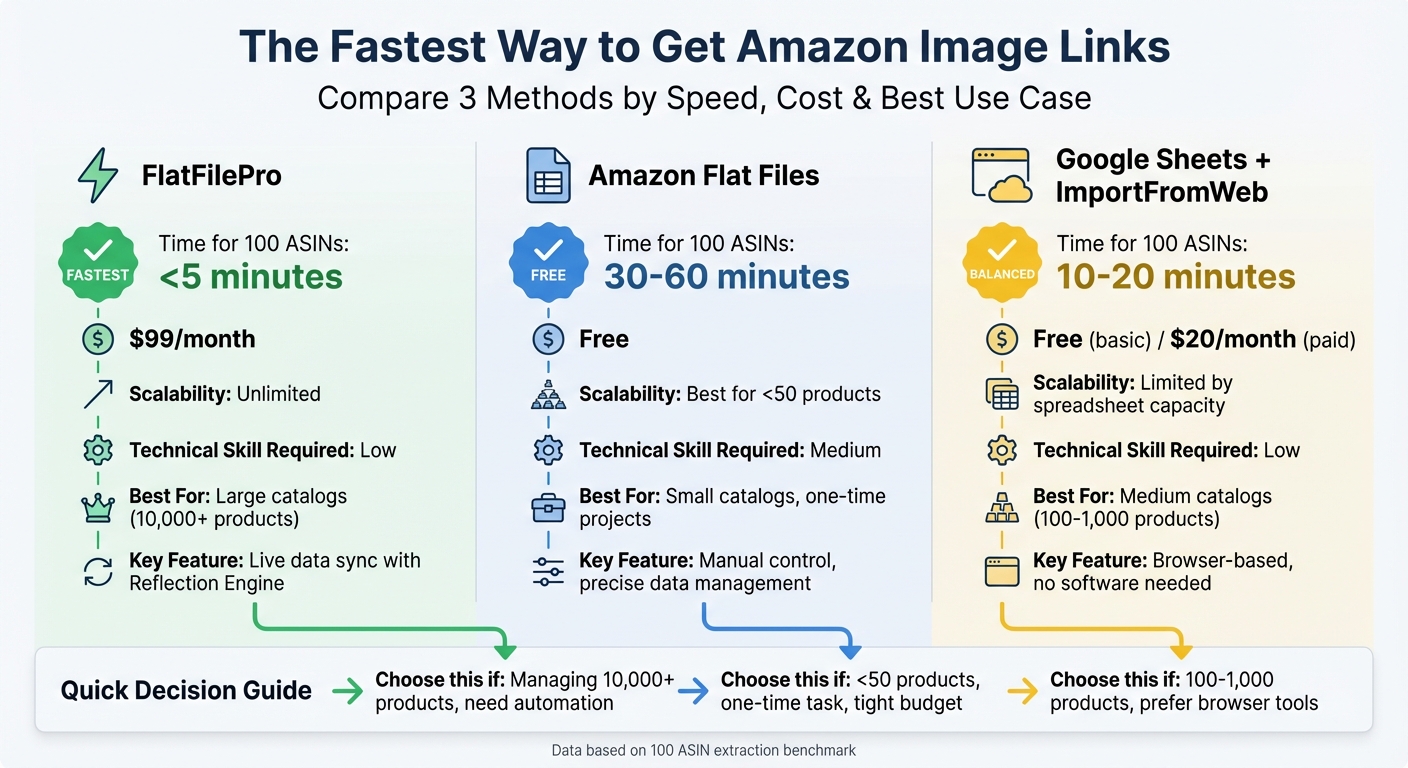
Amazon Image Link Extraction Methods Comparison: Speed, Cost & Scalability
Extract hundreds of Amazon product images directly to Google Sheets
sbb-itb-ed4fa17
Method 1: Get Image Links with FlatFilePro

FlatFilePro leverages Amazon’s SP-API to fetch image URLs directly, cutting out the tedious manual steps that often slow sellers down. In under five minutes, you can set up the tool and gain access to every image field in your catalog – no spreadsheets required.
Connect Your Seller Central Account

Start by heading to Integrations, clicking Authorize Seller Central, and granting access to your inventory and feed data. FlatFilePro uses secure OAuth authorization with AES 256-bit encryption, so your credentials remain safe. Once connected, the tool syncs all your listings automatically – no need for manual file downloads.
"This is the tool that powers our ops and analytics teams. We used to do everything manually, such a pain! Now we don’t have to think about anything and our listings update like magic!" – Jack Haldrup, Founder, Dr. Squatch[2]
You can confirm everything is working by searching for a sample SKU. Check that all nine image columns – main image, PT1 through PT8, and swatch images – are displayed correctly. If any fields are blank, it means Amazon doesn’t have those images on file.
Once your account is connected, you can ensure your image data stays current using the Reflection Engine.
Keep Data Accurate with the Reflection Engine
Enable Live Data Sync in the dashboard settings to activate the Reflection Engine. This feature checks your records against Amazon’s live catalog every night, identifying outdated URLs or missing images. Any discrepancies are flagged, so you can maintain accurate data.
The tool processes over 10,000 SKUs quickly, verifying that each URL starts with https://m.media-amazon.com/ and links to a valid image file. If Amazon updates or removes an image, the changes are reflected in your dashboard within 24 hours.
Export Image Links in Bulk
You can export image links effortlessly. Select your catalog or filter by specific categories, then choose the image fields you want to include. Export options include CSV, Excel (XLS/XLSX), or API. To make your spreadsheet more functional, use the formula =HYPERLINK(image_URL, "View Image") to generate clickable links.
FlatFilePro simplifies the entire process. Sellers managing thousands of SKUs report exporting complete image datasets in just minutes. You can even schedule recurring exports daily or weekly, ensuring your external systems always have up-to-date image URLs. Need high-resolution images? The tool automatically generates URLs for variants up to 1000×1000 pixels, saving you even more time.
Method 2: Extract Image URLs from Amazon Flat Files
If you’re comfortable working with spreadsheets, Amazon flat files offer a straightforward way to extract image URLs. This approach is particularly useful for sellers with a Professional selling plan, as bulk file features aren’t accessible on the Individual plan [5][6]. While it’s more hands-on compared to automated tools, it gives you precise control over your data. Here’s how to get started.
Download Inventory Files
Start by navigating to Inventory > Inventory Reports in your Seller Central account. From the dropdown menu, select Active Listings Report and click Request Report. Depending on the size of your catalog, Amazon will generate the file in a few minutes. Once it’s ready, download the .txt (tab-delimited) file by clicking Download [3][4]. Open the file in Excel or Google Sheets using the Import function to ensure the columns are properly aligned. This report includes essential details like SKUs, ASINs, and product titles, making it the ideal starting point for working with image data.
Locate and Fill Image Fields
After importing the file, locate the Images section. Here, you’ll find the Main Image URL column along with additional fields labeled Other Image URL 1 through Other Image URL 8 (these correspond to PT1-PT8 slots) [7]. Keep in mind, many of these columns are hidden by default, so you’ll need to unhide them to access all the image fields [5]. If you’re adding new images instead of extracting existing ones, make sure to paste publicly accessible URLs – such as https://yourserver.com/image.jpg – in the appropriate fields. Avoid using local file paths from your computer, as they won’t work [7].
Use Spreadsheet Formulas to Extract URLs
Once all image fields are visible and populated, you can use spreadsheet formulas to refine the data. For example, if image URLs are mixed with other text, formulas like =TRIM() can remove unnecessary spaces, while =IF(ISBLANK()) can help identify missing image entries. If you’re managing listings across multiple marketplaces, it’s a good idea to filter by country-specific templates since different categories (like Electronics or Books) have unique field mappings [7]. Save your work as a .csv or .xlsx file to retain any applied formulas [3].
If you’re planning to upload the edited file back to Amazon, be prepared to check the Processing Report for any errors. Common issues like "Product ID Mismatch" or "Missing Required Attributes" will be flagged here, helping you troubleshoot efficiently [8].
"Using flat files is much quicker than trying to upload listings individually, allowing you to focus on important goals." – ChannelEngine [7]
This method is ideal for sellers with smaller catalogs or those who need precise control over their image data. It’s manual but effective for ensuring your listings are accurate and well-organized.
Method 3: Use Google Sheets and ImportFromWeb
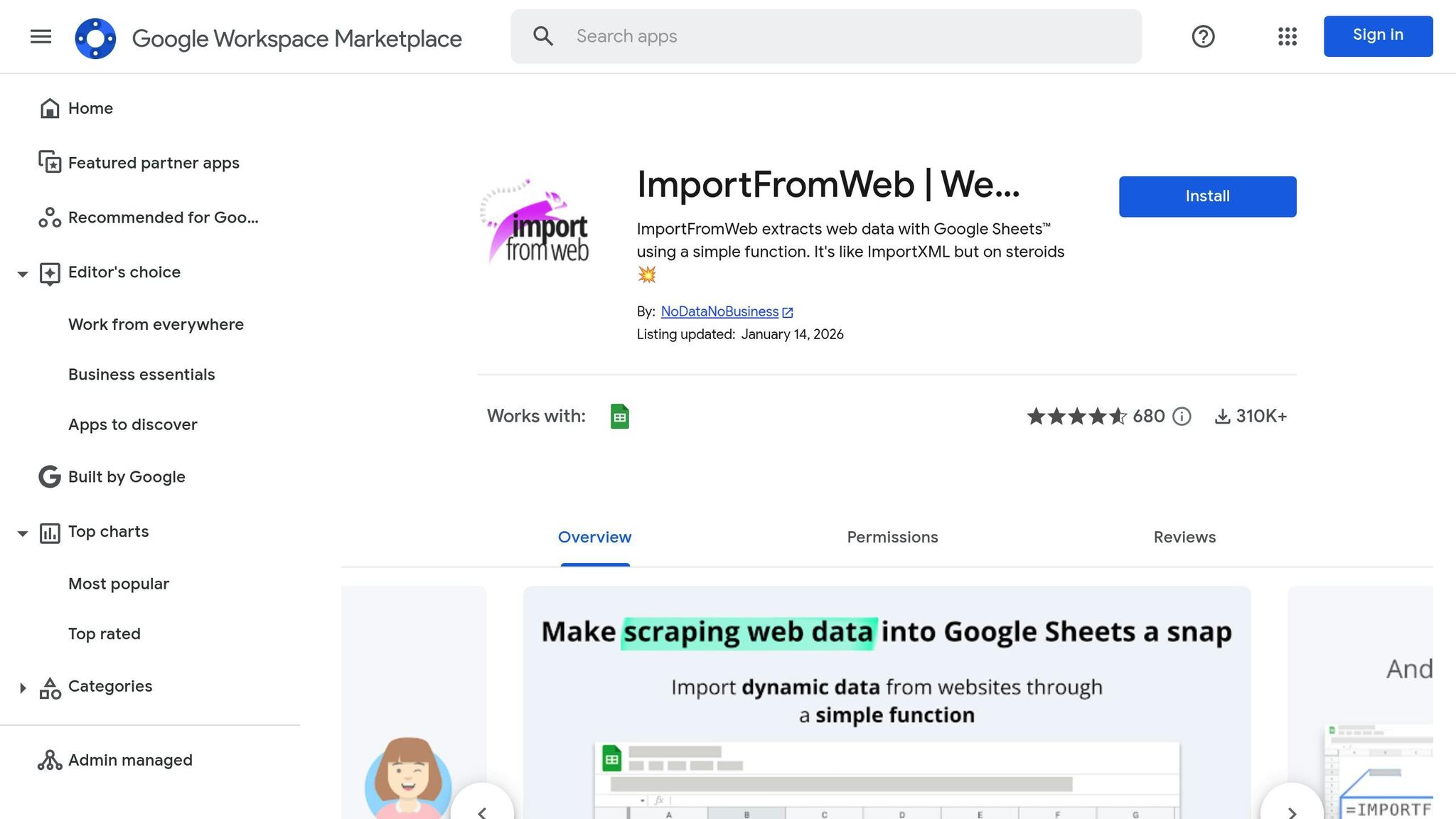
If you prefer working directly in your browser without downloading software, Google Sheets combined with the ImportFromWeb add-on is a solid option for pulling Amazon image links. This approach is especially handy when you’re researching products outside your inventory or analyzing competitor listings. ImportFromWeb makes it easy for sellers to scrape data without needing any coding skills.
Setting Up Google Sheets with ImportFromWeb
Start by opening a new Google Sheet. Navigate to Extensions > Add-ons > Get add-ons, then search for "ImportFromWeb" in the Google Workspace Marketplace. Click Install to add it. Once installed, activate it by going to Extensions > ImportFromWeb > Activate add-on. After activation, a sidebar will appear on the right side of your screen, offering access to over 100 pre-built selectors tailored for Amazon data extraction. With this add-on enabled, you can easily turn ASINs into full product URLs.
Creating Image URLs from ASINs
To generate product URLs, paste your ASINs into column A, starting at cell A2. In cell B2, use this formula:
="https://www.amazon.com/dp/" & A2 Drag the formula down to populate URLs for all the ASINs in your list. This approach works for all Amazon marketplaces – just replace .com with .ca, .co.uk, .de, or any other regional domain as needed. Once the URLs are ready, use ImportFromWeb’s core function to extract the main product image link:
=IMPORTFROMWEB(B2, "featured_image_source") For bulk image extraction, you can streamline the process by placing the selector featured_image_source in cell C1 and using this formula:
=IMPORTFROMWEB(B2, $C$1) This setup ensures consistency and makes it easier to manage large datasets.
Extracting High-Resolution Images
Once you’ve created the basic URLs, you can take it a step further by pulling high-resolution images. ImportFromWeb allows you to extract multiple images from a single product listing – up to 10 additional photos – using selectors like image_1_source, image_2_source, and so on. To do this in bulk, create a header row with your desired selectors (e.g., C1: featured_image_source, D1: image_1_source, E1: image_2_source). Then, in cell C2, use the formula:
=IMPORTFROMWEB($B2, C$1) Drag the formula across and down to populate your grid with all available image links. If you’d rather see the images directly in your spreadsheet, wrap the formula with the IMAGE function, like this:
=IMAGE(IMPORTFROMWEB(B2, "featured_image_source")) This feature is particularly useful for viewing images without needing to click through URLs.
"ImportFromWeb extracts web data with Google Sheets™ using a simple function. It’s like ImportXML but on steroids." – NoDataNoBusiness
The tool uses proxy rotation and premium IP addresses to avoid being blocked by Amazon, and it supports scraping data from over 20 Amazon marketplaces globally. If you’re working with international sites and encounter language issues, simply add ?language=en_US to your product URLs to ensure results appear in English. Additionally, you can automate updates by using the Trigger feature in the ImportFromWeb sidebar to schedule hourly, daily, or weekly refreshes – even if the spreadsheet is closed.
Compare the 3 Image Extraction Methods
When it comes to extracting Amazon image links efficiently, it’s important to weigh the pros and cons of three key methods: FlatFilePro, Amazon flat files, and Google Sheets with ImportFromWeb. Each method varies in speed, cost, and technical requirements, so your choice will depend on factors like catalog size, budget, and your comfort with technical tools.
FlatFilePro is the fastest option, retrieving 100 ASIN image links in under 5 minutes, even at scale. Amazon flat files, while free, are better suited for smaller catalogs with fewer than 50 products due to the manual effort involved. Google Sheets with ImportFromWeb sits in the middle, offering a cost-effective solution for mid-sized catalogs, taking about 10–20 minutes for 100 ASINs, though it’s limited by spreadsheet capacity.
Cost Breakdown
- FlatFilePro: $99/month. While this might seem steep, it’s a worthwhile investment for large-scale operations, especially when manual data collection could cost over $200 per session in labor [10].
- Amazon flat files: Free to use, but the time investment can add up quickly.
- Google Sheets with ImportFromWeb: Free for basic use, with paid plans starting at around $20/month [9].
Here’s a quick comparison of the methods:
Comparison Table
| Method | Time for 100 ASINs | Scalability | Technical Skill | Cost |
|---|---|---|---|---|
| FlatFilePro | <5 minutes | Unlimited | Low | $99/month |
| Amazon Flat Files | 30–60 minutes | Best for <50 products | Medium | Free |
| Google Sheets | 10–20 minutes | Limited by spreadsheet capacity | Low | Free (basic) |
Technical Considerations
- FlatFilePro: Perfect for non-technical users. Simply connect your Seller Central account, and you’re ready to go – no coding required.
- Amazon flat files: Requires intermediate spreadsheet skills to navigate inventory reports and use formulas to extract image URLs.
- Google Sheets: Accessible to most users with basic formula knowledge, making it a good choice for those who prefer simple tools.
When to Use Each Method:
- FlatFilePro: Best for large catalogs (10,000+ products) where speed and compliance are critical [10].
- Google Sheets: Ideal for medium-sized operations (100–1,000 products) that need a budget-friendly solution.
- Amazon flat files: Works well for small catalogs or one-time projects with fewer than 50 products [10].
Fix Common Image Link Problems
To keep your catalog running smoothly, it’s essential to tackle common image link issues head-on. Even with the best extraction techniques, problems can crop up that need immediate attention.
Check ASIN Validity
Start by ensuring your ASINs are accurate and active. If an ASIN is incorrect, you’ll need to create a new listing, as edits won’t be possible [12]. Amazon frequently updates its dynamic URLs, which means a link that worked yesterday might fail today [1].
To avoid such headaches, sync your listings regularly with a catalog management tool. For instance, FlatFilePro’s Reflection Engine helps you spot silent listing failures – those frustrating changes that vanish without warning. Since these issues can seriously hurt your sales, catching them early is key. Typically, successful edits should show up on Amazon’s public page within 15 minutes. If they don’t, your ASIN might be invalid or suppressed [12].
Fix Broken or Missing URLs
Broken links can happen for several reasons: expired URLs, removed images, or server hiccups [1]. If you’re managing listings manually, errors like duplicate or incorrect entries can also cause trouble [2]. Wholesale sellers face an extra hurdle – losing control over image edits when another seller or the brand owner takes over the listing [12].
FlatFilePro simplifies this process with its error detection tools. It can automatically spot broken or missing image URLs across your catalog. Plus, its version control feature keeps a history of all listing changes, so you can easily undo mistakes with one click. This eliminates the need to deal with Amazon support, saving you valuable time [2]. For added security, you can use lock-down features to limit who on your team can edit images, reducing the risk of accidental errors [2].
Once you’ve fixed broken links, keep a close watch on any future changes to image assignments.
Track Amazon Image Changes
Amazon doesn’t always notify sellers when images are updated. Starting January 31, 2024, Amazon may even display images from multiple sellers on a single product detail page, especially if required images are missing [13]. This means a competitor’s image could replace yours without warning.
To stay ahead of these changes, FlatFilePro’s Reflection Engine offers real-time monitoring of your listings. Each night, it checks your catalog and flags any discrepancies between your data and what’s live on Amazon using green checkmarks for correct entries and red X’s for items that need fixing [2]. By catching these issues early, you can quickly contact Selling Partner Support to remove incorrect images or push updates through the API to resolve broken listings [2][13].
Conclusion
Let’s break it down to help you decide. For sellers managing large catalogs, FlatFilePro is the go-to option. It simplifies updates with one-click synchronization and tracks errors, saving you a ton of time. As Ian Sells, Founder of Million Dollar Sellers, puts it:
"With FlatFilePro, I’ve been able to streamline my Amazon listings. Reducing processing time from hours to minutes. It’s a game-changer for my business." [2]
If your catalog is medium-sized, Amazon flat files can do the job, though they require more manual effort. For smaller tasks, Google Sheets is handy, especially for generating image URLs with quick formulas [11].
Ultimately, the right choice depends on your catalog size and comfort with technical tools. Manual methods may work for smaller inventories, but when you’re managing hundreds – or even thousands – of ASINs, automation becomes essential. After all, 93% of sellers face the challenge of "catalog rot", which can quietly hurt sales if left unchecked [2]. FlatFilePro makes automation easy, offering a 14-day risk-free trial and a $99/month subscription to keep your listings in top shape.
FAQs
How does FlatFilePro keep my Amazon account credentials safe?
FlatFilePro prioritizes the security of your Amazon account credentials by utilizing Amazon’s approved API for all connections. Rather than directly accessing your account, it leverages Amazon’s secure authentication system to ensure credentials are transmitted safely.
By steering clear of scraping or direct login methods, FlatFilePro ensures that all data transfers and updates are handled securely through the API. This approach allows you to manage your product listings with confidence and ease.
What makes FlatFilePro the best tool for managing large Amazon product catalogs?
FlatFilePro makes managing extensive Amazon catalogs a breeze by letting you handle thousands of listings in a single, spreadsheet-like file. Whether you need to add new items, update existing ones, or deactivate SKUs, you can do it all in one go – no more painstaking manual edits. This streamlined process not only saves you time but also reduces the chance of mistakes, keeping your inventory in sync with Amazon’s marketplace requirements.
What sets FlatFilePro apart is its built-in automation. It generates and updates flat files, checks for errors, and even keeps a version history. This means you can easily fix problems or revert to previous versions if needed. Plus, it integrates seamlessly with Amazon’s CSV exports, allowing you to import, adjust, and re-upload data without hassle. These tools help you avoid listing errors, minimize disruptions, and make expanding your catalog a smooth process as your business grows.
Can FlatFilePro automatically detect and fix broken Amazon image links?
FlatFilePro makes handling Amazon product listings much easier by simplifying bulk data tasks. However, it doesn’t currently include a feature for automatically detecting or fixing broken image links. Addressing those issues might still require manual efforts or the use of other tools.
That said, when it comes to organizing and updating your product data, FlatFilePro can save you a lot of time by ensuring your catalog is managed quickly and with precision.