
Managing your Amazon product listings doesn’t have to be overwhelming. If you need to export your catalog to a CSV file – for backups, bulk edits, or integration with tools like Google Merchant Center – there are two main ways to do it:
- Manual Export via Amazon Seller Central: Use the Inventory Reports feature to download listing data. It’s free but can be slow and involves extra steps like file conversion and marketplace-specific requests.
- Automated Export with FlatFilePro: Connect directly to Amazon’s API for instant, formatted CSV files. This option saves time and simplifies managing large catalogs or multiple marketplaces.
Choose the manual approach for occasional needs or automation if you require frequent, error-free exports. Don’t forget to organize and back up your files regularly to avoid losing data.
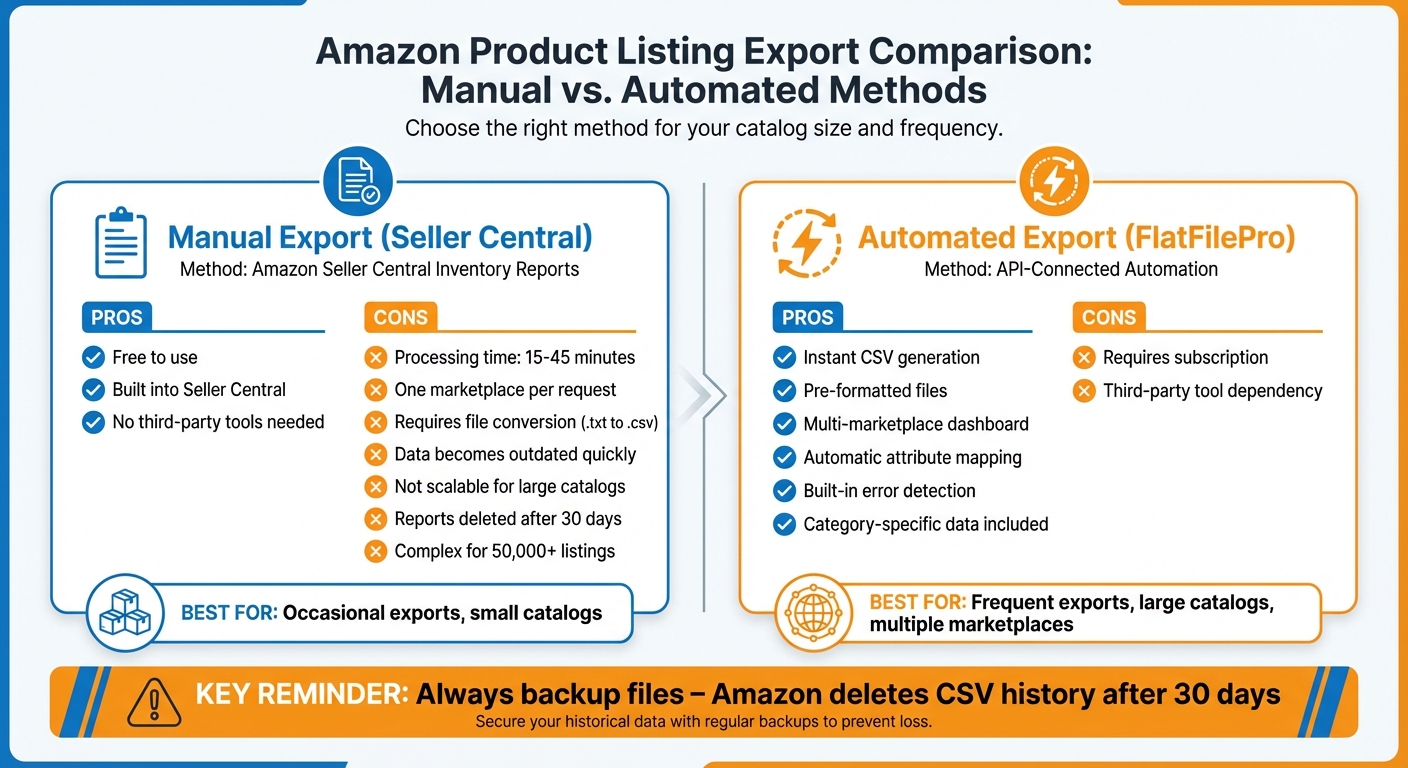
Manual vs Automated Amazon CSV Export Methods Comparison
Method 1: Download Listings Through Amazon Seller Central

Amazon Seller Central provides a straightforward way to export your product data through its Inventory Reports feature. This tool allows Professional sellers to generate downloadable files containing listing information. While it’s free and accessible, it does come with some challenges that can slow things down, especially for larger operations.
How to Use Inventory Reports
Start by logging into your Seller Central account and navigating to Inventory > Inventory Reports. From the drop-down menu, you can select the type of report you need. Here’s a quick breakdown:
- Active Listings Report: Includes only items currently available for purchase.
- All Listings Report: Covers active, inactive, and incomplete listings.
- Inventory Report (Custom): Lets you tailor the report by selecting specific attributes like SKU, ASIN, price, or quantity. To customize, click "Customize The Column for This Report", move the desired attributes to the left-hand list, and then click Save.
Once your preferences are set, click Request Report. Depending on the size of your catalog, it may take 15–45 minutes for the file to be generated. When the report status changes to Ready, click Download to save it. Keep in mind that these reports are provided as tab-delimited text files (.txt). To open them in Excel or Google Sheets, you’ll need to rename the file extension from .txt to .csv. Reports remain available for download for 30 days before they are automatically deleted.
Drawbacks of Manual Exports in Seller Central
While this method is handy for occasional exports, it has several limitations that can be frustrating for sellers with larger catalogs or frequent data needs:
- Processing Time: Generating reports can take anywhere from 15 to 45 minutes, which isn’t ideal if you need quick access to data.
- Marketplace Restrictions: Reports are limited to one marketplace per request, so sellers operating in multiple regions must repeat the process for each one.
- Outdated Data: Inventory numbers are updated continuously, meaning reports can become outdated almost immediately after they’re created. As Amazon Staff points out, frequent comparisons between orders and reports are necessary.
- Scalability Issues: Openbridge, a data integration platform, notes that manual downloads are not practical for scaling:
"This approach will convert inventory data to a spreadsheet but does not scale, as manual downloads quickly become cumbersome."
- Complexity for Large Catalogs: Sellers with over 50,000 listings are advised to use specific report types rather than the standard Active Listings Report, adding more steps to the process.
- Additional Steps for Certain Reports: Reports like the Category Listing Report require contacting Amazon Seller Support to enable reverse feeds.
The manual nature of this process, combined with the need for file conversions and the lack of automation, makes it less than ideal for sellers who require consistent and reliable access to their product data. For those managing large inventories or multiple marketplaces, exploring automated product listing tools might be a better fit.
sbb-itb-ed4fa17
Method 2: Automate CSV Exports with FlatFilePro

If waiting 20 minutes for a report to generate feels like a lifetime, automating the process can save you hours each week. FlatFilePro connects directly to your Amazon Seller Central account through Amazon’s API, cutting out manual steps and file conversion headaches. This automation eliminates delays and formatting issues, making your exports smoother and faster.
How to Set Up FlatFilePro
Setting up FlatFilePro is quick and straightforward. Once you sign up, you’ll link it to your Amazon Seller Central account through a secure API connection. After that, the tool takes over. It instantly pulls your listings and lets you choose the attributes you want in your CSV exports. Whether you need data like SKU, ASIN, price, or quantity, you can customize the export to fit your needs.
FlatFilePro also automates attribute mapping, so you won’t have to worry about missing fields or formatting errors [2]. Plus, you can manage data exports for multiple marketplaces from a single dashboard.
Why FlatFilePro Works Better for CSV Exports
FlatFilePro doesn’t just save time – it solves some of the most frustrating issues with Seller Central’s native reporting tools. For starters, it delivers CSV files almost instantly. Even better, the exported data is already formatted to meet Amazon’s upload requirements, sparing you from compatibility issues [3].
Another standout feature is its ability to provide detailed, category-specific data – something that usually requires reaching out to Amazon Seller Support to enable Category Listings reports [3]. The tool also detects missing attributes or errors before exporting, reducing the risk of leaving out crucial fields. This built-in error detection helps prevent listing suppression and ensures your data is clean and reliable every time [1].
How to Manage Your CSV Files
After exporting your product listings, keeping your files organized is crucial. Amazon retains your CSV history for only 30 days [4][5], so saving important files locally is a must. Without a proper system, you could lose vital data or accidentally upload outdated files. Here’s how to organize, verify, and back up your CSV exports effectively.
How to Organize and Name Your Files
A consistent naming system can save you time and prevent mix-ups. Use a format that includes the report type, date (in YYYY-MM-DD format), and Export ID. For instance, a file named "Active_Listings_2026-04-01_ID12345" clearly shows what the file contains, when it was created, and its Export ID for easy reference [4].
Store these files in a structured folder system, such as /Amazon_Exports/2026/April/. This keeps your files centralized and avoids the chaos of searching through a cluttered downloads folder [4][5].
How to Check Your Data for Errors
Before re-uploading a modified CSV file to Amazon, double-check for common flat file errors that could cause the import to fail. Here are some key things to watch for:
- Prices: Use numeric values without currency symbols (e.g., "17.99" instead of "$17.99").
- Product Titles: Ensure titles are under 250 characters.
- Mandatory Fields: Fields like SKU and Title must be filled out to avoid upload failures [4].
Amazon categorizes issues into two types: "Global errors" (e.g., incorrect file format) and "Inline errors" (e.g., missing or invalid values) [4]. After uploading, check the CSV history page for updates. If the status says "Has some errors", download the error log immediately. This log provides detailed, row-by-row instructions to fix issues without needing to redo the entire file [4].
How to Back Up and Track File Versions
Always save a backup copy of every CSV file you export or edit. Since Amazon deletes files from Seller Central after 30 days, your local archive becomes your only reliable record [4][5].
When uploading updated files, use the "Overwrite existing products" toggle with care. Leaving it unchecked ensures that only new items are added, while existing SKUs remain untouched, acting as a safeguard [4].
Each file in Amazon’s CSV history includes details like Import/Export ID, timestamp, and status (e.g., Complete, Failed, or Has Errors) [4]. These details are invaluable for tracking which catalog version was active at any given time. By maintaining backups and monitoring version history, you can ensure smooth and efficient management of your CSV exports from Amazon Seller Central.
Conclusion
Exporting your Amazon product listings to CSV files doesn’t have to be a hassle. You now know two methods: the manual approach via Amazon Seller Central’s Inventory Reports and the automated option with FlatFilePro. While Seller Central works for occasional exports, it can be slow and often requires extra file conversions. For example, accessing the detailed Category Listings Report involves additional steps, which can delay your access to critical catalog data [6][7].
FlatFilePro streamlines the process by connecting directly to Amazon’s API. This means no waiting, no manual file conversions, and instant access to properly formatted CSV files. For sellers managing hundreds or even thousands of listings, this automation can save hours every week – no need to file support tickets or deal with delays.
After choosing your export method, it’s just as important to focus on file management. As Francisco Valadez, VP of Brand Operations at My Amazon Guy, wisely advises:
"One wrong click can make or break your business – back up your Amazon catalog!" [6]
Set up an automated backup schedule, use clear file naming conventions (such as YYYY-MM-DD format), and always double-check your data before re-uploading. These small but essential habits can help you avoid costly mistakes caused by accidental deletions or system errors [6].
FAQs
Which Amazon report gives the most complete listing export?
The Category Listings Report offers a thorough way to export your Amazon listings, including those fulfilled directly by the seller. While the Active Listings Report – available in the Inventory Reports section of Amazon Seller Central – also allows you to export data, the Category Listings Report is particularly useful for obtaining detailed listing information. Both reports are accessible via Amazon Seller Central.
How do I export listings for multiple marketplaces at once?
To export listings across multiple marketplaces, start by logging into your Amazon Seller Central account. Navigate to the ‘Inventory Reports’ section and request the ‘Active Listings Report’ (or a comparable report). Once the report is processed and marked as ‘Ready’, download it in CSV format. Typically, this report will cover listings from all marketplaces connected to your account, provided you’re enrolled in international selling.
How can I keep my CSV exports in sync with real-time inventory?
To ensure your CSV exports reflect real-time inventory, it’s important to frequently update them with the latest data from Amazon Seller Central. A great tool for this is the Category Listings Report (CLR), which provides a detailed view of your current listings.
Here’s how you can do it:
- Navigate to Seller Central > Inventory > Inventory Reports.
- Choose the CLR or another relevant report and download it.
- Make it a habit to update your CSV files daily or weekly to stay aligned with inventory changes.
Regular updates will help you avoid discrepancies and keep your inventory data accurate.