
Exporting your Amazon product data as a CSV file is the key to managing inventory using Seller Central spreadsheets. Whether you’re updating prices, auditing listings, or planning bulk changes, CSV exports simplify the process and save time. Here’s what you need to know:
- Who can export? Only Professional Seller accounts ($39.99/month) have access to inventory reports.
- What data is included? Reports can cover SKUs, prices, stock levels, ASINs, and more.
- How to export? Use the "Inventory Reports" tool in Seller Central to request and download your data.
- File format: Exports are tab-delimited
.txtfiles, which can be renamed to.csv. - Custom fields: Focus on essential data like SKU, price, and Prime eligibility to keep file sizes manageable.
- Limits: Files can handle up to 15,000 products or 50MB of data.
How to Export Product Listings in Amazon Seller Central – Updated 2023

sbb-itb-ed4fa17
Preparing Your Amazon Seller Central Account for Export
Before diving into exports, you need to make sure your Amazon Seller Central account is ready. Keep in mind that only Professional Seller accounts can access inventory reports [5]. If you’re using an Individual account, these tools won’t be available. Once that’s confirmed, take a moment to review the details of Amazon inventory reports and ensure your account permissions meet the requirements for exporting.
What Are Amazon Inventory Reports?
Amazon inventory reports offer a snapshot of your product listings, capturing key details like SKUs, ASINs, pricing, stock levels, and listing status [6]. It’s important to note that these reports are not updated in real-time, so they can quickly become outdated as purchases are made.
When you generate a report, it typically takes 15–45 minutes to process. Once ready, the file is available for download in a tab-delimited .txt format, which works with tools like Excel or Google Sheets [6]. These files remain accessible in your account for 30 days, after which Amazon automatically deletes them [8].
There are several types of inventory reports, each designed for specific needs:
- Active Listings Report: Includes all products currently for sale, along with detailed descriptions and image URLs [4].
- Inventory Report: Focuses on pricing and stock quantity details [4].
- Suppressed Listings Report: Highlights blocked items and provides reasons for their suppression [4].
If your catalog exceeds 50,000 listings, you’ll need to stick to the standard Inventory Report, as the Active Listings Report won’t be an option [7].
Verifying Your Account Permissions
Even with a Professional account, having the right permissions is essential. To generate and download inventory reports, you must have roles like "Inventory and Order Tracking", "Pricing", and "Product Listing" assigned to your account [4]. Different reports may require additional permissions. For example:
- The Referral Fee Preview Report requires the "Finance and Accounting" role.
- The Suppressed Listings Report only needs "Product Listing" access [4].
To check your permissions, log into Seller Central and head to the Inventory tab. If you see the "Inventory Reports" option in the menu, your permissions are properly configured [6]. If it’s missing, you’ll need to ask the primary account holder to grant you "View and Edit" permissions for Inventory Reports. Without these permissions, you won’t be able to request or download product data.
Step-by-Step Guide to Downloading Product Data
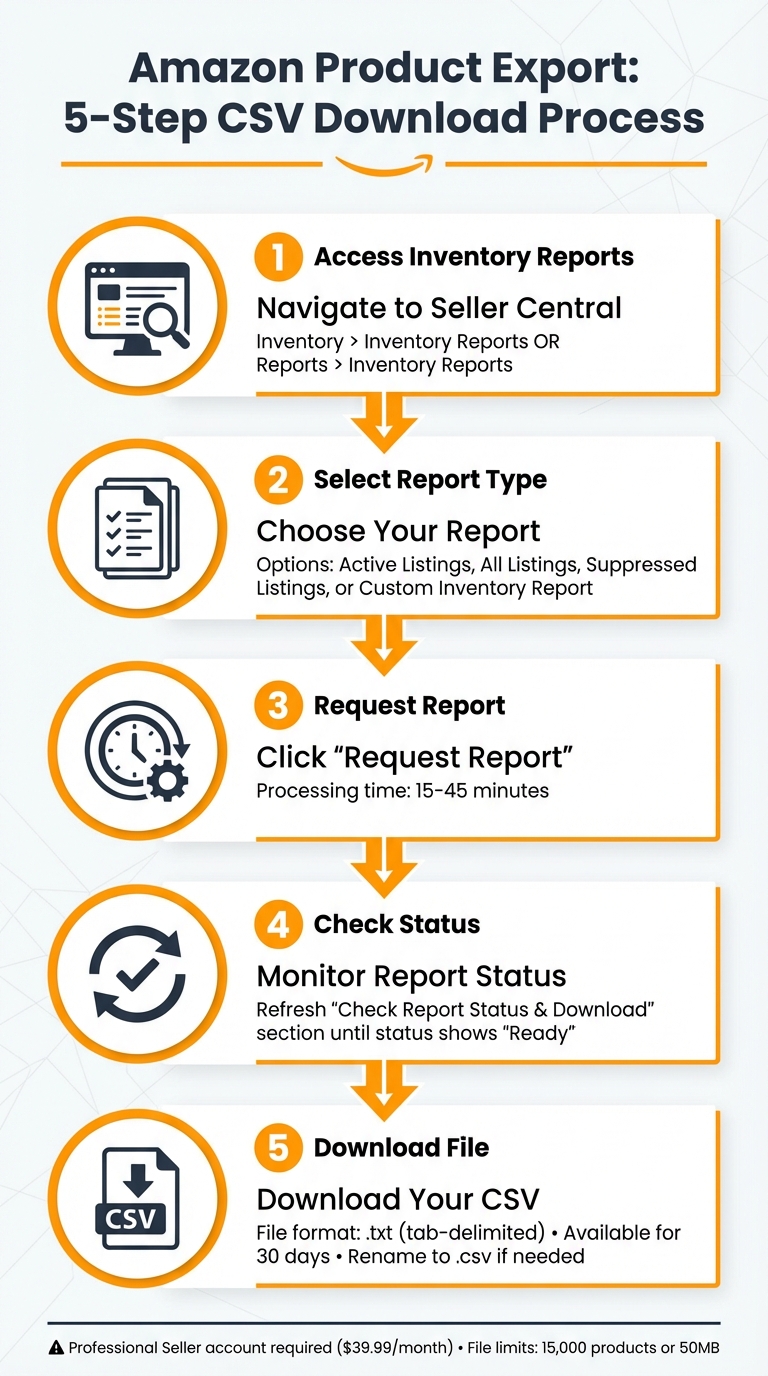
How to Export Amazon Product Data as CSV: 5-Step Process
Accessing the Inventory Reports Tool
To get started, head over to Seller Central. From the menu, navigate to Inventory > Inventory Reports, or alternatively, go to Reports > Inventory Reports from the top menu.
Selecting the Right Report Type
The type of report you choose determines the kind of data you’ll export. Here are the options:
- Active Listings Report: Focuses on products currently live.
- All Listings Report: Provides a full backup, including inactive items.
- Suppressed Listings Report: Displays blocked or flagged items.
- Custom Inventory Report: Lets you customize the export to include specific fields like SKU, ASIN, price, or quantity.
Creating and Downloading the CSV File
Once you’ve chosen your report type from the dropdown menu, click Request Report to start the process. Generating the report usually takes between 15 and 45 minutes [8].
To download your file, refresh the "Check Report Status & Download" section periodically. When the status shows as Ready, click Download. The file will be in a tab-delimited .txt format, but you can rename it to .csv if needed. Keep in mind, the report will remain available for download for 30 days [8].
Before exporting, you can also fine-tune your settings to include only the data fields essential for managing your catalog.
Adjusting Your Export Settings
Fine-tuning your data fields and file format is key to ensuring seamless catalog updates and avoiding errors during bulk inventory re-imports.
Selecting Product Data Fields
Amazon allows you to customize which product attributes appear in your export using the Inventory Report (Custom) feature. This helps you focus on the data you actually need while keeping things simple.
To adjust the columns in your export, navigate to Inventory > Inventory Reports in Seller Central. From the dropdown menu, select Inventory Report (Custom) and click Customize The Column for This Report. This will open the customization interface, where you’ll see two lists: Available and Included. Move the fields you need from the Available list to the Included list and save your settings [3].
For basic bulk management, these fields are essential: SKU (your primary product identifier), Title, Price, Amazon_SKU (Amazon’s ASIN), and Fulfilled By (your fulfillment method). If you’re managing products with variations like size or color, include Variation Option and Variation Option Value to track each variant accurately [2]. For products eligible for Buy with Prime, add the Offer Prime field to manage Prime eligibility across your catalog [2].
Keep in mind, custom inventory reports are only available to Professional Seller accounts [1].
Once you’ve selected your fields, ensure your CSV data aligns with US formatting standards for smooth re-imports.
Formatting Data for US Standards
After finalizing your data fields, format your export to adhere to US standards. One critical rule for prices: do not include the dollar sign. Enter prices as plain numbers, such as 3.99 or 17, rather than "$3.99" [2]. Amazon’s system only accepts numeric values for prices, and including a currency symbol will trigger import errors.
Use periods as decimal points. For example, $1,299.99 should be entered as 1299.99 [2]. For dates, open your exported file in Excel or OpenOffice Calc and apply the MM/DD/YYYY format to the date columns [1]. After making these adjustments, save the file as a CSV using the "Save As" function.
For image URLs and product links, ensure all entries use the https:// protocol and end with a valid file extension like .jpg, .png, or .gif [2]. Pay attention to character limits as well: product titles should not exceed 250 characters, and SKUs can be up to 255 characters [2]. These formatting steps help streamline data updates, analysis, and re-imports down the line.
Fixing Common Export Problems
Even with the right export settings in place, issues can still pop up. Amazon’s export system tends to run into two main types of errors: downloads that fail completely and catalogs that surpass system limits.
Fixing Failed or Incomplete Downloads
If an export you requested is missing, start by checking the CSV history page in your merchant console. This page logs the status of all exports from the past 30 days and can help identify where things went wrong [2].
Amazon categorizes export statuses as Complete, Failed, or Has some errors. These labels indicate whether all data was exported, none was generated, or certain rows encountered issues [2].
For exports marked as Failed, make a note of the Export ID from the history page before reaching out to Merchant Support. This ID is crucial for diagnosing the problem [2].
If the export status is Has some errors, download the file from the history page and open it in a spreadsheet application. Use the filter option on the status column to locate the failed rows, and review the troubleshooting tips provided for each issue [2].
Large catalogs may require extra patience. According to Amazon Buy with Prime, "If you have a large catalog, it can take 5-10 minutes to generate the CSV file. Refresh the page after 10 minutes to check for the success message" [2]. Avoid requesting a new export during this time, as it will reset the queue and delay the process further.
Managing Large Product Catalogs
For catalogs with thousands of products, Amazon enforces limits: 15,000 products or 50MB of data, whichever comes first [2]. If your catalog exceeds these thresholds, you’ll need to adjust your strategy.
One effective option is to use the Inventory Report (Custom) feature. Instead of exporting all fields, select only the columns you need – such as SKU, Title, Price, and Fulfillment Method. This reduces the file size and helps you stay within the 50MB limit [3].
For bulk updates, you don’t have to export or re-upload your entire catalog. Focus on exporting just the SKU column (your product identifier) along with the specific fields you want to modify. This targeted approach works well for catalogs of any size [2].
If generating the file takes longer than 10 minutes, refresh the page rather than submitting a new request. Also, double-check that you’ve selected the correct marketplace in Seller Central. Choosing the wrong marketplace can result in a "No data available" message, wasting valuable time [9].
When saving large files for re-upload, opt for Text (Tab-delimited) or Tab-separated values formats. These formats are more reliable for handling large datasets and comply with Amazon’s inventory loader requirements [9].
Working with Your Exported CSV Files
Once you’ve adjusted your export settings, it’s crucial to double-check your CSV file for any errors to ensure smooth bulk management.
Checking Your Data for Errors
Start by opening your CSV file in either Excel or Google Sheets and reviewing its structure carefully [1]. Each row should have a unique SKU to ensure proper matching [2]. As noted in the formatting section, confirm that:
- Prices are displayed as decimals (e.g., 19.99) without any currency symbols.
- Key fields adhere to Amazon’s limits: SKUs must be under 255 characters, Titles under 250 characters, and image URLs should begin with "https://" and use approved file extensions [2].
For larger catalogs, consider generating a Custom Inventory Report in Seller Central. This report helps you focus on essential attributes like ASIN, SKU, price, and inventory levels [3]. If you encounter issues during the export process, revisit the troubleshooting steps outlined in "Fixing Common Export Problems."
Once you’re confident your CSV file is accurate, you can move on to managing your Amazon product management updates efficiently.
Managing Bulk Updates with FlatFilePro

Editing CSV files manually may work for smaller updates, but when you’re dealing with hundreds or even thousands of listings, it can quickly become overwhelming. This is where FlatFilePro can make your life easier. By connecting directly to your Seller Central account, it imports all your product data into a single, centralized dashboard, allowing you to update listings – whether individually or in bulk – with ease.
FlatFilePro’s Reflection Engine is particularly helpful, as it scans your listings every night. It flags discrepancies between your data and Amazon’s live listings with green checkmarks for matches and red X’s for issues. For bulk updates, the platform’s drag-and-drop Variations Manager is a game-changer. It lets you reorganize child products under parent ASINs, fix broken variation families, and even create new variation groups in just a few minutes.
Additionally, FlatFilePro uses AI-powered error detection to identify missing fields, compliance problems, and even SEO opportunities before you submit your updates. Instead of relying on traditional flat file uploads, the platform pushes updates directly through Amazon’s API, which speeds up processing – often up to 10 times faster. Plus, the Activity Log keeps track of every change, giving you the option to roll back if something goes wrong.
Conclusion
Exporting your Amazon product data as a CSV file gives you control over your catalog. Whether you’re updating prices for hundreds of SKUs, auditing inventory, or preparing to expand into new marketplaces, the steps in this guide provide a solid framework for managing your data efficiently. To keep your catalog accurate and up-to-date, consider downloading CSV exports at least once a month [11].
While manual editing works for smaller catalogs, handling larger inventories can be a challenge. That’s where tools like FlatFilePro come in. With its centralized dashboard and direct integration with Amazon’s API, FlatFilePro simplifies the process. Its Reflection Engine checks your listings nightly, flagging any discrepancies so you can address unauthorized changes before they affect your sales.
FlatFilePro not only streamlines bulk editing but also uses AI-powered error detection to reduce repetitive tasks. The platform’s Activity Log tracks every update, offering rollback options to maintain compliance and accuracy across your entire catalog.
By combining regular CSV exports with automated management tools, you can create a workflow that saves time and supports growth. This approach allows you to focus on data-driven strategies, which, as Shane Barker [12] points out, are key to succeeding in Amazon’s competitive marketplace. Your exported data becomes the foundation for smarter decisions, while tools like FlatFilePro make those updates faster and more reliable.
Since 2015, Amazon has supported over 200,000 registered exporters, driving growth in ecommerce exports [10]. By mastering the export process and leveraging the right tools, you can transform your catalog data into actionable insights that drive sales and strengthen your brand.
FAQs
Which report should I export for price and stock updates?
To keep your prices and stock levels current, start by exporting the Inventory Report from Amazon Seller Central. Simply go to the Reports section, click on Inventory Reports, select your desired report type, and request the file.
If you need to handle bulk updates, the Amazon Inventory and Price Update SP-API is a great tool. It allows for quick and efficient adjustments to both inventory and pricing through API integration.
Why does my export say “No data available” or “Failed”?
Sometimes, this message pops up because of things like choosing the wrong report type, leaving data fields blank, or temporary hiccups in Amazon Seller Central. Double-check that you’ve selected the right report type and filled in all necessary data fields. If the problem continues, it might be due to server or connectivity issues. Give it some time and try exporting again later.
How do I keep Excel from breaking SKUs, prices, or dates?
When working with CSV files in Excel, use the "Import" feature to avoid common issues with SKUs, prices, or dates being misinterpreted. During the import process, set SKUs and prices to Text format and ensure dates are assigned the appropriate date format. Also, take time to clean up your data by removing any leading or trailing spaces, special characters, or encoding problems. This will help maintain the accuracy of your data.