
Managing Amazon product images can be a headache, especially for large catalogs. High-quality images are crucial for better sales, trust, and visibility on Amazon. But extracting or managing image URLs manually can be tedious and error-prone. This guide explains how to efficiently handle Amazon image URLs, whether you’re working with a small inventory or thousands of SKUs.
Key takeaways:
- Amazon requires images to be at least 1,000 x 1,000 pixels to enable zoom.
- Manual methods (browser tools, Seller Central) are fine for small catalogs but time-consuming for larger ones.
- Flat files help extract image URLs in bulk, but starting July 31, 2025, Amazon will require Listings Items API for updates.
- Tools like FlatFilePro automate catalog management, saving time and reducing errors.
If you’re struggling with bulk image URL management, automation is the way forward. Read on for actionable tips and tools to streamline your process.
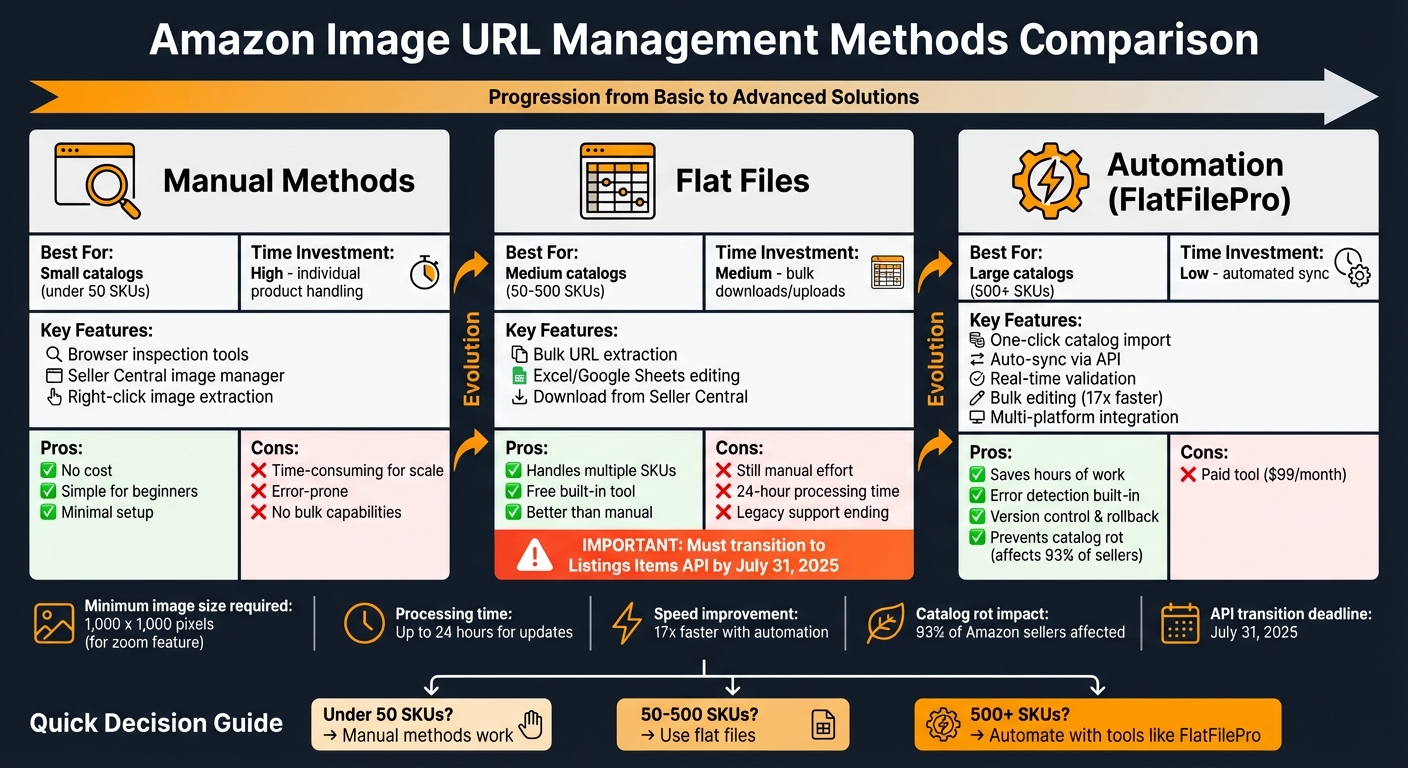
Amazon Image URL Management Methods Comparison: Manual vs Flat Files vs Automation
How to Create Amazon Image URL for Flat Files Quickly
Manual Methods: How to Extract Image URLs from Amazon Listings
If you’re working with a small catalog, manual methods can be a simple way to extract image URLs from Amazon listings. These approaches rely on browser tools or Seller Central access and require minimal resources – just a web browser and, if applicable, access to your Seller Central account. While these methods are straightforward, they can be time-intensive if you’re dealing with a large inventory.
Using Browser Inspection Tools
A quick way to extract image URLs is by using your browser’s developer tools to inspect the product page. Every Amazon product page contains hosted images embedded within its HTML code, which you can access with a few clicks.
Here’s how to do it:
- Open the product page in your browser.
- Right-click the main image and select Inspect to open the developer console.
- In the Elements tab, locate the
<img>tag for the image. Thesrcattribute contains the image’s URL, which typically looks like this:
https://m.media-amazon.com/images/I/61abc123L._AC_SL1500_.jpg.
Amazon uses suffixes in the URL to dynamically adjust image dimensions. If you want the original high-resolution image, simply remove the suffix between the last underscore and the file extension. For example, the adjusted URL:
https://m.media-amazon.com/images/I/61abc123L._AC_SL1500_.jpg
becomes:
https://m.media-amazon.com/images/I/61abc123L.jpg.
Here’s a quick guide to understanding the suffixes Amazon uses:
| Suffix | Effect |
|---|---|
._SX160_ |
Sets the width to 160 pixels; height adjusts proportionally. |
._SY160_ |
Sets the height to 160 pixels; width adjusts proportionally. |
._SL160_ |
Limits the longest side to 160 pixels; the other side adjusts proportionally. |
._SS160_ |
Creates a 160×160 square by adding white borders to fill the space. |
Finding Image Data in Seller Central
For sellers with access to Amazon Seller Central, the platform provides a more direct way to retrieve image URLs:
- Go to Inventory > Manage All Inventory in the main menu.
- Find the product listing you need and click the drop-down menu on the right-hand side.
- Select Manage images to view all images associated with the product.
In the Images tab, you’ll see the main image along with any secondary images. To extract an image URL, right-click the preview image and select Copy Image Address. This will give you the direct link to the Amazon-hosted image.
Keep in mind that any newly uploaded or updated images might take up to 24 hours to appear on the platform [2][6].
Using Flat Files to Extract Image URLs
For sellers managing smaller inventories, manually pulling image URLs might suffice. But when dealing with a large product catalog, flat files can make the process far more efficient. These files, available through Amazon Seller Central, are essentially spreadsheets that organize your product data, including image URLs. By downloading and working with these files, you can extract image data in bulk and update multiple listings at once. This method complements manual extraction by saving time and reducing effort for larger inventories.
"Flat files eliminate manual data entry by allowing sellers to upload product information in bulk, thereby streamlining the listing process, improving accuracy, and reducing the risk of errors." – FlatFilePro [5]
How to Extract Image URLs from Flat Files
To get started, download your current inventory data from Seller Central:
- Navigate to Inventory > Add Products via Upload > Download an Inventory File and choose the appropriate template for your product category.
- Alternatively, use the Active Listings Report under the Reports tab, which provides a complete overview of your active listings.
The downloaded file will be in .txt format. Open it in Excel or Google Sheets, and look for columns such as main_image_url, other_image_url1, other_image_url2, and so on. These columns contain the direct URLs to your product images hosted on Amazon’s servers. A typical URL might look like this: https://m.media-amazon.com/images/I/71example123._SL1500_.jpg.
Preparing URLs for Bulk Updates
Once you’ve extracted the image URLs, you’ll need to format them correctly for bulk uploads. If you’re planning to upload new images, Amazon requires that the URLs be direct and publicly accessible.
One common solution is to use Google Drive for hosting high-resolution images. It’s free, reliable, and widely used. However, the default sharing links from Google Drive need to be converted into direct download URLs for Amazon’s system. To do this, use the following Excel or Google Sheets formula:
=CONCATENATE("https://drive.google.com/uc?export=view&id=", MID(A2, 33, 33))
Here, A2 refers to the cell containing the original Google Drive sharing link. Don’t forget to set your Google Drive folder to "Anyone with the link can view" to ensure Amazon can access the images [1].
When you’re ready to upload the updated flat file, save it as a .txt (Tab delimited) file. Use the Partial Update option in the "Update Delete" column to ensure that only the image URLs are updated, leaving other product details like descriptions and prices untouched. Keep in mind that Amazon’s system may take up to 24 hours to process and reflect your changes [1][2].
sbb-itb-ed4fa17
Automating Image URL Extraction with FlatFilePro

FlatFilePro takes the hassle out of managing bulk image URLs by automating the process, making it ideal for sellers juggling hundreds or even thousands of SKUs. By connecting directly to your Amazon Seller Central account via API, FlatFilePro pulls your entire catalog – including image URLs – into a centralized dashboard. This integration not only simplifies catalog management but also ensures real-time updates for seamless operations.
FlatFilePro Features for Image Management
With FlatFilePro, manual flat file transfers become a thing of the past. The auto-sync feature imports all your active listings as soon as you link your Amazon account. To get started, head to the "Products" tab, select "Import Listings", and enable auto-sync to retrieve your catalog data in just minutes [5].
The field mapping tool aligns your product data with Amazon’s flat file headers, such as main_image_url and additional image fields. Meanwhile, built-in validation tools pre-check image URLs to catch formatting errors, preventing potential listing rejections [5].
FlatFilePro’s Reflection Engine keeps an eye on your catalog, flagging unexpected URL changes or broken variations in real time. This proactive monitoring ensures you’re alerted to external disruptions before they impact your listings [8].
"This is the tool that powers our ops and analytics teams. We used to do everything manually. Now we don’t have to think about anything, and our listings update like magic!" – Jack Haldrup, founder of Dr. Squatch [8]
These features save time and reduce errors, making FlatFilePro a game-changer for high-volume sellers.
How Automation Helps Sellers with Large Catalogs
Managing large inventories across multiple platforms can be overwhelming, but FlatFilePro simplifies the process. Its bulk editing capabilities allow sellers to update image URLs for thousands of listings at once – up to 17 times faster than traditional spreadsheet methods [7][8].
The platform also supports multi-platform integration, keeping your product visuals consistent across Amazon, Shopify, and WooCommerce. If you’re selling in different regions, you can effortlessly push optimized image content from one marketplace to another, ensuring global consistency [5][8].
"Catalog rot" – where listing changes disappear or variations break – is a common issue, affecting 93% of Amazon sellers [8]. FlatFilePro’s automated validation tools catch these problems early, while the one-click rollback feature lets you instantly restore previous versions if something goes wrong [8].
"FlatFilePro ensures that your data is consistent and accurate across all your product listings, helping to provide a seamless shopping experience for your customers." – FlatFilePro [5]
Once your image URLs are updated in the dashboard, you can export the data as a CSV, TXT, or Excel file for upload to Seller Central. Alternatively, you can push changes directly via API for faster processing. This automation also ensures compliance with Amazon’s image requirements, including the upcoming transition to the Listings Items API and JSON_LISTINGS_FEED on July 31, 2025 [5].
Best Practices for Managing Image URLs
Keeping Image URLs Functional
Maintaining functional image URLs is critical for ensuring your product listings remain intact and appealing. Broken image links can hurt your sales significantly. If you’re hosting images externally, such as on Google Drive, never delete the source file after uploading it to Amazon. Doing so will immediately break the link on your product listing, leaving your page incomplete and unappealing [1]. Amazon’s system may need to re-crawl the image files, and if the source is missing, the product page will suffer.
To avoid access errors during Amazon’s scraping process, keep the source files intact and set permissions to "Anyone with the link can view" [1].
It’s also worth noting that Amazon discontinued support for legacy XML and flat file listing feeds as of July 31, 2025 [3]. If you’re still relying on these outdated methods, transition to the Listings Items API and JSON_LISTINGS_FEED without delay to avoid fatal errors when updating images [3]. Keep in mind that image updates may take up to 24 hours to process, so don’t worry if changes aren’t visible immediately [1].
Once your URLs are stable, organizing them effectively can help streamline bulk updates and management.
Organizing Image Data for Easy Access
A well-structured approach to image data can save time and reduce errors when making updates. Amazon’s dynamic sizing system offers a practical way to manage multiple image sizes without storing separate URLs for each variation. Instead, save the base URL and use sizing suffixes like ._SL160_ for the longest side set to 160 pixels, ._SX160_ for a fixed width, or ._SS160_ for square images with white padding [4]. This method keeps your spreadsheets tidy and adaptable for different display requirements.
When organizing your image data, use spreadsheets with clear headers that align with Amazon’s standards. For example: main_image_url, other_image_url_1 through other_image_url_8, and swatch_image_url [3]. If you’re managing images across multiple marketplaces, create separate tabs for each region while maintaining consistent naming conventions. Sellers using Google Drive can automate URL conversion with this formula: =CONCATENATE("https://drive.google.com/uc?export=view&id=", MID(A2, 33, 33)) [1]. This reduces manual input errors during bulk uploads.
Lastly, ensure your image files are under 10MB in size for smoother processing [1].
Conclusion
Handling high-resolution image URLs doesn’t have to be a hassle or slow down your operations. The key is ensuring your image links remain functional, high-quality, and capable of keeping your listings both competitive and compliant.
For businesses managing larger catalogs, manual processes can quickly become overwhelming. That’s where FlatFilePro steps in to completely change the game. With its one-click sync feature, you can import your entire Amazon catalog – complete with all your existing image URLs – into a centralized dashboard. Need to make updates? Bulk editing lets you revise listings in just minutes instead of hours.
FlatFilePro goes beyond just saving time. Its auto-sync and error detection tools are designed to catch broken links and formatting problems before updates go live. This proactive approach helps combat the "catalog rot" that impacts 93% of Amazon sellers [8]. Ian Sells, Founder of Million Dollar Sellers, puts it best:
"With FlatFilePro, I’ve been able to streamline my Amazon listing process significantly. What used to take hours now takes just minutes. It’s a game-changer for my business." [8]
But it’s not just about speed. Features like version control, one-click rollback, and role-based access make managing your catalog more secure and efficient. Role-based access, for example, ensures only authorized team members can edit image content. Plus, FlatFilePro makes it easy to sync image data across multiple marketplaces – from the US to the UK – with just a few clicks.
Want to see it in action? Try FlatFilePro risk-free with a 2-week trial. Subscriptions start at $99/month and come with a 100% refund guarantee. When managing images becomes this seamless, you can focus on scaling your business instead of wrestling with logistics.
FAQs
How can I quickly and efficiently extract high-resolution Amazon image URLs for a large product catalog?
If you’re managing a large product catalog, automating the extraction of high-resolution Amazon image URLs can make your life much easier. Tools like the Amazon Product Advertising API or bulk export features are perfect for this task. Here’s how you can do it:
Start by preparing a list of ASINs (Amazon Standard Identification Numbers) from your catalog, ideally in a CSV file. Once that’s ready, use a script or an automated tool to retrieve image URLs for each ASIN in batches. The Amazon API, for instance, lets you fetch image links in various sizes – small, medium, and large – along with their dimensions.
After gathering the URLs, save them in a master file that aligns with your original catalog. This file can then be used to update your product listings or streamline inventory management. Automating this process not only saves time but also ensures your product images are always current and high-quality.
What makes FlatFilePro the best tool for managing Amazon image URLs?
FlatFilePro takes the hassle out of managing Amazon image URLs by automating repetitive tasks and minimizing the risk of manual mistakes. Instead of painstakingly updating listings one at a time, you can create and edit high-resolution image URLs in bulk, saving both time and energy. The platform pulls image data straight from Amazon’s catalog or flat-file templates, ensuring everything stays accurate and streamlined.
To keep your listings in line with Amazon’s quality standards, FlatFilePro includes built-in validation tools. These tools check your image URLs for broken links or compliance issues, so you can avoid disruptions to your listings. With error-checking features, it ensures consistency across thousands of SKUs, eliminating typos and mismatched links.
On top of that, FlatFilePro offers a centralized, searchable dashboard for managing your image URLs. This all-in-one system makes it easy to update, replace, or audit images across multiple marketplaces, keeping your listings organized and compliant with Amazon’s requirements.
How can I make sure my Amazon image URLs work properly and meet compliance standards?
To keep your Amazon image URLs working correctly and in line with Amazon’s guidelines, rely on Amazon’s official APIs, like PA‑API 5.0. These tools generate accurate image links, complete with the proper size suffix (such as _SLXXX_) and dimensions that meet Amazon’s standards.
It’s also a good idea to routinely check that your image URLs are still valid and comply with Amazon’s size, format, and quality rules. Staying on top of this ensures your product listings look professional and reduces the risk of running into compliance problems.