
Amazon product image URLs are direct links to photos hosted on Amazon‘s servers. These URLs are essential for sellers managing catalogs, as they simplify bulk updates and ensure consistent image quality across platforms. You can extract these URLs using browser tools like right-click copy or developer tools, and they often include resizing options (_SL160_) for dynamic dimensions.
For bulk management, Amazon Seller Central allows image URL uploads via inventory file templates, streamlining updates for large catalogs. Tools like FlatFilePro further enhance this process by integrating directly with Amazon, enabling bulk URL imports, error detection, and monitoring for discrepancies.
Key points:
- Right-click or Inspect Element to copy image URLs.
- Use Amazon Seller Central templates for bulk uploads.
- Ensure URLs meet Amazon’s strict image standards (e.g., 1,000px resolution, pure white background).
- Tools like FlatFilePro simplify bulk updates and error handling.
Following these steps ensures your images meet Amazon’s requirements, maintaining visibility and quality on product listings.
Amazon Product Image URLs Without API
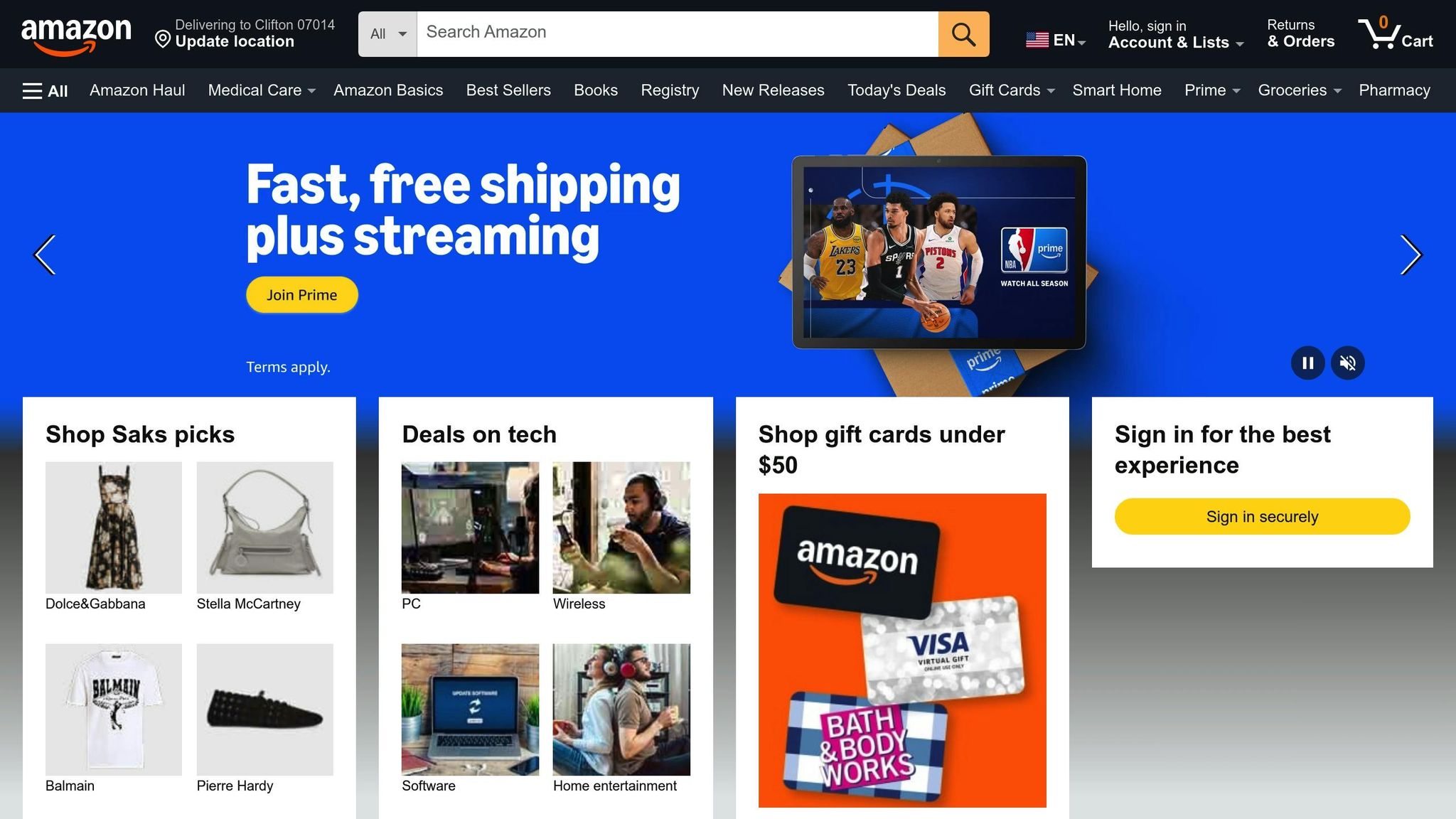
How to Get Image URLs from Amazon Product Pages
Getting image URLs from Amazon product pages is easier than you might think, especially if you use the right tools in your browser. Whether you prefer a quick right-click method or diving into the developer tools, these techniques will help you access the direct image links hosted on Amazon’s servers.
Right-Click and Copy Image Address
For a quick and simple approach, most browsers like Chrome, Firefox, Safari, and Opera let you right-click on the product image and select "Copy Image Link". In Microsoft Edge, this option is labeled "Copy image link". Be sure not to choose "Copy picture", as that won’t give you the URL – just the image file itself.
Once you’ve copied the URL, paste it into a new browser tab to check if it works. A valid URL should display only the image and usually ends with a file type like .jpg. If you’re using Safari and the "Copy" option doesn’t appear, try opening the image in a new window and copying the URL from the address bar. If this method doesn’t meet your needs, you can switch to using developer tools for more precision.
Use Browser Developer Tools
When the right-click method isn’t enough or isn’t available, browser developer tools can help. Start by right-clicking on the product image and selecting "Inspect" or "Inspect Element". This will open the HTML panel, where the relevant code for the image is highlighted. Look for the <img> tag and find the src attribute – this contains the direct image URL within quotation marks.
To copy the URL, simply highlight it and use Ctrl+C (Windows) or Command+C (Mac). Depending on your browser, this panel may be labeled as "Elements" or "Inspector".
Test Your URLs
Before using the image URL in your work, make sure it functions properly. Paste it into a new or incognito browser tab to confirm it loads the image. Sometimes, the URL might point to a smaller thumbnail instead of a high-resolution version.
"Amazon product image URL is subject to change, especially if the product listing is updated or modified." – Your eCom Agent
If the URL includes resizing strings like ._SL160_ before the .jpg extension, removing those strings can often lead to the original, higher-quality image. For the most reliable results, look for URLs tied to Amazon’s content delivery network, as these typically include unique filenames rather than just the product’s ASIN.
How to Generate Image Links in Amazon Seller Central

Managing image URLs in bulk can streamline your catalog optimization efforts, especially if you’re a Professional seller handling numerous listings. Amazon Seller Central provides inventory file templates to help you upload images and generate direct URLs efficiently. This approach is particularly useful when managing over 100 products at once [7].
Download and Set Up Category Templates
To get started, head to Catalog > Add Products > Spreadsheet > Download a blank template in Seller Central. Use the search tool or category browser to locate the template for your specific product type. This ensures the downloaded template contains the right attributes for your category [9]. After downloading the Excel file, switch to the Advanced view (icon labeled ‘2’ in the top-left corner) to access additional attributes. This step reveals optional attribute groups, including columns for secondary image URLs, which are essential for uploading multiple product photos [9].
Category-specific Style Guides are also available to help you understand the required and optional image attributes for your product type [8]. These guides are invaluable for ensuring your images meet Amazon’s standards.
Upload Images Through Seller Central
Once your category template is ready, you can upload your images using one of two methods. If your images are already hosted online, simply add their URLs to the designated columns in the inventory file template [4][6]. Alternatively, if the images are stored on your computer, navigate to Catalog > Upload images and use the Bulk image upload tab. Here, you can drag and drop images or upload them as zip files [6].
Make sure your image file names follow Amazon’s required format: Product Identifier + Variant Code + File Extension (e.g., B000123456.MAIN.jpg). Avoid using spaces, dashes, or special characters in file names, as these can prevent successful uploads [10]. Once submitted, images may take up to 24 hours to appear on product detail pages or in search results [4][6].
Copy and Save Your Image URLs
After uploading your images, it’s important to verify and save the generated URLs for future use. To do this, go to Add Products > Spreadsheet > Check Upload Status in Seller Central. Download the Processing Summary to review your submission and identify any errors [9]. If you encounter issues such as "Invalid URL format (error 15)", search for "image error" in the Seller Central help bar for troubleshooting guidance [4][6].
For products already listed, you can retrieve image URLs by navigating to Manage All Inventory under the Inventory menu. Select Manage images for the desired product to view and copy its image URLs [6]. These URLs, typically ending in .jpeg, can be stored for integration with other tools or workflows. Keep in mind that uploading an image doesn’t guarantee it will display on the product detail page – Amazon’s algorithms decide which images appear [4][6].
sbb-itb-ed4fa17
How to Add Image URLs to FlatFilePro

FlatFilePro makes catalog updates simpler by allowing you to import image URLs directly into the platform. Once you’ve gathered and verified your image URLs, you can use FlatFilePro to update your Amazon listings in bulk. The platform integrates seamlessly with your Amazon Seller Central account, letting you pull in all your listings with just one click – no need for manual uploads or spreadsheets [11].
Import URLs with FlatFilePro’s Bulk Editing Dashboard
FlatFilePro’s dashboard lets you sync your Amazon listings effortlessly. After syncing, select the SKUs that need updated image URLs – whether it’s a handful of products or thousands. Paste the URLs into the appropriate fields and hit Save. The updates are pushed to Amazon via API, and changes typically reflect on live listings within about 15 minutes [12].
If you’re importing URLs from external sources like Google Drive, make sure to convert them into direct download links (e.g., https://drive.google.com/uc?export=view&id=FILE_ID) [3]. Standard cloud-sharing links won’t work because Amazon requires direct, publicly accessible image URLs. To minimize errors, FlatFilePro also supports role-based permissions, so you can limit image editing access to your design team, reducing the likelihood of accidental mistakes [11].
Track Changes with the Reflection Engine
FlatFilePro’s Reflection Engine keeps an eye on your catalog to ensure that your image URL updates are successfully applied and remain intact on Amazon [11]. This tool helps prevent issues like updates failing or disappearing unexpectedly.
Each night, the Reflection Engine reviews your listings. Successful updates are marked with green checkmarks, while red X’s highlight problems that need attention [11]. If Amazon rejects an image URL or if unauthorized changes occur, you’ll receive alerts through the dashboard. This automated monitoring saves you from having to manually check Amazon Seller Central for updates, ensuring your listings stay consistent between platforms.
Find and Fix Image Errors with FlatFilePro
FlatFilePro also helps you catch and resolve common image issues. The platform’s error detection tools flag problems like invalid URL formats or broken links, organizing them by category so you can address them quickly [3]. If an image URL doesn’t meet Amazon’s requirements, the dashboard will alert you immediately [3].
For added peace of mind, FlatFilePro includes version control with one-click rollback functionality. If a bulk update causes issues, you can revert to a previous version in seconds, avoiding lengthy support requests to Amazon [11]. This feature is especially useful for large catalogs, helping you maintain smooth operations even during complex updates.
Best Practices for Amazon Image URLs
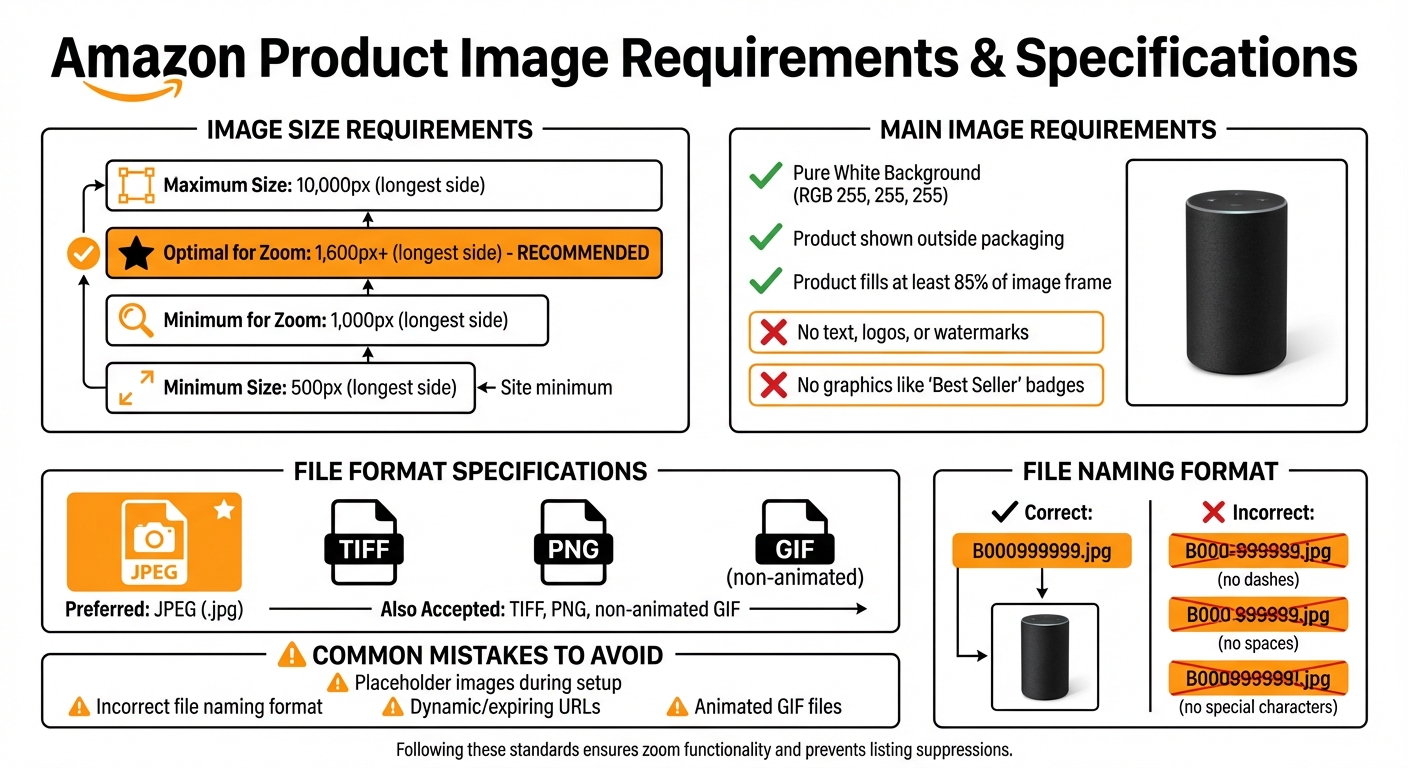
Amazon Product Image Requirements and Specifications Guide
To ensure your image URLs consistently meet Amazon’s strict standards, it’s crucial to follow best practices. Properly formatted image URLs prevent listing suppressions and help avoid customer complaints. Plus, they ensure your products are displayed as intended.
Meet Amazon’s Image Requirements
Amazon sets specific standards for product images. At a minimum, images should be 500 pixels on the longest side, but that won’t cut it if you want to enable the zoom feature. For zoom, your images need to be 1,000 pixels or larger, and for the best results, aim for 1,600 pixels or more. Amazon allows a maximum size of 10,000 pixels [5][13].
Your MAIN image must adhere to these rules:
- Use a pure white background (RGB 255, 255, 255).
- Show the product outside of its packaging.
- Ensure the product fills at least 85% of the image frame.
- Avoid any text, logos, watermarks, or graphics like "Best Seller" badges – Amazon won’t accept these [5][13].
"The optimal zoom experience for detail pages requires files to be 1600px or larger on the longest side." – Brian Connolly, Ecommerce Expert, Jungle Scout [5]
For file formats, JPEG (.jpg) is the preferred option, although Amazon also supports TIFF, PNG, and non-animated GIF files [5][13]. When naming your files, use the product identifier followed by the file extension (e.g., B000999999.jpg). Avoid spaces, dashes, or special characters in the file name.
"Do not use spaces, dashes, or other special characters in your file name, or else your image will not display." – Kai Maranon, Visual Artist and Writer, Helium 10 [13]
| Requirement | Specification |
|---|---|
| Minimum Size | 500px (site minimum) |
| Minimum for Zoom | 1,000px |
| Optimal for Zoom | 1,600px+ |
| Maximum Size | 10,000px |
| Preferred Format | JPEG (.jpg) |
| MAIN Background | Pure White (RGB 255, 255, 255) |
| Product Coverage | At least 85% of the frame |
By following these guidelines, you can create high-quality, compliant listings that enhance product visibility on Amazon.
Test Your URLs Before Using Them
Before uploading, test your image URLs by loading them in a browser. If a URL doesn’t load, it might be broken or expired [2].
Amazon uses specific codes in URLs, such as _SL160_, to indicate the pixel length of the image’s longest side [1]. If you notice a low number like _SL75_, you’re looking at a thumbnail version, not the full-resolution image.
When uploading images via flat files, use Seller Central’s "Check My File" tool to catch errors like "invalid URL format" (Error 15) before your listings go live [10]. If you encounter this error, look for issues such as typos, extra spaces, or special characters in the URL.
Avoid Common URL Mistakes
Several common mistakes can disrupt your image uploads:
- Placeholder Images: Never upload placeholder images during setup. Once Amazon associates a placeholder with your product, it can block the actual product image from being uploaded later [10][14].
- File Naming Errors: Stick to the correct naming format to avoid issues [10].
- Dynamic URLs: If your images are hosted on cloud storage or external sources, ensure the links don’t expire or redirect. Test these URLs regularly to confirm they still work. Broken or expired URLs often cause listings to lose their images [2].
- Animated GIFs: Amazon only accepts non-animated GIF files [10][14].
Conclusion
Handling Amazon image URLs doesn’t have to feel overwhelming. We’ve explored three practical methods: pulling URLs directly from product pages using browser tools, generating links through Seller Central’s category templates, and using FlatFilePro for bulk editing and management.
When working with large product catalogs, managing URLs in bulk becomes critical. FlatFilePro simplifies this process by allowing bulk updates and catching formatting issues before submission, helping you avoid delays. Its validation tools flag potential problems like broken links, typos, or special characters that could trigger "Invalid image URL format" errors.
The Reflection Engine adds another layer of efficiency by reviewing your listings nightly. It highlights differences between your uploaded files and what’s live on Amazon, ensuring you can quickly fix discrepancies before they affect your sales.
Sticking to Amazon’s image guidelines not only boosts your product visibility but also builds trust with buyers, leading to fewer returns and better conversions.
If you’re ready to simplify your workflow, FlatFilePro offers a 7-day free trial. With features like a centralized dashboard, automated syncing, and error detection, you can save time and maintain top-notch image quality with ease.
FAQs
How can I make sure my Amazon image URLs follow the platform’s guidelines?
To make sure your Amazon image URLs align with the platform’s rules, start by using product images that meet Amazon’s technical standards. These images should be in JPEG, PNG, or a similar format, use an sRGB color profile, and have a resolution of at least 2,000 pixels on the longest side. Stick to a pure white background, ensure the product takes up about 85% of the frame, and avoid adding any logos, watermarks, or text overlays.
When creating the URL, follow Amazon’s standard image server format and use the correct suffix to link to a high-resolution version of the image. Always test the URL in a browser to confirm it loads correctly and matches the required file type. For an extra layer of accuracy, tools like FlatFilePro can help you validate URLs and catch potential issues before they go live in your catalog. Keeping your images and URLs in line with Amazon’s standards ensures your listings look professional and stay visible to potential buyers.
How does FlatFilePro simplify managing Amazon product image URLs?
FlatFilePro simplifies the task of managing Amazon product image URLs, making the process both efficient and stress-free. By letting you upload product data into a single, easy-to-use flat-file interface, it helps you create and validate multiple image URLs at once, ensuring they align with Amazon’s strict requirements. This way, you can avoid common pitfalls like broken links or compliance problems.
What sets FlatFilePro apart is its built-in error detection system. It automatically flags missing or incorrectly formatted image fields, allowing you to address these issues directly before uploading your data to Amazon. Plus, with seamless integration into Amazon’s bulk-upload process, you can update image URLs across multiple marketplaces in just one step. This keeps your listings consistent and ready to perform at their best.
How can I fix common issues with Amazon product image URLs?
To fix issues with Amazon image URLs, start by confirming the link adheres to Amazon’s standard format. The URL should include the product’s ASIN, a size suffix (like _SL500_ for 500-pixel images), and use HTTPS instead of HTTP. Common errors often involve missing or incorrect ASINs, invalid size codes, or using HTTP, which can lead to broken images or 404 errors.
If the URL still doesn’t work, try these steps:
- Test the URL in your browser to see if the image loads or shows an error.
- Check the URL against Amazon’s standard format to spot any typos or missing components.
- Retrieve official image links via Amazon’s Product Advertising API for guaranteed accuracy.
For fixing multiple URLs, tools like FlatFilePro can help identify and correct malformed links to meet Amazon’s standards. Additionally, review error reports in Seller Central for details on specific problems. These steps should help you resolve most image URL issues efficiently.