
One listing change can cut traffic, trigger suppression, or break a variation family. If I track what changed, when it changed, and which field changed, I can usually find the cause faster and avoid extra edits that make things worse.
Here’s the short version:
- Listing history helps me trace problems back to one edit
- The best places to check are Seller Central edit history, feed reports, Category Listings Reports, and case logs
- The edits most likely to cause trouble are titles, backend keywords, product type, required attributes, and variation theme
- A listing can look fine on the detail page but still have backend errors
- Some sellers lose 15% to 30% of preventable revenue from catalog issues, and 4% to 9% of active catalogs are suppressed or stranded at a given time
What matters most is simple: I should compare the live listing, my last upload, and the backend catalog data before making more changes. That makes it easier to spot overwritten content, missing fields, and theme mismatches.
A few patterns stand out:
- Traffic drop after a copy edit: check title and search term history
- Feed says accepted but nothing updates: another contributor may be overriding the field
- Search suppression: check for missing required attributes in the backend
- Broken parent-child setup: review variation theme and child attribute match
- Category change issues: use the latest template, not an old file
If I treat listing history as my rollback record, not just a troubleshooting tool, I can fix issues with less guesswork and keep more ASINs stable.
Where to Find Amazon Listing History
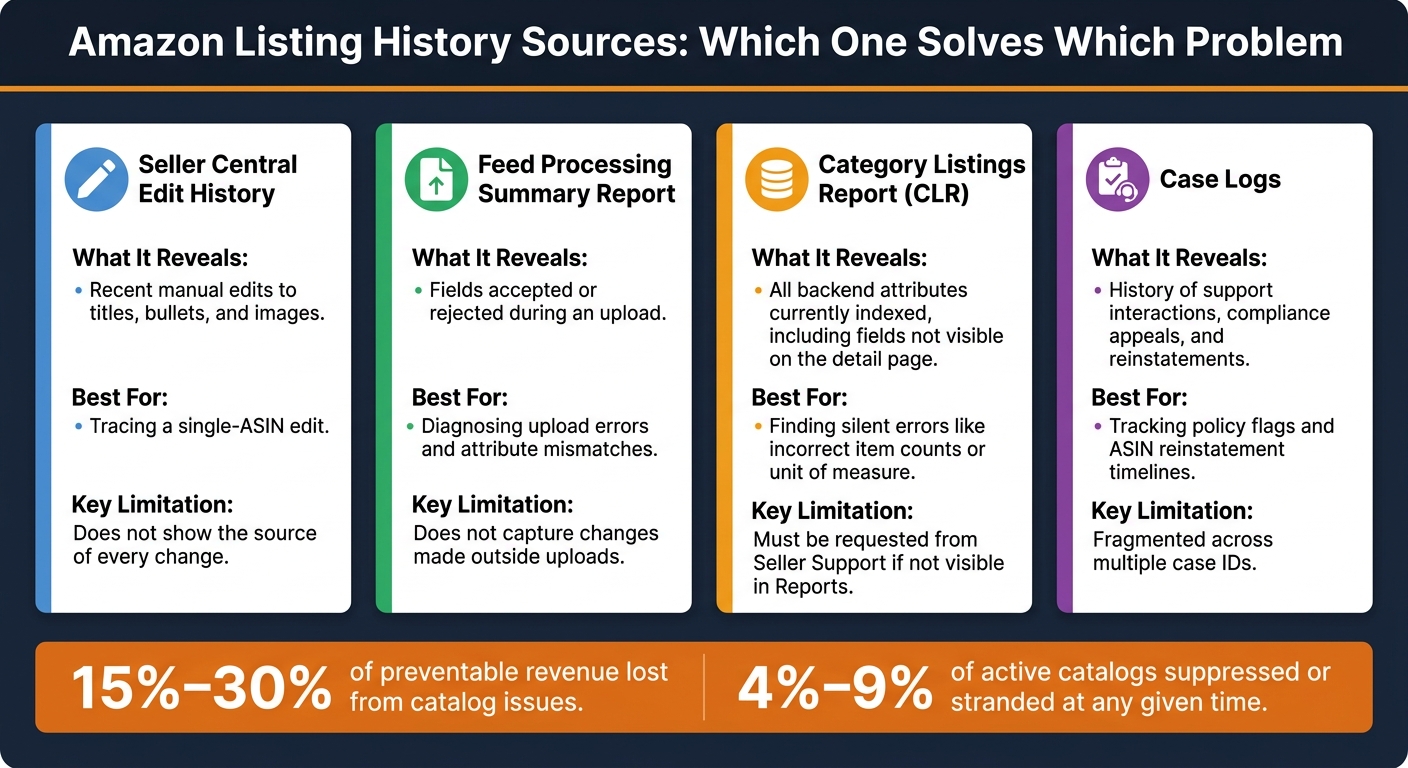
Amazon Listing History Sources: Which One Solves Which Problem
Amazon doesn’t give you one neat change log. To piece together listing history, you usually need to pull from Seller Central, feed reports, and catalog-linked reports. The fastest place to start is the record closest to the edit itself: the listing edit history.
Seller Central listing edit history

Go to Inventory > Manage Inventory, click the dropdown next to Edit, and select View Change History [1]. This shows recent edits to titles, bullets, and images. It’s a good first stop when you’re tracing a recent change.
That said, it helps to check this alongside Brand Registry history. View Change History shows what changed, but not the source of every change [1].
If you’re brand-registered, also look at Brand Registry > Support > Contribution History. This can help track Amazon-initiated edits, although the record may be delayed or incomplete [1].
If the detail page still doesn’t match what you meant to publish, move on to the upload records.
Flat files, upload records, and category templates
When the detail page doesn’t match your upload, the Feed Processing Summary Report should be your first check. It ties error codes to the ASIN and field that failed, so you can see what Amazon accepted or rejected in the upload [6]. One catch: accepted doesn’t always mean the detail page will match the upload [7].
Category templates matter most after a category shift or a new attribute requirement [5]. In 2026, Amazon added mandatory fields for sustainability in grocery and pet, energy efficiency in electronics, and allergen standardization [5]. So a template that worked before may now be missing required attributes.
Comparison table: Which history source solves which catalog problem
Different catalog issues call for different history sources.
| History Source | What It Reveals | Best For | Key Limitation |
|---|---|---|---|
| Seller Central Edit History | Recent manual edits to titles, bullets, and images [1] | Tracing a single-ASIN edit [1] | Does not show the source of every change [1] |
| Feed Processing Summary Report | Fields accepted or rejected during an upload [6] | Diagnosing upload errors and attribute mismatches [6] | Does not capture changes made outside uploads [2] |
| Category Listings Report (CLR) | All backend attributes currently indexed, including fields not visible on the detail page [3] | Finding silent errors like incorrect item counts or unit of measure [3] | Must be requested from Seller Support if not visible in Reports [1] |
| Case Logs | History of support interactions, compliance appeals, and reinstatements [1] | Tracking policy flags and ASIN reinstatement timelines [1] | Fragmented across multiple case IDs [1] |
For unexplained performance drops, the Category Listings Report is often the most useful source because it shows the backend data Amazon uses to index the ASIN. And that backend data often doesn’t match what shows up on the detail page [3].
A good example came in March 2026. A cleaning product brand found that a three-pack ASIN had its backend item count set to "1" since launch. On the surface, the listing looked fine. But that backend mismatch kept it from showing up in pack-size search queries. The issue only came to light after a full CLR audit [3].
That’s the tricky part with listing history. It isn’t just about seeing who changed a title or swapped an image. It’s also how you spot hidden backend conflicts that can quietly hurt visibility.
These records matter most when you need to track down the edit that caused the issue. Once you know where the history sits, the next step is figuring out which edits most often lead to suppression, ranking drops, or variation breaks.
sbb-itb-ed4fa17
The Listing Changes Most Likely to Cause Catalog Problems
The edits most likely to create catalog issues are title, attribute, and variation changes. When something breaks, start with listing history and find the exact field that changed before you touch the ASIN again.
Title, bullet, and backend keyword changes that affect visibility
Changes to titles, bullets, and backend keywords can reset indexing and rankings. In most cases, title and description updates take 24–48 hours to index. Backend keyword changes often take 3–7 days [2].
Before you update copy on a live ASIN, compare the current version against the prior version field by field. If visibility drops after a copy change, don’t stop at the text. Check whether a required field or product type changed at the same time.
Attribute and product-type edits that trigger errors or suppression
Attribute edits can look fine at first. The upload may go through, but later validation can still fail if dependent fields were left stale. That can leave the ASIN active but suppressed. Product-type mismatches can also lead to rejection or suppression when the flat file doesn’t match the category [6][4].
If the listing still fails after you review the fields, the next place to look is the parent-child setup.
Variation and parent-child changes that break families
One inconsistent child ASIN can break the whole family. If a child has the wrong variation theme or a non-compliant attribute, Amazon may suppress the entire parent-child relationship [9][7].
Start by tracing the last variation-theme change. Then review each child SKU against that theme and its required attributes. Fix one child at a time, and verify each update before moving to the next [7][10].
| Listing Field | Common Issue | Business Impact |
|---|---|---|
| Title, Bullets, and Backend Keywords | Primary keyword removed during an edit | Loss of indexing and ranking [2] |
| Variation Theme | Error 8016 – parent/child theme mismatch | Entire variation family suppressed [6][9] |
| Product Type | Mismatch with submitted category | Listing rejection or suppression [6][4] |
| Required Attributes | Partial update leaves dependent fields stale | Suppression after later validation fails [9] |
How to Use Listing History to Diagnose and Fix Problems
Before you open a support case or make another edit, trace the last change first. Start with the closest record, then look farther back only if the cause still isn’t clear.
Trace the last change before the issue started
Begin with the record nearest to the failed edit. Check the last 72 hours of changes, then match the exact field to the first suppression, ranking drop, or feed error [7].
After each flat file upload, review the Feed Processing Summary Report. That report helps you tie error codes to the exact ASIN and field behind the problem [6]. Work on one field at a time so you can see which change clears the issue [7].
Compare current content with prior versions to find conflicts
After you spot the likely field, compare what’s live now with your last approved flat file. Pull the Category Listings Report (CLR) and check it against that file [1][6]. Then compare three things side by side: the live detail page, the CLR, and your last approved flat file.
Look for:
- Overwritten titles
- Missing backend keywords
- Attributes that no longer fit the category rules
This is usually where silent overwrites show up. Amazon’s automated systems or higher-authority contributors can overwrite your data without a direct rejection notice [1][2]. If the live detail page doesn’t match what you submitted, your content wasn’t rejected. It was overwritten. That changes the fix.
Problem-to-signal table: Which history clue points to the root cause
| Problem | History Signal | Root Cause |
|---|---|---|
| Search suppression | Missing mandatory attribute in the CLR | Category schema changed, requiring new fields previously left blank [5][7] |
| Ranking or visibility drop | Title or backend keyword change in View Change History | Retail override overwrote optimized content [8][2] |
| Stuck edits | Feed accepted, but the detail page does not change | A higher-authority contributor is overriding the field [6][2] |
| Broken variation family | Error 8016 or VariationTheme mismatch in the flat file | Parent and child SKUs do not share the same theme [6] |
| Attribute mismatch | Backend data conflicts with live images or packaging text | Backend data conflicts with visible product details [4] |
Once the root cause is clear, fix only the broken field. Use a Partial Update for that field, then pause more edits until the listing settles [6].
How Listing History Protects Your Catalog Before and After Edits
Build a safer pre-update workflow for live ASINs
Once you know what went wrong, the next step is simple: use listing history so the next edit doesn’t create the same mess.
Before you touch a live ASIN, download a fresh Category Listings Report (CLR) [3][6]. Think of it as your approved rollback snapshot. If the update goes sideways, you have a clean reference point to go back to.
You should also pull a fresh category-specific template from Seller Central before any bulk upload [6][5]. Don’t rely on an older file sitting on your desktop. Amazon changes category rules, and an old template can cause problems before you even notice.
When you make edits, go one field at a time. Then wait 6 to 24 hours before making the next change [11][7]. That pause matters. It gives Amazon time to process the update and makes it much easier to spot which field triggered the issue.
If something does break, check the prior 72 hours of changes before touching the listing again [11][7]. That short lookback window often tells you more than a long support thread ever will. And if the update leads to suppression, that same baseline can make rollback much faster.
Use documented history to support reinstatement and rollback decisions
When an edit breaks a listing, history stops being nice to have. It becomes proof.
Timestamps, before-and-after field values, and CLR snapshots give Seller Support or Brand Registry something concrete to work with [2][6]. A general note like "the listing changed" usually won’t get you very far. Clear records will.
This matters even more when contribution conflicts show up. If another contributor keeps overwriting your edits, version history helps show what changed and when. That’s the kind of record you need when asking for a Brand Registry content lock [2][6].
It also helps to keep a library of approved flat files that include successful variation structures and attribute sets [6]. If a family breaks during an update, those files give you a known-good rollback point instead of forcing you to rebuild from scratch.
Conclusion: Key reasons Amazon listing history matters
Listing history connects the change to the fallout. It shows which field changed, when it changed, and whether your contribution stayed live or got overwritten without any warning [2][6]. With clear records in place, rollback, reinstatement, and contributor disputes are usually much easier to sort out.
FAQs
How far back does Amazon listing history go?
Amazon does not offer one universal limit for how far back listing history can be viewed. How far you can look back depends on how the changes were tracked.
In Seller Central, there is no complete long-term edit history for all listing contributions. Sellers can usually review only their own past flat file uploads or manual updates. Seller Support may be able to provide specific ASIN-level information, but not bulk historical data.
What should I check first after a sudden traffic drop?
After a sudden traffic drop, don’t start by editing titles or bullet points. First, check for changes made in the last 72 hours.
In Seller Central, go to Inventory > Manage Inventory and review the Suppressed tab. If nothing obvious shows up, download a Category Listing Report and compare your current backend data with the system record. You’re looking for recent unauthorized changes to attributes, variation themes, or product types.
How do I prove my content was overwritten?
Compare your contributions with Amazon’s current catalog data. There’s no central change log, so the goal is simple: find the places where your records no longer match what’s live.
Download the Category Listings Report (CLR) and line up its attribute values with your past records or flat files. If changes made in Seller Central aren’t showing up on the live detail page, the CLR can help you see whether those fields were overridden or locked.