
If your Amazon listing changed and you do not know why, Seller Central can show part of the edit trail – but not all of it.
I’d check three places first: View Change History in Manage All Inventory, Review Listing Changes for the last 60 days, and the Category Listing Report to see the backend version Amazon is using right now.
Here’s the short version:
- View Change History shows what changed, when it changed, and the old vs. new value for a SKU or ASIN.
- Manual edits in the Seller Central UI may not appear in a seller-facing log.
- Amazon-initiated changes are only partly visible, and Review Listing Changes has a 60-day limit.
- Images, browse nodes, and some variation edits may be missing from Amazon’s change views.
- On shared ASINs, you may not see edits from other contributors.
- If I need the backend truth, I’d pull a Category Listing Report (CLR).
- If I want a longer record, I’d save my own exports and compare versions over time.
A few facts matter here:
- 60 days: the lookback window for Review Listing Changes
- 14 days: AI suggestions can auto-publish after that if no action is taken
- 7 days: once Amazon enables the CLR, it appears in Inventory Reports for a limited window
If you just want the answer: Seller Central history helps with title, bullet, description, and attribute checks, but it is not a complete audit log. I’d use Amazon’s history tools plus saved reports to confirm what changed.
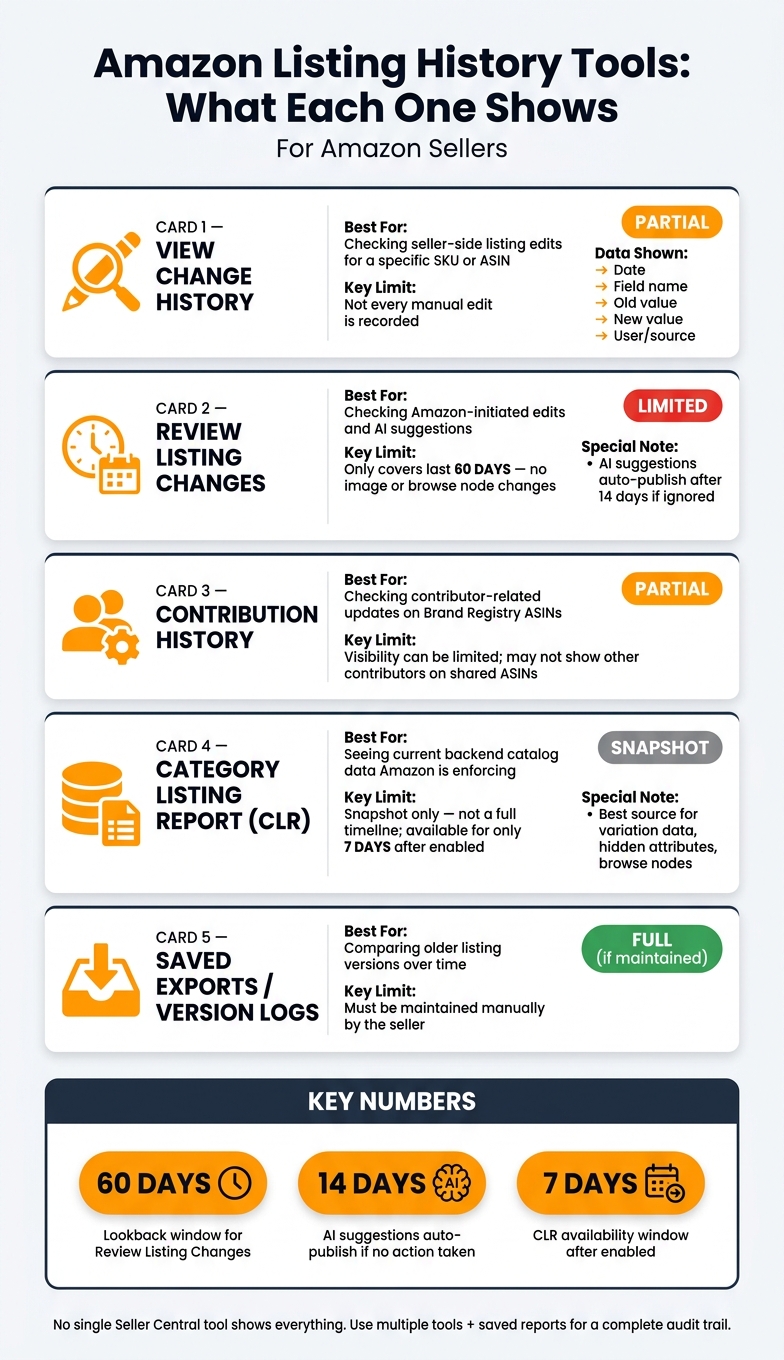
Amazon Seller Central Listing History Tools: Quick Comparison Guide
Quick comparison
| Tool | What I use it for | Main limit |
|---|---|---|
| View Change History | Check seller-side listing edits for a SKU/ASIN | Not every manual edit shows |
| Review Listing Changes | Check Amazon-initiated edits and AI suggestions | Only 60 days; no image changes |
| Contribution History | Check contributor-related updates on brand-registered ASINs | Visibility can be limited |
| Category Listing Report | See current backend catalog data | Snapshot only, not a full timeline |
| Saved exports/version logs | Compare older versions over time | Must be kept by you |
So if a title changed, I’d start with View Change History. If an image, browse node, or variation changed, I’d go straight to the CLR and compare that against the live listing.
sbb-itb-ed4fa17
How to open listing history in Manage All Inventory
Find the right SKU or ASIN in Manage All Inventory
Go to Inventory > Manage All Inventory in the main Seller Central menu. Then search for the SKU or ASIN you want to check. Use SKU or ASIN first. Product title or ISBN can work too, but they’re better as backup options. If your catalog is large, filters or inventory files help narrow things down fast.
Once you open the listing, the history log shows the exact edits behind the live detail page.
Open View Change History or Edit History for a listing
In the listing row, open Edit and choose View Change History [1].
If you have a Brand Registry account, you can also open Review Listing Changes to see Amazon-initiated and AI-suggested updates for ASINs in your Brand Registry catalog [6][3].
What the history log fields mean
The log shows the date, field, old value, new value, and who made the change [1].
That gives you a simple way to spot what changed and where it came from.
| Log Field | What It Tells You |
|---|---|
| Date & Time | Exactly when the change was recorded |
| Field Name | Which listing attribute was modified |
| Old Value | The content before the change |
| New Value | The content after the change |
| User / Source | Whether it was a seller submission or an Amazon/system update |
Use the old and new values to track unexpected edits to titles, bullets, images, and other attributes.
How to investigate unexpected changes to titles, bullets, images, and attributes
Check old versus new values for titles, bullet points, and descriptions
If your title, bullets, or description look different from what you submitted, start in Manage All Inventory with View Change History. Compare the saved values there against the live detail page.
If the live page doesn’t match what you submitted, the next step is to check contributor history and Amazon-initiated changes.
When a field changes and there’s no clear edit trail, look at the records tied to the update source. If your brand is enrolled in Brand Registry, go to Support > Contribution History to see whether another contributor changed the ASIN [1]. You should also check Review Listing Changes. It shows Amazon-initiated edits from the last 60 days, and AI suggestions can auto-publish after 14 days if you ignore them [3].
Check image, attribute, and variation updates
For image, browse node, and variation issues, don’t stop at the edit log. Move to the backend record Amazon is enforcing.
Seller Central doesn’t track images, browse nodes, and some catalog attributes in a consistent way. Review Listing Changes shows Amazon-initiated edits from the past 60 days, but it does not include image updates or browse node changes [6]. So if your main image changed or a variation relationship shifted, that change may not appear there at all.
For variation data and catalog attributes, the Category Listing Report (CLR) is the best source of truth. It shows the exact backend data Amazon is using at that moment, including hidden attributes and variation rules [4].
What change types Seller Central history does and does not show
Not every edit leaves a clean paper trail. Manual changes made directly in Manage All Inventory often have no seller-facing record, while bulk uploads are logged in Processing Reports under Add Products via Upload [2][1].
| Change Type | Visibility Level | Actor Shown | Record Range |
|---|---|---|---|
| Titles & Bullets | Partial | Your team, Amazon, or other contributors | Recent changes only [1] |
| Bulk File Uploads | Full via Processing Reports | Seller account | Upload history [1] |
| Manual UI Edits | None to partial | Not specified | No accessible record [2] |
| Images | Low | Rarely shown | Not included in Review Listing Changes [6] |
| Variation Data | Low | System or bots | Often requires CLR to confirm [4] |
| Brand Contributions | Partial | Brand owner | Often delayed or incomplete [1] |
The goal here is simple: compare what you entered, what Amazon now shows, and what the backend record says. That’s how you spot where the change came from and which ASINs need a closer look next.
How to audit listing activity over time and record the correct version
Build a repeatable audit process for high-priority ASINs
Once you understand what Seller Central leaves out, set up a simple audit routine for the ASINs that matter most.
Amazon doesn’t offer one complete change log, so sellers need to stitch together listing history from Manage All Inventory, Review Listing Changes, and saved export reports [1]. Start with your highest-impact ASINs first. For each one, open Manage All Inventory, go to the Edit menu, and click View Change History [1]. Then compare the live listing against the version you meant to publish.
Use the date, field name, and old/new values shown in View Change History to document each audit record. Run this check any time you make a major catalog update.
Manual UI edits can leave no accessible seller-facing record, which is why saved reports matter so much. Treat them as your audit trail.
Save a quarterly CLR export, then compare it against the live listing during each audit.
Match listing change dates to performance shifts
If sessions or conversion rates drop, line up the date and time of the most recent change in View Change History in Manage All Inventory with your Business Reports or Performance Dashboard data [5][7]. That side-by-side check can help you see whether a listing edit and a performance dip happened at the same time.
Use the latest timestamp as the last change and the second timestamp as the creation date [7]. If those dates match the shift in performance, pull the CLR from before and after that date and compare the two versions to isolate what changed.
If you want a longer version trail, save and compare the listing history in FlatFilePro.
Native Seller Central history versus a saved audit trail
Seller Central history is fragmented and short-term. A saved audit trail gives you a longer, searchable record.
When edits keep showing up without a clear source, save the version history in FlatFilePro for a longer audit trail.
How FlatFilePro extends Seller Central history and key steps to remember
Use FlatFilePro for broader change tracking and rollback
When Seller Central leaves holes, it helps to keep your own version trail for the ASINs that matter most. Seller Central only shows part of the story. FlatFilePro checks what is live on Amazon each night, saves version history, and gives you a rollback option once you’ve confirmed the right version after an unexpected edit.
Use these checks to compare Seller Central records with your saved version history.
Key steps and limits to remember
- Open Inventory > Manage All Inventory, then select Edit > View Change History for the SKU.
- Review the old and new values to see what changed and when.
- If you’re enrolled in Brand Registry, check Brand Registry > Support > Contribution History for Amazon-initiated edits.
- Keep your own records. Seller Central history is short-term and incomplete, so save Category Listing Reports or keep a separate change log.
- Request the Category Listing Report through Help. Once enabled, it appears under Inventory > Inventory Reports for 7 days [4].
No single Seller Central view shows everything. That’s why many sellers use Amazon’s logs, saved reports, and a separate version history side by side to protect catalog accuracy.
FAQs
Why can’t I see every listing edit in Seller Central?
Amazon doesn’t offer one central change log for every listing edit in Seller Central. And that matters, because listings can be changed by more than one source at a time. That can include other sellers, Amazon Retail, and even automated system overrides.
In most cases, Seller Central shows you the current version of the listing data, not a full edit history with details on who changed what and when. Some limited tools may be available for certain brand-owned updates, but they don’t track every change across the listing.
What should I check if my images or variations changed?
Because Seller Central doesn’t offer one universal edit history, you’ll need to check a few different places.
Start with a Category Listing Report (CLR). It shows the live data Amazon is enforcing, which makes it useful for spotting broken variation families or attribute overrides.
If you’re brand registered, check Brand Registry support for contribution history.
Also, note one gap: the Review Listing Changes dashboard does not include image or browse node updates. So if you need the full picture, compare current reports against your past inventory files or internal records.
How can I keep a longer listing history?
Amazon doesn’t offer one universal, long-term log for listing changes. Its built-in tools only go so far, so you need to keep your own record of past versions.
A simple way to do that is to download the Category Listings Report on a set schedule, like every two weeks or once a month, and save each file as a snapshot of your catalog at that point in time.
It also helps to keep a separate log of manual product detail changes made by your team. That way, if something shifts, you’re not left guessing what changed, when it changed, or who made the edit.