
If your Amazon listing changed and sales dropped, I’d check Seller Central first, then compare saved reports and upload files. That is the short answer.
Amazon does not give me one place to see every past edit. Instead, I have to piece it together with a few tools:
- View Change History for recent SKU-level edits
- Review Listing Updates for Amazon-made content edits on brand-registered ASINs
- Upload status and batch reports to see what a file changed
- Category Listing Reports to compare past and current catalog data
- Inventory reports for price, quantity, and listing status
- Saved flat files to rebuild or restore old listing data
Here’s the main workflow I’d use:
- Confirm what changed
- Check titles, bullets, descriptions, and some other fields in Seller Central.
- Find who or what changed it
- Look at user access, upload logs, case history, and contribution records.
- Rebuild the older version
- Compare archived reports and past flat files against the current listing.
- Restore only the broken fields
- Use partial updates instead of overwriting the whole listing.
- Track future changes
- Keep dated exports and version records so the next issue is easier to trace.
A few points matter right away:
- Amazon staff have said that manual edits may leave no seller-facing record in some cases.
- The Category Listing Report is not always turned on by default and may need a support request.
- Amazon’s native tools are often recent-history only, so your own archives matter a lot.
- For mid-size FBA sellers, catalog mistakes can lead to preventable revenue loss, especially across large SKU counts.
If I wanted the simplest takeaway, it would be this: use Seller Central to spot the edit, use reports to rebuild the past, and use saved files to fix the listing without making new problems.
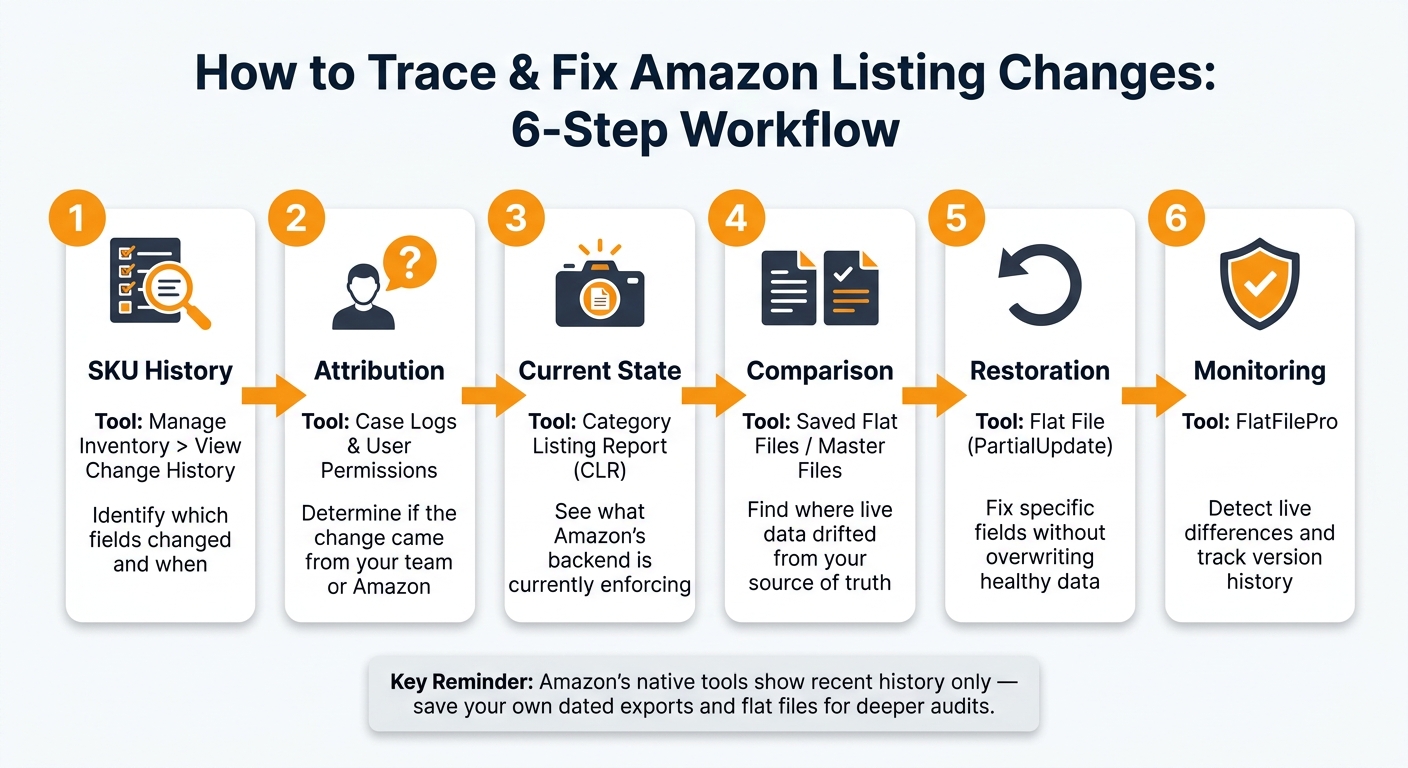
How to Trace & Fix Amazon Listing Changes: 6-Step Workflow
Amazon AI Listing Changes Auto Publish After 14 Days

sbb-itb-ed4fa17
Check per-SKU history in Seller Central first

Start in Seller Central when a listing changes out of nowhere.
Use listing change history to confirm field edits
Go to Inventory > Manage All Inventory, open the Edit menu for that product, and click View Change History [1]. This view shows SKU-level edits, timestamps, and the source of the edit for titles, bullets, descriptions, images, and other catalog fields [1].
If you’re brand registered, check Manage All Inventory > Review Listing Updates too [3]. This dashboard shows Amazon edits made to your ASINs, including AI-generated content suggestions [3][4].
There’s one catch: the RLC tool does not include images, browse nodes, pricing, or sensitive compliance fields [4]. So if one of those changed, you won’t see it there.
If the field change still doesn’t show the whole story, the next step is to trace the file or user behind it.
Use account logs to identify who made the change
Now figure out who made the edit. If it came from your account, review Settings > User Permissions to see which users had access at that time [1]. Then match the timestamp from the change history against any team activity you can verify.
For bulk uploads, go to Inventory > Add Products via Upload > Monitor Upload Status. The processing reports show which file was submitted, when it was submitted, and whether it passed or failed. They also often show fields that were overwritten by a bulk file or a connected tool [1][6].
If you think another contributor edited your ASIN, check Brand Registry > Support > Contribution History. It shows which accounts or entities have submitted data for your brand’s ASINs [1].
When Seller Central doesn’t show the full picture, inventory report files and saved backups can help you piece the earlier version of the listing back together.
Use reports and saved files to reconstruct past listing states
When Change History doesn’t go back far enough, saved reports and old upload files can help you rebuild the missing version.
Compare Category Listing Reports and inventory reports
The Category Listing Report (CLR) is a full catalog snapshot taken at the time of export. It includes titles, bullet points, descriptions, images, backend keywords, variation themes, compliance attributes, and other product data.
The CLR is not turned on by default. If you don’t see it under Reports > Inventory Reports, contact Seller Support and ask for access. Once it’s turned on, Amazon makes it available for 7 days at a time [2][8]. Save each download with the date in the filename.
To spot changes, open an archived CLR next to a current export and compare matching SKU rows in Excel. Any differences between the two files show catalog drift [1]. Inventory reports help too, but they focus on offer-level data like price, quantity, and listing status. They do not show descriptive fields such as titles, bullets, or images.
Review flat file uploads as change records
Saved flat file uploads act like a record of each upload. Every upload gets a Batch ID, which helps you track what was submitted and when [7][9].
If a listing was replaced, use the archived file and Batch ID to confirm what was submitted. Then re-upload only the fields you need to restore [2][5][9].
When working in Excel, import GTIN and EAN columns as Text so they don’t get converted into scientific notation [5].
Comparison table: which Amazon data source shows which history
Use the table below to match each source to the kind of history it can actually show.
| Data Source | Scope | History depth | Detail level | Best Use Case |
|---|---|---|---|---|
| Seller Central Change History | Specific field edits (Title, Bullets, Images) | Limited recent history | High: Title, Bullets, Images | Identifying who or what made a specific manual edit. |
| Category Listing Report (CLR) | Full catalog attributes (Backend keywords, compliance, etc.) | Snapshot at export time | High: Titles, bullets, images, backend keywords, variation themes, compliance fields | Rebuilding full listing content and establishing a "Source of Truth." |
| Inventory Reports | Price, quantity, and listing status | Current snapshot | Low: Price, Qty, Status | Monitoring Buy Box eligibility and search suppression status. |
| Flat File Archives | Bulk upload data and attributes | Historical records of every upload | High: Columns uploaded | Verifying exact data submitted and rolling back changes via Batch IDs. |
Use snapshots to reconstruct the past. Use live tracking to catch the next change.
Track ongoing catalog changes with FlatFilePro

Once you’ve rebuilt what changed in the past, the next step is live tracking. That way, the next drift gets caught before it starts causing problems. If Amazon’s per-SKU history doesn’t give you enough detail, FlatFilePro helps you monitor changes across your whole catalog.
Use the Reflection Engine to detect live catalog differences
The Reflection Engine runs nightly checks against your source data and live Amazon listings. It marks matches in green and mismatches in red, so you can spot issues fast.
It checks a wide range of listing elements, including content, images, prices, Buy Box eligibility, browse nodes, backend keywords, and variation links following Amazon listing best practices.
Use the activity log and version history to audit and roll back changes
The activity log records each edit, which makes it easier to see what changed and when. Version history lets you restore an earlier listing state after a bulk edit, contribution conflict, or spreadsheet overwrite.
That matters when a top-selling ASIN gets suppressed. Fast detection can cut down the damage before sales take a bigger hit.
Comparison table: Amazon native history vs. FlatFilePro tracking
The table below shows where Amazon’s native history ends and automated tracking picks up.
| Feature | Amazon Native History Tools | FlatFilePro Tracking |
|---|---|---|
| Detection method | Manual check via "View Change History" per SKU | Automated nightly Reflection Engine checks |
| History depth | Limited recent history | Long-term historical records and versioning |
| Field coverage | Basic content, price, and inventory | Titles, bullets, images, browse nodes, and key attributes |
| Bulk visibility | None; must be checked individually | Catalog-wide visibility |
| Rollback support | Manual restoration of individual fields | Full version history for bulk rollbacks |
| Detection speed | Reactive; often noticed after sales drop | Proactive; nightly checks flag discrepancies before revenue is lost |
Use history to explain the last change, and live tracking to catch the next one.
Conclusion: Build a repeatable process for tracking listing history
Use this same workflow any time a listing changes without warning.
Start with View Change History in Seller Central to confirm which fields changed on the affected SKU. Then review case logs, user permissions, and Account Health to figure out who made the change and why. If Seller Central doesn’t give you a clear answer, move to saved reports and file archives.
When native history is no longer available, archived reports help you rebuild the earlier listing state. Compare a saved CLR export against current data to see what Amazon believed the listing looked like at that moment. It also helps to download a fresh CLR before every bulk update, so you have a clean baseline to compare against later.
Use Reflection Engine and version history to spot drift and restore prior versions, so the same listing problem doesn’t keep coming back.
Run the same sequence every time to trace, verify, and reverse listing changes faster.
| Step | Tool/Source | Shows |
|---|---|---|
| 1. SKU History | Manage Inventory > View Change History | Which fields changed and when |
| 2. Attribution | Case Logs & User Permissions | Whether the change came from your team or Amazon Support |
| 3. Current State | Category Listing Report (CLR) | What Amazon’s backend is currently enforcing |
| 4. Comparison | Saved flat files / master files | Where live data drifted from your source of truth |
| 5. Restoration | Flat file (PartialUpdate) | Fix specific fields without overwriting healthy data |
| 6. Monitoring | FlatFilePro | Detect live differences and track version history over time |
When you use this process consistently, listing changes stop feeling like surprises.
FAQs
How far back does Amazon listing history go?
Amazon doesn’t provide one built-in change log that shows your full listing history.
In Seller Central, you can see the current version of a listing. But you won’t get a complete record of past edits, who made them, or the exact time each change happened.
That creates a pretty clear limit: there’s no fixed lookback window inside Amazon’s dashboard. If you need to check what was changed in the past, you’ll usually have to rely on your own records, like saved flat files, to verify what you submitted.
Can I recover a listing if Amazon shows no edit record?
Not in any formal way. Amazon doesn’t offer a universal edit log, so if a change doesn’t show up in your upload history or in the tools Amazon makes available, you usually can’t get back an older version of the listing.
If your own records are gone, use the current Category Listing Report as your new baseline. Then manually update the listing to put your preferred content back in place.
What should I archive before making bulk listing changes?
Before you make bulk listing changes, create a backup of your current data. That gives you a solid restore point if the update leads to catalog drift or other listing errors.
Save a new Category Listing Report for the ASINs you plan to edit, then make changes in a copy of that export, not the original file. It also helps to take screenshots of your current parent-child variations and the main parts of each listing.
On your side, keep a simple internal record of who made the changes and why. If something goes sideways later, that paper trail can save a lot of time.