
You can’t get one fixed Amazon flat file link and use it forever. Amazon builds these files inside Seller Central by category, file type, and marketplace, and templates can change several times per year.
Here’s the short answer:
- I’d use a category-specific template for new ASINs, full listing builds, and variation work.
- I’d use Inventory Loader or Price & Quantity files for offer-only edits like stock, price, and handling time.
- I’d use a Category Listings Report to export current catalog data.
- I’d check the Processing Report after every upload to catch row errors and code failures.
- I’d download a new file before each upload, because old versions often fail.
A flat file is just a bulk upload sheet, usually in Excel or CSV format. One row equals one SKU. One wrong file type can lead to upload failures, missing fields, or blank-cell overwrite issues. And with category templates often running from 100 to 400+ columns, picking the right file first saves time.
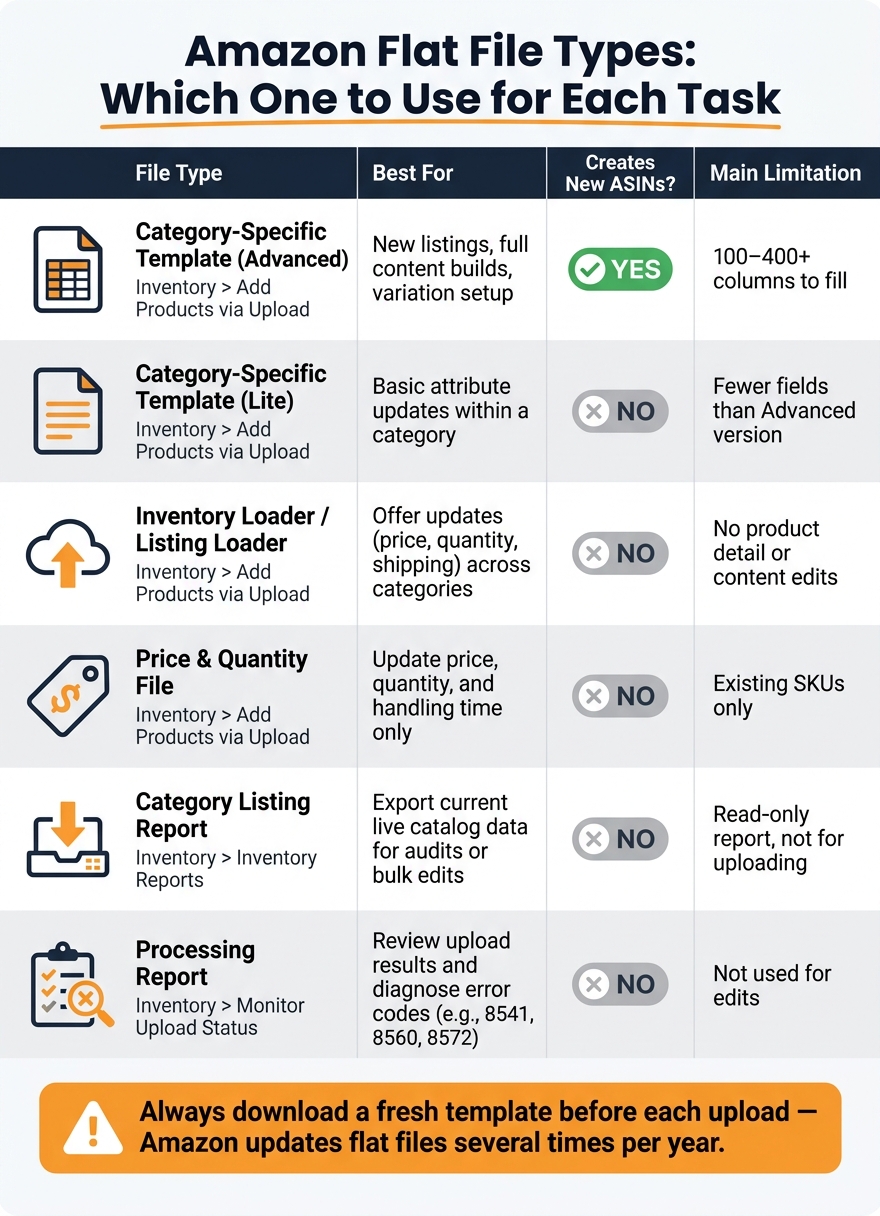
Amazon Flat File Types: Which One to Use for Each Task
How to Download and Use a Flat File for Bulk Upload in Amazon Seller Central | Step-by-Step Tutorial

sbb-itb-ed4fa17
Quick comparison
| File type | Best for | New ASINs | Main limit |
|---|---|---|---|
| Category template | New listings, content edits, variations | Yes | More fields to fill |
| Inventory Loader | Offer updates across categories | No | No product detail edits |
| Price & Quantity | Price, stock, handling time | No | Existing SKUs only |
| Category Listings Report | Export current catalog data | No | Report only |
| Processing Report | Checking upload results | No | Not used for edits |
If I had to sum up the article in one line: the right Amazon flat file depends on the job, and the safest move is to download the current version from Seller Central each time.
Amazon Flat File Types and What Each One Does
Category-Specific Listing Templates
Category templates are Amazon’s most complete listing files. Depending on the category, they can have about 100 to 400+ columns. A download usually comes with these tabs: Instructions, Data Definitions, Valid Values, and Template [1].
There are two main versions. Lite covers the basics, like title, price, and quantity. Advanced includes the full set of attributes, which makes it the better pick when you’re creating new ASINs or building out richer product pages [1]. If you only need to change offer data, Amazon also has simpler loader files for that job.
Inventory Loader, Listing Loader, and Price or Quantity Files
These universal files are built for offer data, not product page content. They work across categories and focus on fields like SKU, ASIN, price, quantity, and shipping settings [6]. They don’t update titles, descriptions, or other content fields.
The Price and Quantity file is the most stripped-down option. It updates price, quantity, and handling time for existing SKUs only, and it can’t create new SKUs [6].
The Listing Loader gives you a bit more room. It can add image URLs and gift options, but it still does not support category-specific technical attributes [1][6]. If you need to build or edit parent-child relationships, you’ll do that inside the category template instead.
Variation Files, Category Listing Reports, and Processing Reports
Variation data does not live in a separate file. It sits inside category templates. Amazon handles variation relationships through fields such as parent_child, parent_sku, and variation_theme [3][7].
Here’s how that works in practice:
- The parent row sets the variation theme and carries no price or quantity
- Each child row points back to the parent SKU
- Each child also includes the attribute that sets it apart, such as size or color
Category Listing Reports (CLRs) export your current live listing data, which makes them handy for audits or bulk edits [4].
After you upload a flat file, Amazon creates a Processing Report. This report shows which rows went through, which ones failed, and the exact error codes tied to failed rows, such as Error 8541 or 90041 [3][7]. That’s the file you check when you want to confirm an upload worked – or figure out what broke.
Use this table to match each file to the task.
| File Type | Primary Use | Can Create New ASINs? |
|---|---|---|
| Category-Specific (Advanced) | New listings, full content builds, variation setup | Yes |
| Category-Specific (Lite) | Basic attribute updates across a category | No |
| Inventory / Listing Loader | Match offers to existing ASINs, price and quantity | No |
| Price and Quantity File | Update price, quantity, and handling time only | No |
| Category Listing Report | Export current live data for auditing or bulk edits | No |
| Processing Report | Review upload results and error codes | No |
How to Download Free Amazon Flat Files in Seller Central
You can get these files right inside Seller Central. No extra tool needed.
Download Category Templates and Generic Loaders
Go to Inventory → Add Products via Upload → Download an Inventory File. There, you can search for your product category or browse until you find the right product type. You can also use this same path to download Lite templates or Price & Quantity files if you only need to update basic offer data. Amazon gives you Required, Recommended, and All/Custom versions. Recommended includes the required fields plus extra attributes.[1][3]
Before you fill out the file, open the Valid Values tab. That tab shows the exact values Amazon accepts for fields like color, size, and variation theme.[1][5] It’s a small step, but it can save you a lot of cleanup later. Use this path when you need a new template. For data that already exists in your catalog, use reports instead.
Request Category Listing Reports for Existing Catalog Data
If you want data from listings already in your catalog, go to Inventory → Inventory Reports and choose Category Listings Report from the report type dropdown.[2][8] Set the category to All, the format to Excel, and the status to All so you export both active and inactive listings.[8]
If you don’t see the Category Listings Report in the dropdown, you’ll need to ask Seller Support for access by opening a case under Selling on Amazon.[8] After that, review the Processing Report to see what went through and what didn’t.
Download Upload Error and Processing Reports
After you submit a flat file, go to Inventory → Add Products via Upload → Monitor Upload Status. Each upload gets a Batch ID. Save that ID so you can track changes and look up the upload later.[8] When Amazon finishes processing the file, you’ll see a Download your Processing Report link next to that batch.[3]
That report marks each row as Successfully processed, Warnings, or Errors. If you need row-by-row failure details, download an Inventory File Error Report from Inventory → Inventory Reports.[2] Use both reports to fix issues before you upload the file again.[2]
Which Flat File to Use for Each Catalog Task
Pick the file based on the job you need to do, not just the product category. That one choice can save a lot of cleanup later.
New Product Launches and Full Listing Builds
For new ASINs or full listing builds, use a category-specific template. Go with Advanced or Recommended if you’re building out the full listing, since both include more fields than Required. Before you upload anything, make sure your GTIN is valid. [3][11][12]
Bulk Edits, Offer Updates, and Catalog Cleanup
If you’re only changing price or quantity, use the Inventory Loader or Price & Quantity file. These are built for offer-only updates and use a small set of offer fields. [4][10]
For content edits, use a category-specific template and set update_delete to PartialUpdate. That matters because blank cells can wipe out live content if you use the wrong update mode. [4][10]
If you’re changing offers only, you’re done. If you’re changing product page content, switch to a category template.
Variation Repairs and Multi-Marketplace Work
To fix broken variation relationships, use a category-specific template. Keep the parent row without price or quantity, and make sure variation_theme matches across the parent and child rows. Before building the file, check the Valid Values tab in the template you downloaded. [3][9]
For multi-marketplace work, use a separate template for each marketplace. A U.S. template does not carry over to other marketplaces. Regional templates include marketplace-specific compliance and language fields. [1][3]
Use the table below when you need the fastest match.
| Scenario | Recommended File Type | Seller Central Path | Notes |
|---|---|---|---|
| Create new ASINs | Category-Specific Template | Inventory > Add Products via Upload > Download an Inventory File | Use Advanced or Recommended; confirm GTIN is valid [1][3] |
| Update price or stock | Inventory Loader / Price & Quantity | Inventory > Add Products via Upload > Price and Quantity Files | Offer-only updates; minimal fields [4][10] |
| Bulk content edits | Category-Specific Template | Inventory > Add Products via Upload > Download an Inventory File | Set update_delete to PartialUpdate [4][9] |
| Review existing catalog data | Category Listing Report | Inventory > Inventory Reports | May need Seller Support to enable access [4] |
| Repair variations | Category-Specific Template | Inventory > Add Products via Upload > Download an Inventory File | Parent row: no price or quantity; match variation_theme across rows [3][9] |
| Global expansion | Marketplace-Specific Template | Switch marketplace > Inventory > Add Products via Upload | Use a separate template per region; includes compliance and language fields [1][3] |
Working Faster With Flat Files and a Simpler Option for Bulk Updates
Once you know which flat file to use, the next step is simple: cut the back-and-forth. Most of the time, speed doesn’t come from downloading a file a few seconds faster. It comes from avoiding failed uploads, fixing fewer mistakes, and not doing the same work twice.
How to Edit and Upload Flat Files Without Creating Errors
A few habits stop most flat file errors before they start.
Download a new template before each upload. Amazon updates templates several times a year, and older versions often fail validation. Leave the first three header rows alone. If you’re making a big change, test just 3–5 rows first instead of uploading the whole file at once. Use 29.99, not 29,99, and enter dates in YYYY-MM-DD format. [3][4]
When something does go wrong, the Processing Report is where you sort it out at the row level. Error code 8541 usually means you used the wrong template. 8560 points to a missing required field. 8572 means the format is invalid. [7]
How FlatFilePro Cuts Down on Repeated Template Downloads and Manual Uploads

For sellers with large catalogs, the bigger problem usually isn’t downloading the right flat file. It’s the grind that comes after that.
Flat files create a download-edit-upload-review loop, and that loop can slow down big catalog jobs fast. [1][4]
FlatFilePro connects to Amazon through the API, so sellers can handle bulk edits, variation updates, and market-specific updates from one dashboard. Its Reflection Engine checks listings nightly, which means you don’t have to open Seller Central and check each update by hand after every change.
For common catalog work, here’s where the time savings show up:
| Task | Standard Seller Central Workflow | FlatFilePro-Assisted Workflow |
|---|---|---|
| Bulk updates | Download template, fill 100–400+ columns, upload, wait 15–30 min for processing [1][4] | Edit directly in the dashboard; changes are pushed through Amazon’s API |
| Error handling | Review the Processing Report after upload; error codes appear after the fact [7] | Flags errors before upload |
Conclusion: The Fastest Way to Find the Right Amazon Flat File
The fastest workflow is the one that cuts rework, not just download time. The right file depends on the task. New listings need a category template. Offer-only changes need the Inventory Loader. Catalog audits need the Category Listing Report. After each upload, processing reports appear under Monitor Upload Status.
For large catalogs, faster bulk work comes from fewer re-downloads, fewer manual edits, and fewer upload retries.
FAQs
Which Amazon flat file should I use?
Use the category-specific flat file template when you’re creating new listings from scratch or adding detailed product attributes. It includes the fields Amazon expects for that product category.
For existing listings, use Inventory Loader or other simplified flat files for fast updates like price or quantity. If you’re making bigger content edits – like descriptions, images, or extra attributes – use the full flat file instead.
Why do old Amazon templates fail?
Old Amazon templates often stop working because Amazon updates them on a regular basis. New required fields, changed validation rules, or removed columns can make an older template incompatible.
When that happens, uploads can fail because the file no longer matches Amazon’s current template requirements.
How do I fix flat file upload errors?
Use the current template for your product category. Then check the file for missing columns, formatting issues, and invalid values before you upload it.
After the upload, review the Processing Report and fix any row-level errors it lists. These can include missing required fields, conflicting data, variant relationship issues, or encoding problems. Then upload the corrected file again. If the errors still show up, contact Seller Support and share both the file and the report.