
Amazon flat files are Excel-based templates that simplify managing large product catalogs on Seller Central. These category-specific files let you create, update, and troubleshoot listings in bulk, saving time compared to manual entry. Each template is tailored to a specific product category, ensuring the required fields and validation rules match the product type.
Key Takeaways:
- What They Are: Structured spreadsheets customized for Amazon categories.
- Purpose: Bulk manage listings, fix errors, and restore variations.
- How to Use:
- Identify the correct category and product type.
- Download the template from Seller Central.
- Fill in required fields like SKU, price, and product details.
- Validate and upload to update your catalog.
- Common Errors: Wrong category selection, missing required fields, or outdated templates.
Mastering flat files helps sellers efficiently manage catalogs, avoid errors, and improve listing accuracy.
Amazon Category-Specific Flat Files Explained
Definition and Purpose
An Amazon flat file is essentially a structured spreadsheet (commonly in .xlsx or tab-delimited .txt format) designed to simplify bulk updates for product listings on Seller Central. These templates help sellers manage data efficiently and are customized for specific product categories. Each template includes required fields, accepted values, and validation rules tailored to its category. Typically, a category flat file contains several key tabs:
- Template tab: Where you input your product data.
- Data Definitions tab: Explains each field and its purpose.
- Example tab: Offers sample rows to guide you.
- Valid Values tab: Lists the exact terms Amazon accepts for specific fields.
Understanding how these templates adapt to different product categories is essential for smooth catalog management.
How Flat Files Differ by Category
Amazon customizes flat files to meet the unique needs of each product category, ensuring accurate and efficient bulk updates. This makes sense – after all, the data required for a laptop is vastly different from what’s needed for a moisturizer. These tailored templates focus on key attributes that directly affect how customers discover and interact with your listings.
Here’s a breakdown of how templates vary by category:
| Category | Approx. Columns | Key Unique Fields |
|---|---|---|
| Clothing & Accessories | 350–400+ | size_map, color_map, variation_theme |
| Electronics | 250–350 | wattage, voltage, connectivity_technology |
| Health & Beauty | 250–350 | ingredients, drug_facts, skin_type |
| Home & Kitchen | 200–300 | material_type, finish_type, item_shape |
| Toys & Games | 200–280 | target_age_range, cpsia_cautionary_statement |
These templates enforce strict validation rules by using controlled vocabularies. For example, in the Electronics category, the field connectivity_technology must contain the exact term "Bluetooth." If you enter "BT" or "bluetooth" instead, the system will flag it as an error, rejecting the row. This ensures data integrity and consistency across the platform.
Additionally, templates differ between marketplaces. A flat file for Amazon.com (US) will not be identical to one for Amazon.de (Germany). Differences arise from factors like language, compliance standards, and tax-related fields. Always download the correct template for the marketplace where your products will be listed to avoid errors.
sbb-itb-ed4fa17
How To Download an Amazon Product Feed | How To Request An Amazon Category Listings Report
What You Need Before Downloading a Flat File
Getting ready to manage your Amazon catalog with category flat files? Preparation is key. Before diving into Seller Central, double-check your permissions and pinpoint your product category. This ensures you don’t waste time downloading the wrong template.
Seller Central Account and Permissions
First things first: make sure you have an active Amazon Seller Central account with access to the Catalog or Inventory menus. Specifically, you’ll need the "Add Products via Upload" section, where all flat file templates are housed. If you don’t see this option, reach out to your account administrator to adjust permissions under Settings → User Permissions.
If you’re looking to download your existing catalog data instead of a blank template, you’ll need access to Reports → Inventory Reports to find the Category Listings Report. Keep in mind, these permissions are separate, so check both if you’re managing listings for a brand or working within a team.
A quick heads-up: permissions are tied to specific marketplaces. For example, access to Amazon.com doesn’t automatically grant access to Amazon.ca. Make sure you’re set up for the marketplace you’re working on.
How to Identify the Right Product Category
Using the wrong category template can cause errors like "Missing required attribute" or "The SKU does not match any ASIN." To avoid these headaches, you’ll need to identify three things before downloading: Product Type, Browse Node (Amazon’s internal numeric ID for your product’s location in the catalog), and Item Type Keyword.
The simplest way to start is by using the search box in the "Add Products via Upload" tool. Enter a keyword like "blender" or "phone case", and Amazon will suggest matching product types. If your product is more specific or doesn’t return clear results, download the Browse Tree Guide (BTG) from the same page. This detailed spreadsheet maps every browse node to its corresponding product type and item type keyword.
"The Browse Tree Guide is a massive spreadsheet that maps every browse node to its corresponding product type and item type keyword." – Jamin Mahmood-Wiebe, Founder, Flat Magic [1]
If none of the standard categories fit, choose an "Other" subcategory. Just be aware that this might reduce your product’s visibility in search results. When in doubt, contact Seller Support to manually assign a browse node before downloading and completing your template.
Once your permissions are confirmed and you’ve nailed down your product category, you’re ready to grab the correct flat file template.
How to Download a Category Flat File in Seller Central
Where to Find the Download Option
Start by logging into Seller Central after confirming your permissions and identifying your product category. Navigate to the Inventory menu (or Catalog, depending on your account view) and select Add Products via Upload. From there, go to the Download an Inventory File tab, which houses all the category-specific flat file templates you’ll need.
If your goal is to update existing listings instead of adding new ones, head to Reports → Inventory Reports and request a Category Listings Report. This report generates a pre-filled flat file of your current catalog, making it especially helpful for bulk edits to products already in your inventory. Completing this step ensures you’re set up to pick the exact flat file template that matches your needs.
Choosing the Right Template
Now that you’ve located the download option, it’s time to choose the template that fits your catalog’s requirements. Picking the correct template is critical to avoid upload errors.
In the Download an Inventory File tab, use the search bar to pinpoint your product type. Be specific – searching for "wireless earbuds" instead of a broad term like "electronics" will yield a template better tailored to your product’s attributes.
After finding your product type, you’ll need to select the file type and column set:
- For file type:
- Use the Category-Specific (Advanced) template for creating new ASINs or adding comprehensive product details.
- Opt for the Lite template if you’re only making quick updates, like changes to price or quantity.
- Category-specific templates often include 250–400+ columns, while Lite templates are more streamlined with fewer than 50 columns.
- For column set:
- Choose Required for a minimal file containing only essential fields.
- Select All to include every possible attribute for your product.
Once these choices are made, click Generate Template to download the .xlsx file.
"Always download a fresh template before starting a new upload. Amazon updates templates regularly – sometimes adding new required fields, changing validation rules, or deprecating old columns. Using an outdated template is one of the most common causes of upload failures." – Jamin Mahmood-Wiebe, Founder, Flat Magic
Before diving into your upload, open the Data Definitions and Valid Values tabs in the downloaded file. These sections outline the inputs Amazon expects and the accepted values for dropdown fields. Skipping this review can result in frustrating upload errors.
How to Fill Out a Flat File Template
Once you’ve downloaded the .xlsx file, open it and take a moment to review all the tabs before diving into data entry. Beyond the Template tab (where you’ll input your data), the file includes several other key tabs:
- Data Definitions: Explains field descriptions, character limits, and requirements.
- Valid Values: Lists the exact terms Amazon accepts for dropdown fields.
- Example: Provides sample rows formatted correctly.
These tabs are your go-to reference tools – ignoring them increases the risk of common flat file errors. Before starting, identify which fields are required versus optional to ensure your listings are complete.
Required vs. Optional Fields
Not all fields are created equal. Required fields are the minimum Amazon needs to make your listing live. Common ones include:
- Product ID (e.g., UPC or EAN)
- Product ID Type
- Title
- Brand
- Description
- Price
- Quantity
- At least one Image URL
Depending on the category, additional fields may also be mandatory. For instance, Electronics templates often require battery_type, voltage, and wattage, while Beauty templates might need ingredients and skin_type [1].
Optional fields, while not necessary for a live listing, play a crucial role in your product’s visibility. Skipping these can hurt your search discoverability and may lead to listing suppression over time [1][2]. A smart strategy? Start by completing the required fields to go live, then focus on high-impact optional fields – especially those rich in keywords – to boost search performance.
"A flat file is not just a spreadsheet; it’s a structured gateway into Amazon’s product catalog system." – Matt Connell, Dollan Prep Center [3]
Tips for Faster, Error-Free Data Entry
Once you’ve got a handle on the required and optional fields, use these tips to streamline your data entry and avoid common errors:
- Copy values directly from the Valid Values tab. Typing manually increases the risk of mistakes. For example, Amazon won’t accept "BT" if it expects "Bluetooth" or "blue" when "Navy Blue" is required [1].
- Leverage Excel’s bulk-fill features. If you’re listing 200 products under the same brand, use a formula to populate the
brand_namecolumn all at once instead of entering it row by row. Bulk-fill is also great for static fields like bullet points or warranty descriptions. Sellers who use flat files save 40%–60% of their listing time compared to manual entry, according to research cited by Matt Connell [3]. - Test a small batch before full upload. Start with 5–10 SKUs to catch any formatting errors early [2]. Once your test batch uploads without issues, scaling up becomes much easier.
How to Check and Fix Flat File Errors
After you’ve completed your flat file, the next step is making sure everything is accurate before uploading it. Amazon offers tools that can help identify and fix most issues.
Using Amazon’s Validation and Error Reports
Amazon’s Check My File feature in Seller Central is a great starting point to catch formatting problems before submission. Once you’ve uploaded your file, go to the Spreadsheet upload status tab and download the Processing Summary report. This report breaks down how many rows were successful, how many failed, and provides specific error codes for the problematic rows [2][6].
Interestingly, over 60% of upload errors are due to incorrect data formatting, not missing information [4]. This is good news because it means most errors can be resolved with small adjustments. When fixing errors, focus only on the problematic rows and re-upload them. This approach avoids throttling and keeps things moving smoothly [4].
"Uploading an outdated flat file template is one of the top 3 causes of recurring Amazon catalog errors." – CaptenAMZ [7]
Always download a fresh template for every new upload. Amazon frequently updates its validation rules and required fields, so using an older template could lead to silent failures where errors aren’t immediately obvious [1][7]. Once your file is ready, review common error codes and their fixes.
Common Errors and How to Fix Them
Amazon’s tools are designed to help you finalize your listings efficiently, but some errors are more common than others. Here’s a quick guide to the issues sellers encounter most often:
| Error Code | What It Means | How to Fix It |
|---|---|---|
| 8541 | Template category mismatch or conflict with an existing ASIN | Download the correct sub-category template or match it to the existing ASIN |
| 8560 | A required field is empty (e.g., SKU, Price, Brand) | Check the Data Definitions tab and fill in all mandatory columns [7] |
| 8572 | Invalid value – wrong format, unsupported characters, or out-of-range data | Remove HTML or special characters; use "TRUE/FALSE" instead of "Yes/No" |
| 90122 | HTML tags found in product fields | Strip all HTML; use plain text only [7] |
| 8016 | Variation theme mismatch between parent and child SKUs | Ensure variation themes align perfectly using the Valid Values tab [7] |
| N/A | Duplicate SKU | Use a Partial Update in the Update/Delete column instead of adding a new row [5] |
Some errors can be easy to overlook. For example, measurements need to be split into two columns, such as item_weight and item_weight_unit_of_measure [4]. Additionally, saving your file in the wrong format – like .csv instead of .xlsx – can cause the upload to fail [4].
If your listing remains suppressed for more than 24 hours after a successful upload, reach out to Seller Support and ask them to "Redrive the Catalog". This will trigger a backend refresh to process the changes [7].
How to Upload a Completed Flat File
Once you’ve ensured your flat file is free of errors, follow these steps to upload it properly.
Submitting the File in Seller Central
Log into Seller Central and head to Catalog > Add Products via Upload from the main menu. Under this section, select the Upload Your Inventory File tab. Click Browse Files to locate and upload your .xlsx or .txt file.
Before finalizing, take advantage of Amazon’s Check My Data feature. This tool reviews your file for issues without making changes to your live catalog. It’s a great way to solve flat file upload problems by catching formatting issues early. Once the file passes this validation, click Upload to complete the process.
Important tips:
- For partial updates, make sure to input
PartialUpdatein the update_delete column. This prevents overwriting data that hasn’t changed. - Include your email address in the upload section so Amazon can notify you when processing is complete or if there are any errors.
After uploading, you can track the progress of your file as outlined in the next steps.
Checking Upload Status and Results
To monitor the status of your upload, go to the Spreadsheet Upload Status tab. Here, you’ll find key details such as the Batch ID, upload date and time, current status, and a summary of how many listings were processed successfully or failed.
| Status Detail | Description |
|---|---|
| Batch ID | A unique identifier to track your upload session |
| Status | Indicates whether the upload is "In Progress", "Done", or has "Errors" |
| Listings Submitted | The total number of product entries detected in your flat file |
| Records with Errors | The number of rows that failed to process |
| Processing Summary | A downloadable report with error codes and the specific fields affected |
If the status indicates "Done" but errors persist, click the Actions dropdown next to the upload and select Download Processing Summary. This report provides detailed insights into which SKUs and fields caused the errors.
"Always download the Feed Processing Summary Report after every flat file upload. This report is your single source of truth – it maps every error code to the specific ASIN and field causing the issue." – CaptenAMZ [7]
Even if there are no critical issues, it’s a good idea to review the Processing Summary for any warnings.
Key Differences in Flat Files Across Product Categories
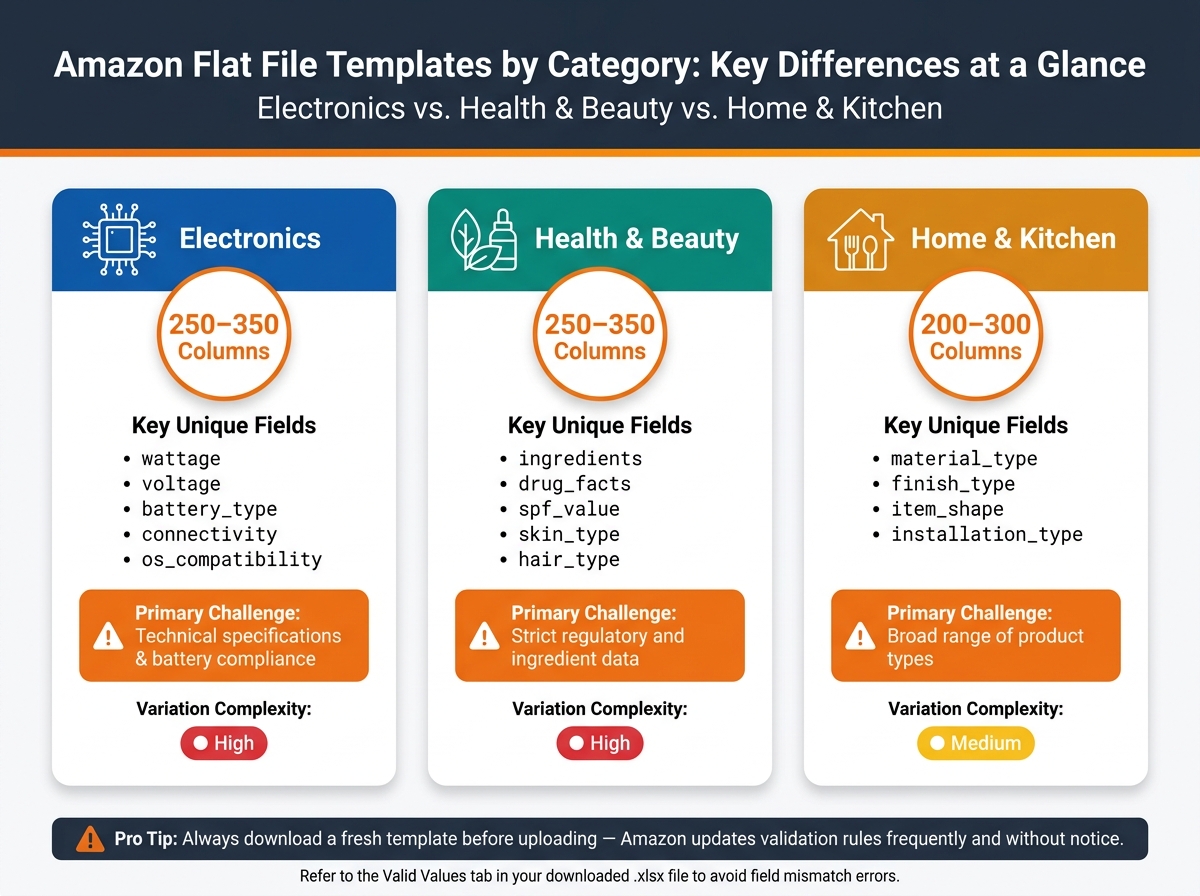
Amazon Flat File Templates by Category: Key Differences at a Glance
When working with Amazon flat files, it’s crucial to recognize that templates vary significantly across product categories. The flat file you download for a Bluetooth speaker won’t look anything like the one for a moisturizer or a kitchen faucet. Each category has its own required fields, validation rules, and structure, making it essential to download and use the correct template for your specific product.
Category Comparison: Electronics, Health & Beauty, and Home & Kitchen
The most commonly handled categories – Electronics, Health & Beauty, and Home & Kitchen – each have unique requirements. Here’s a closer look at how they differ:
- Electronics templates: These are packed with technical details, often containing 250–350 columns. Expect fields like
wattage,voltage,battery_type, andos_compatibilityto take center stage. Battery compliance is non-negotiable, so accurate inputs are critical. - Health & Beauty templates: Also ranging from 250–350 columns, these focus heavily on regulatory information. Fields such as
ingredients,drug_facts,spf_value, andskin_typeare key. Missing or incorrect ingredient data can result in listing removal, so precision is a must. - Home & Kitchen templates: These are comparatively leaner, with 200–300 columns. The focus here is on physical attributes, including
material_type,finish_type,item_shape, andinstallation_type. The wide variety of products in this category adds some complexity, but the emphasis is less on compliance and more on descriptive details.
| Category | Approx. Columns | Key Unique Fields | Primary Challenge | Variation Complexity |
|---|---|---|---|---|
| Electronics | 250–350 | wattage, voltage, battery_type, connectivity, os_compatibility |
Technical specifications & battery compliance | High |
| Health & Beauty | 250–350 | ingredients, drug_facts, spf_value, skin_type, hair_type |
Strict regulatory and ingredient data | High |
| Home & Kitchen | 200–300 | material_type, finish_type, item_shape, installation_type |
Broad range of product types | Medium |
These differences go beyond just the number of columns. For all categories, precise data entry is vital, especially when fields require exact matches to predefined values. Always refer to the Valid Values tab in the downloaded Excel file to ensure your entries align with Amazon’s expectations.
Additionally, Amazon frequently updates these templates, often tweaking mandatory fields or introducing new validation rules without much fanfare. Staying on top of these changes is key to avoiding common listing errors and ensuring smooth uploads.
Managing Your Catalog with Category Flat Files
This guide has walked you through the essential steps for mastering flat file uploads. From locating and completing category-specific templates to validating and uploading them, each step plays a critical role in ensuring your catalog runs smoothly. Skipping any of these steps can lead to failed uploads or even suppressed listings.
Flat files are a game-changer for bulk updates, allowing you to manage hundreds of listings quickly and efficiently. By filling in category-specific attributes, your listings gain better visibility since Amazon’s search algorithm favors detailed and accurate information. One key tip: always download a fresh template before major uploads. Amazon frequently updates its validation rules, often without notice, and using an outdated template is a common cause of errors.
If manual processes are becoming overwhelming, tools like FlatFilePro can save you time and headaches. With features like AI-driven category detection, automatic field mapping, and real-time validation, it streamlines the entire process. FlatFilePro offers a free trial, with plans starting at $99/month for sellers managing 100 or more listings. It’s a great option if you’re looking to simplify catalog management and focus on growing your business.
FAQs
How do I find my product’s item type keyword and browse node?
To locate your product’s item type keyword and browse node, log into Amazon Seller Central and head to Inventory > Add Products via Upload. From there, use the search tool to describe your product or explore the category tree to pinpoint the most specific subcategory (also known as the leaf category). Once you’ve identified it, download the flat file template. This file includes a Valid Values tab, which provides the item type keywords and browse nodes necessary for precise product classification.
Can I use one flat file template for multiple Amazon marketplaces?
No, you can’t use a single flat file template across multiple Amazon marketplaces. Each marketplace has its own specific requirements. For instance, the U.S. uses imperial measurement units, while Europe relies on the metric system. Currency formats and compliance standards also vary by region. To ensure your listings meet local standards and regulations, always download a template tailored to the specific marketplace where you plan to sell.
What should I do if my upload says “Done” but my listing still doesn’t update?
If your upload displays “Done” but the listing hasn’t updated, head over to the Spreadsheet Upload Status in Seller Central to verify if the batch processed successfully. From there, you can download the Processing Summary or Error Report to identify any issues.
Some common errors include missing information or incorrectly formatted fields like SKU, price, or quantity. To resolve these, make sure to correct the flat file using the appropriate category template, then upload it again.