
FlatFilePro offers a free image link generator that helps Amazon sellers create direct URLs for product images without dealing with storage fees or permissions. This tool supports PNG, JPEG, GIF, and WebP formats, automatically compresses large files, and simplifies bulk uploads for sellers managing multiple SKUs.
Key Features:
- Batch Uploads: Drag and drop folders or ZIP files to generate URLs for multiple products in minutes.
- Amazon Compliance: Automatically resizes images to meet Amazon’s standards for fast loading.
- Direct URLs: Generates permanent links that don’t expire, ensuring stable product listings.
- Integration: Syncs with Amazon Seller Central for seamless inventory management.
- Editing and Monitoring: Includes tools for bulk updates, compliance checks, and variation management.
Cost:
- Free 30-day trial, then $49/month for unlimited hosting and link generation.
FlatFilePro streamlines image management for Amazon sellers, saving time and eliminating unnecessary expenses. Whether you’re managing a few products or thousands, this tool simplifies the process from upload to compliance checks.
How to Access FlatFilePro‘s Image Link Generator

Creating Your FlatFilePro Account
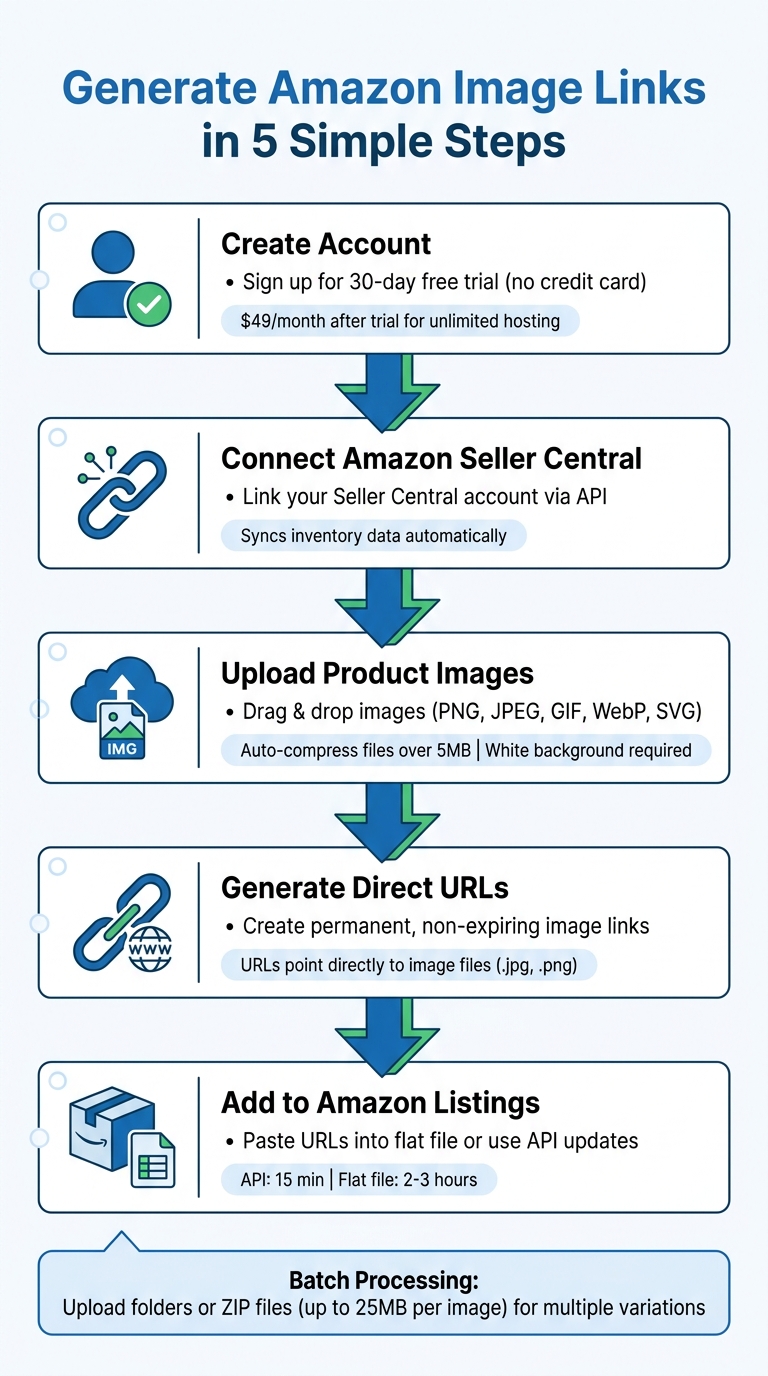
Getting started is quick and easy. You can sign up for a 30-day free trial – no credit card needed[3]. After the trial, the subscription costs $49 per month, giving you unlimited hosting and link generation.
Once your account is ready, you’ll find the tool waiting for you in the dashboard.
Finding the Tool in Your Dashboard
Begin by linking your Amazon Seller Central account. This API integration ensures your inventory data syncs seamlessly, displaying your current product listings right in the dashboard.
To access the image link generator, head to the Amazon product management section. This tool not only allows you to upload images and generate direct links but also includes editing features for managing product details in bulk. Plus, your team can set user-level permissions to manage who has access.
sbb-itb-ed4fa17
HOW TO CREATE IMAGE URL FOR AMAZON FLAT FILES! QUICK AND EASY
How to Generate Image Links Step-by-Step
How to Generate Amazon Image Links with FlatFilePro: 5-Step Process
Uploading Your Product Images
Start by uploading your product images in formats like PNG, JPEG, GIF, WebP, or SVG. You can either drag and drop the files or browse your computer to select them. Make sure your images are high resolution and have a pure white background – this helps avoid listing issues on platforms like Amazon[5]. If your images are over 5MB or in 4K resolution, they’ll be automatically resized and compressed for easier handling[1].
If you’re hosting your own images, it’s a good idea to create a dedicated folder on your website. For example, you could use a URL structure like yourdomain.com/products/image.jpg. This makes it easier to manage and update images in bulk later on[5].
Once your images are ready, you can move on to generating their direct URLs.
Creating Direct Image Links
Tools like FlatFilePro simplify the process by generating unique, permanent URLs for your images. These URLs are designed to stay active as long as your account remains registered. Crucially, the links must point directly to the image file (e.g., ending in .jpg or .png) rather than a preview page or a cloud storage interface[5].
As Glenn_Amazon explains in the Amazon Seller Forum:
"To use an upload file you will need to use image URLs stored on website that offers that service." – Glenn_Amazon, Amazon Seller Forum[4]
Keep in mind that many platforms only offer temporary guest links, which can expire in as little as 1 to 30 days. By registering for a hosting service, you ensure long-term stability for your image links.
Next, let’s look at how to handle links for product variations.
Setting Up Links for Product Variations
handling product variations is simple with batch processing. You can upload folders or ZIP files (up to 25MB per image) to quickly generate URLs for different variations. This allows you to organize your images by attributes like size, color, or other product features. The drag-and-drop interface eliminates the need for manual updates in spreadsheets, saving you time and effort. This is especially helpful when you need to bulk upload products to Amazon efficiently.
Adding Generated Links to Amazon Flat Files and Seller Central
Adding Links to Flat Files
Once your image URLs are ready, you’ll need to add them to your Amazon flat file. Each inventory template – specific to your product category – includes dedicated columns for images. These are usually labeled something like main_image_url, other_image_url1, other_image_url2, and so on. Simply copy the URLs generated by FlatFilePro and paste them into the corresponding cells before uploading your flat file to Seller Central[4].
Make sure your links end with supported file extensions like .jpg or .png. Avoid using URLs that lead to preview pages or require login credentials, as Amazon won’t accept those. To confirm the link is valid, test it by loading it in a browser without signing in[1].
Now, let’s look at how the Reflection Engine simplifies the process through API updates.
Using API Updates via Reflection Engine
FlatFilePro’s Reflection Engine provides a faster option by submitting image link updates directly through Amazon’s API. This method processes updates in about 15 minutes, compared to the 2–3 hours it typically takes with flat file uploads. Plus, you’ll receive real-time status updates to confirm whether Amazon has accepted the new links.
Another handy feature of the Reflection Engine is its nightly checks. It automatically compares your submitted images with the ones currently live on Amazon. Green checkmarks indicate a match, while red X’s flag any discrepancies, making it easy to spot issues.
Once your updates are submitted, you’ll want to ensure they’re reflected across all marketplaces.
Checking Updates Across Marketplaces
After uploading your image links, it’s important to verify that updates are live across all the marketplaces you’re selling in. FlatFilePro’s dashboard makes this easier by letting you manage listings for multiple regions – like the US, UK, and Germany – from one account. Keep in mind, processing times can vary between marketplaces, with the US often updating the fastest. To be thorough, check each marketplace individually.
If your image links are temporary and expire after 30 days, set a reminder to replace them with permanent URLs before they break[1]. Expired links can ruin your listings’ appearance and may even trigger suppression warnings, which could hurt your search visibility.
Tips for Managing Catalog Images in Bulk with FlatFilePro
Here are some practical ways to streamline your bulk catalog image management using FlatFilePro. These tips build on the image link generation process to make catalog control more efficient.
Managing Variations with Drag-and-Drop
Handling product variations like different colors or sizes can be a real headache, especially when assigning images. FlatFilePro simplifies this with its drag-and-drop interface. Instead of juggling spreadsheets, you can just drag an image and drop it onto the right variation. The tool then automates the creation of variation families – whether for colors, sizes, or styles – saving you hours of manual work.
This method boasts a 95% success rate for managing product variations, cutting down the hassle of matching images to child SKUs. Even better, updates usually take less than five minutes, so you can confirm changes almost instantly [3][6].
Once your variations are sorted, it’s time to check if your images meet Amazon’s compliance standards.
Finding and Fixing Image Compliance Issues
FlatFilePro’s Compliance Panel makes it easy to spot and resolve image compliance problems. Listings with green checkmarks meet Amazon’s standards, while red X’s highlight issues like missing main images or broken URLs. The software also runs automatic nightly checks to catch new problems before they impact your search rankings [6].
Before your data even reaches Amazon, FlatFilePro ensures that your image URLs follow Amazon’s format requirements. If something goes wrong after uploading, the 1-click secure restore feature lets you roll back to a previous, working version [3].
While automation helps prevent errors, keeping a record of changes is equally important.
Tracking Changes with Activity Log
FlatFilePro’s Activity Log provides a detailed record of every change made to your image links. This audit trail helps you spot patterns and address recurring issues. Plus, user-level permissions ensure that only authorized team members can make edits, reducing the risk of accidental errors [3].
Conclusion
FlatFilePro’s free image link generator simplifies the process of turning product photos into Amazon-ready URLs instantly. With support for batch uploads of entire folders and automatic optimization of large files, it eliminates the need for technical skills or server setup, making it accessible to everyone [1][2].
This tool doesn’t just save money – it speeds up workflows too. Batch uploads and drag-and-drop functionality make it easy to convert images into direct URLs that integrate smoothly across your listings. The platform’s user-friendly interface for managing variations, along with a 95% success rate in maintaining product families, ensures seamless updates across your catalog.
Features like automated nightly checks, one-click restores, and a detailed Activity Log keep potential image issues in check, resolving problems quickly. For sellers juggling large catalogs across multiple marketplaces, these tools save hours every week. It’s not just about generating links – it’s about transforming how you handle image management, from upload to error resolution and variation updates.
FAQs
Will my image links ever break or expire?
When you create image links using these tools, they usually stay active as long as the hosting service is running smoothly. That said, there’s no guarantee they’ll last forever – platforms can change their policies or remove images without notice. To avoid losing important assets, it’s smart to keep an eye on your links and have backups ready for anything crucial.
What image specs does Amazon require for listing images?
Amazon sets specific image size requirements for product listings. At a minimum, images should be 500 pixels on the longest side to meet basic quality standards. However, for enhanced zoom functionality, images should be at least 1,000 pixels, with 1,600 pixels or larger being the ideal size for the best display. Following these guidelines ensures your product images align with Amazon’s standards and offer customers a more engaging shopping experience.
How do I map images to child SKUs for variations in bulk?
To link images to child SKUs in bulk, you’ll need to upload them in a way that clearly connects each image to the correct variation. Start by naming or organizing your image files so they correspond directly to specific SKUs. Make sure your images meet Amazon’s size requirements: at least 500×500 pixels (with 1,000 pixels being the recommended size for better quality). Once your files are ready, compile them into a zip file and upload it through Amazon’s bulk upload tool to streamline the mapping process.