
Managing a large Amazon product catalog can be overwhelming, but exporting your listings into a CSV file simplifies the process. You can save time, make bulk updates, and create backups for your inventory. CSV exports allow you to adjust pricing, SKUs, and product details for thousands of items at once. Plus, they help spot errors like missing titles or incorrect pricing before they impact your listings. Here’s how you can do it:
- Professional Account Required: Only Professional Seller accounts ($39.99/month) can access inventory reports for CSV downloads.
- Two Export Options: Use Inventory Reports for a snapshot of your listings or Flat File Templates for bulk updates.
- Conversion to CSV: Exported files are in .txt format and can be converted to CSV using Excel or Google Sheets.
- Tools for Efficiency: Tools like FlatFilePro can automate updates, flag errors, and handle large catalogs more effectively.
Whether you’re managing a few hundred or over 50,000 listings, exporting to CSV is a quick way to streamline catalog management and ensure your data stays organized.
How To Export & Import All Your Amazon Listings FAST
sbb-itb-ed4fa17
What You Need Before Exporting
Before you start downloading your listings, make sure you have the right account type and tools in place. Amazon limits access to inventory reports depending on your seller plan, and you’ll need spreadsheet software to handle the exported files. Getting these basics sorted out will make the export process much easier.
Amazon Seller Central Access

To access inventory reports, you’ll need a Professional selling account. Individual accounts don’t have this feature. The Professional plan costs $39.99 per month and is a must-have for managing your catalog in bulk using an Amazon inventory template [1]. To confirm your account type, head to the "Reports" tab in Seller Central. If "Inventory Reports" isn’t listed, you might need to upgrade your account. Also, double-check your user permissions – especially if you’re using a sub-account – to ensure you can access these reports.
Required Tools and Browser Settings
For the best experience, use a desktop browser like Chrome, Firefox, or Edge, as mobile browsers may not fully support the export functionality. You’ll also need spreadsheet software such as Microsoft Excel, Google Sheets, or Microsoft Access to work with the files.
Amazon typically exports reports as tab-delimited text (.txt) files. You can easily convert these to .csv by renaming the file extension or by opening the file in Excel and saving it as "Comma Separated Values (.csv)." If your file includes special characters or names in other languages, save it with UTF-8 encoding to avoid any issues with corrupted text [4].
How to Download Your Amazon Listings to CSV
How to Export Amazon Products to CSV: Step-by-Step Guide
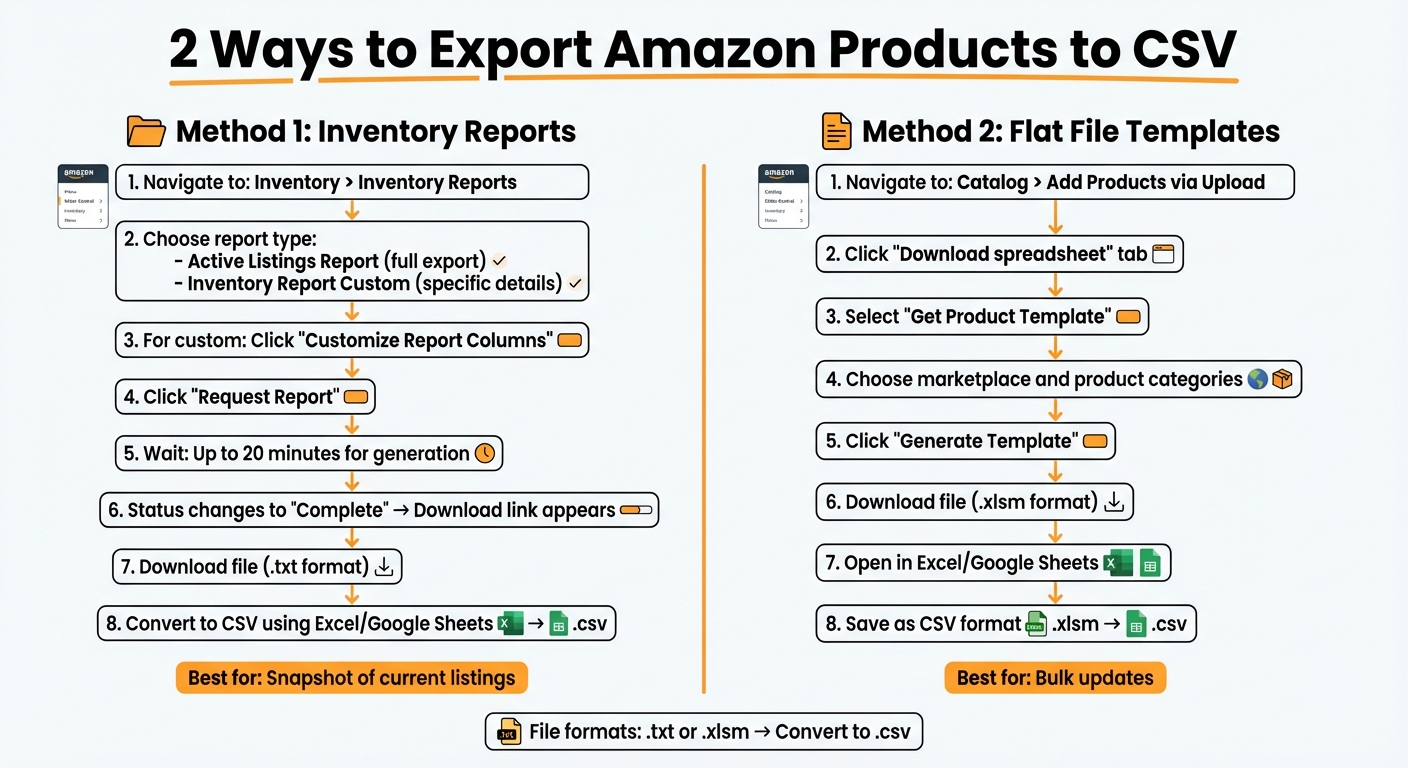
Amazon provides two main ways to export your product data: inventory reports and flat file templates. Each option serves different purposes. Inventory reports are ideal for getting a snapshot of your current listings, while flat file templates are more suited for bulk updates. Pick the one that aligns with your needs.
Method 1: Download Inventory Reports
To access inventory reports, log in to Seller Central and go to Inventory > Inventory Reports. From there:
- Select Active Listings Report for a full export of your current listings.
- Choose Inventory Report (Custom) if you only need specific details like SKU or pricing.
If you go with the custom option, click Customize Report Columns to include or exclude product attributes. This helps keep your file manageable. Once your preferences are set, click Request Report.
Reports can take up to 20 minutes to generate, especially for larger catalogs. When the status changes to "Complete", a Download link will appear. If it doesn’t, refresh the page. The downloaded file will be in .txt format, so you’ll need to convert it to CSV using Excel or another spreadsheet tool.
If you need a bulk update template instead, check out the flat file method below.
Method 2: Use Flat File Templates
For flat file templates, head to Catalog > Add Products via Upload in Seller Central. Then:
- Click the Download spreadsheet tab.
- Select Get Product Template.
- Choose your marketplace and product categories.
- Click Generate Template to download the file.
These templates are typically in .xlsm format. Open them in Excel or Google Sheets, make your updates, and save the file as a CSV.
Flat file templates are especially helpful for bulk updates or when you need a pre-formatted guide to ensure your data matches Amazon’s requirements. They clearly outline the fields Amazon expects, simplifying the process of uploading your data back to Seller Central.
How to Use Your Exported CSV Data
Once you’ve exported your CSV file, it’s time to put it to work. By editing the file, you can quickly update your product listings and streamline catalog management.
Making Bulk Changes to Product Listings
Start by opening your CSV file in Excel or Google Sheets. Use the SKU column as your reference point to make updates to product details. Focus on the columns that need changes, such as prices, titles, or descriptions, and leave the rest untouched.
Be sure to follow Amazon’s formatting rules for prices, dates, and numbers [2]. Keep product titles under 250 characters and SKUs shorter than 255 characters to avoid any errors during re-import [2].
When you’re ready, upload the edited CSV through Catalog > Add Products via Upload in your Amazon Seller Central account. Choose the Inventory Loader File option and select "Overwrite existing products" to apply your updates. Processing time depends on the size of your file – smaller files typically upload within minutes, while larger catalogs may take longer. You can track the upload’s progress and download error reports if needed.
For a more efficient solution, consider using FlatFilePro to simplify this process.
Using FlatFilePro for Easier Catalog Management

Editing CSV files manually can be tedious and prone to mistakes. FlatFilePro offers a smarter way to handle catalog updates. It automatically identifies errors, maps fields, and manages variations with ease [2]. You’ll get real-time feedback on what needs fixing, saving you from guesswork.
FlatFilePro’s Reflection Engine takes it a step further by comparing your listings nightly. It flags discrepancies with green checkmarks for accurate matches and red X’s for issues. Tasks that might take hours in Seller Central – like editing hundreds of SKUs – can be completed in under 5 minutes with a 95% success rate [2]. The platform also allows you to manage variations effortlessly using drag-and-drop tools and push updates directly through Amazon’s API. What used to be a time-consuming, multi-day process becomes quick and manageable.
Fixing Common Export Problems
File Format and Character Encoding Issues
Exporting product data can sometimes lead to headaches with file formats and character encoding, especially if the data becomes unreadable. Amazon inventory reports are usually generated as tab-delimited text files (.txt) rather than the more familiar CSV format[5]. If you open these files in a spreadsheet program without setting the correct delimiter, the data might look scrambled or end up crammed into a single column.
To fix this, open the .txt file in your spreadsheet software, select "Tab" as the delimiter, and then save the file in CSV format[1][5].
Special characters can also be a problem. To ensure they display properly, choose UTF-8 as the encoding when saving your file. Keep in mind that CSV files are plain text, so any formatting, formulas, or highlights you’ve added will not be retained[2].
Working with Large Product Catalogs
Handling large product catalogs can add another layer of complexity. If your catalog contains up to 50,000 listings, the "Active Listings Report" is your go-to option. For catalogs exceeding that number, use the "Inventory Report" instead, following Amazon inventory file best practices. Be patient, as these reports can take anywhere from 15 to 45 minutes to generate. If the report doesn’t appear immediately, wait a bit and refresh the page[5].
Amazon also has limits on how often you can request these reports. Sellers managing over 50,000 listings should keep their requests to no more than four Inventory Reports per day. For catalogs with over 500,000 listings, you’re limited to just one request daily[5]. Following these guidelines helps avoid delays and ensures smoother management of large datasets. If your file exceeds Amazon’s 50MB size limit, try breaking it into smaller chunks of around 15,000 products or fewer[2].
For an easier way to handle large datasets, tools like FlatFilePro can help. This platform connects directly to Amazon’s API, bypassing the need to deal with oversized spreadsheet files entirely. Plus, it doesn’t impose file size restrictions, making it a practical choice for managing extensive catalogs.
Conclusion
With the right tools in hand, you can take your catalog management to the next level. Exporting Amazon product listings to CSV files gives you more control than Seller Central alone. This method allows you to update prices, SKUs, and Prime status for thousands of products simultaneously [2]. Plus, the exported data acts as a safety net for backups and opens doors to new sales opportunities across different platforms when you’re ready to expand [1][3].
The process is simple – use the Active Listings Report for smaller catalogs or the Inventory Report for larger ones. Just double-check your technical settings before uploading. For larger catalogs, remember to stay within Amazon’s daily request limits to avoid processing delays.
That said, managing large catalogs with spreadsheets can quickly become challenging. Tools like FlatFilePro make this process much easier by connecting directly to Amazon’s API. Its Reflection Engine keeps an eye on your listings every night, using clear indicators like green checkmarks and red X’s to highlight issues before they hurt your sales. The drag-and-drop Variations Manager simplifies bulk updates, completing them in under 5 minutes with a 95% success rate – and you won’t have to worry about file size restrictions. This approach not only saves time but also minimizes errors, ensuring your catalog stays in top shape.
Whether you opt for manual CSV exports or a specialized tool, routinely downloading and reviewing your product data helps keep your catalog accurate, organized, and ready for future growth.
FAQs
What columns should I include in a custom inventory report?
When putting together a custom inventory report for Amazon, it’s important to include columns that make bulk editing, catalog reviews, or backups straightforward. Some key columns to consider are:
- SKU: This is the Stock Keeping Unit, essential for identifying products.
- Product Name and Price: Include the name of the item and its price (in USD or the applicable currency).
- Product URL and Image URL: These links help with quick access and visual reference.
- Currency, GTIN, Brand, and MPN: These fields are crucial for product classification and Amazon’s bulk upload compatibility.
Including these columns ensures your report aligns with Amazon’s requirements while keeping your data organized and accessible.
How do I avoid messing up existing listings when I re-upload a CSV?
When re-uploading a CSV to Amazon, using the official CSV template is key to avoiding formatting problems. Double-check that the SKUs in your file align with your current listings to prevent accidental duplicates or overwrites. Before hitting upload, carefully review the file for any errors, missing information, or unexpected changes. Taking these precautions ensures your existing listings stay intact and free from disruptions.
Why does my export show garbled symbols or weird characters?
Garbled symbols or odd characters in your export often stem from character encoding problems. This occurs when the CSV file’s encoding doesn’t accommodate specific characters, or the software used to open it misinterprets the encoding. The solution? Export the file using UTF-8 encoding. This format ensures special characters are preserved and avoids display errors.