
Managing your Amazon catalog in 2026 is more complex than ever, with categories now reaching up to seven levels deep and over 34,000 unique browse nodes. The 2026 Amazon Product Categories CSV simplifies this process by providing a detailed guide for accurate product categorization. Here’s why it’s essential:
- Avoid Errors: Misclassified products can lead to suppressed listings, reduced visibility, and compliance issues.
- Save Time: The CSV eliminates guesswork by offering exact category paths and Browse Node IDs for bulk uploads.
- Optimize Fees: Categories affect referral fees, which vary significantly (e.g., 8% for computers vs. 17% for apparel).
You can download the file from ASINSpotlight or Bored Hermit on Gumroad. Both versions are structured into four columns: Category Name, Parent Category, Browse Node ID, and Full Path. Tools like FlatFilePro can further streamline uploads and detect errors.
Amazon Category Listing Report – Your Fix to the Dreaded Flat File for Your Amazon Product Listing
sbb-itb-ed4fa17
How to Download the 2026 Amazon Product Categories CSV
Getting your hands on Amazon’s 2026 category list is a straightforward process. This dataset covers 34,872 unique product categories from Amazon’s U.S. marketplace, organized in a detailed hierarchy with up to seven levels of depth [1]. Whether you’re listing niche items like permanent coffee filters or industrial equipment, this file helps you navigate the proper browse nodes with precision by using an Amazon flat file template.
In short, this CSV is a must-have for streamlining catalog management and ensuring accuracy in bulk listings for 2026.
Download Instructions
You can download the 2026 Amazon Product Categories CSV from two main sources, each offering a slightly different experience:
- ASINSpotlight: Visit their site, click on "Send File to Email", and enter your email address. Once done, check your inbox (or Spam/Promotions folder) for the file. This version includes 25,233 lines of categorized data [2].
- Bored Hermit on Gumroad: For a broader dataset, you can purchase the file for $29.00 [1]. After payment, download the file in CSV, XLSX, or TXT formats. The CSV format is perfect for bulk uploads via Amazon Seller Central or tools like FlatFilePro, while the XLSX version offers easier manual filtering and research options.
CSV File Structure and Contents
The file is neatly organized into four essential columns: Category Name, Parent Category, Browse Node ID, and Full Path [2]. For instance, a full path might look like this: Home & Kitchen > Kitchen & Dining > Coffee Machine Accessories > Permanent Coffee Filters [2].
The dataset uses UTF-8 encoding to ensure compatibility when uploading to Amazon Seller Central or importing into catalog management tools. Categories are sorted alphabetically and span major verticals like Electronics, Home & Kitchen, Industrial & Scientific, Beauty & Personal Care, and Automotive. This structure makes it simple to locate specific browse nodes for flat file submissions or to verify category assignments in tools like FlatFilePro.
Next, learn how to leverage this CSV for product mapping during bulk uploads.
Using the CSV File for Bulk Product Uploads
Once you’ve downloaded the 2026 CSV, the next step is to map your products to the right browse nodes. This ensures your listings are categorized correctly, avoiding errors. The CSV provides a Browse Node ID for each category. For example, if you’re listing a stainless steel coffee filter, you’d use the Browse Node ID for the path Home & Kitchen > Kitchen & Dining > Coffee Machine Accessories > Permanent Coffee Filters. By matching this ID to the item_type field in your upload file, Amazon can accurately place your product in the correct category.
How to Map Products to Categories
Start by opening the 2026 CSV and searching for keywords that describe your product. For instance, searching for "earbuds" will show you the category Electronics > Headphones, Earbuds & Accessories > Earbud Headphones along with its Browse Node ID.
Once you’ve identified the correct Browse Node ID, paste it into the browse_node_id column of your inventory spreadsheet. If you’re using Amazon’s flat file templates, this field might also be labeled as recommended_browse_nodes or item_type_keyword. Be sure to use the Full Path column in the CSV to confirm you’re selecting the most specific category available. Amazon prioritizes listings in the deepest relevant category over broader, parent-level categories.
For example, a Bluetooth speaker with an alarm clock should be categorized under Electronics > Portable Audio & Video > Portable Speakers & Docks, rather than Home & Kitchen > Home Décor > Clocks. Misplacing your product in a general or unrelated category can reduce its visibility in search results and confuse potential buyers browsing by category.
Once your products are correctly mapped, you’re ready to bulk upload your products on Amazon like a pro with FlatFilePro.
Bulk Uploads with FlatFilePro

FlatFilePro makes bulk uploads easier by integrating directly with Amazon’s API, so you don’t have to manually adjust flat files. After importing the 2026 categories CSV into FlatFilePro, you can assign browse nodes to multiple products at once using the bulk editing dashboard. This tool allows you to update hundreds of listings in a fraction of the time.
FlatFilePro also includes error detection to cross-check your browse nodes against Amazon’s current taxonomy. It flags outdated or incomplete entries before you submit, preventing common issues like suppressed listings due to category mismatches.
Additionally, FlatFilePro’s Reflection Engine keeps your listings optimized by monitoring them daily. It compares the browse nodes you’ve assigned with those actively displayed on Amazon, making adjustments as needed to ensure your products stay in the right categories. This ongoing oversight helps maintain strong search visibility and keeps your listings performing at their best.
Common Category Mapping Errors and How to Fix Them
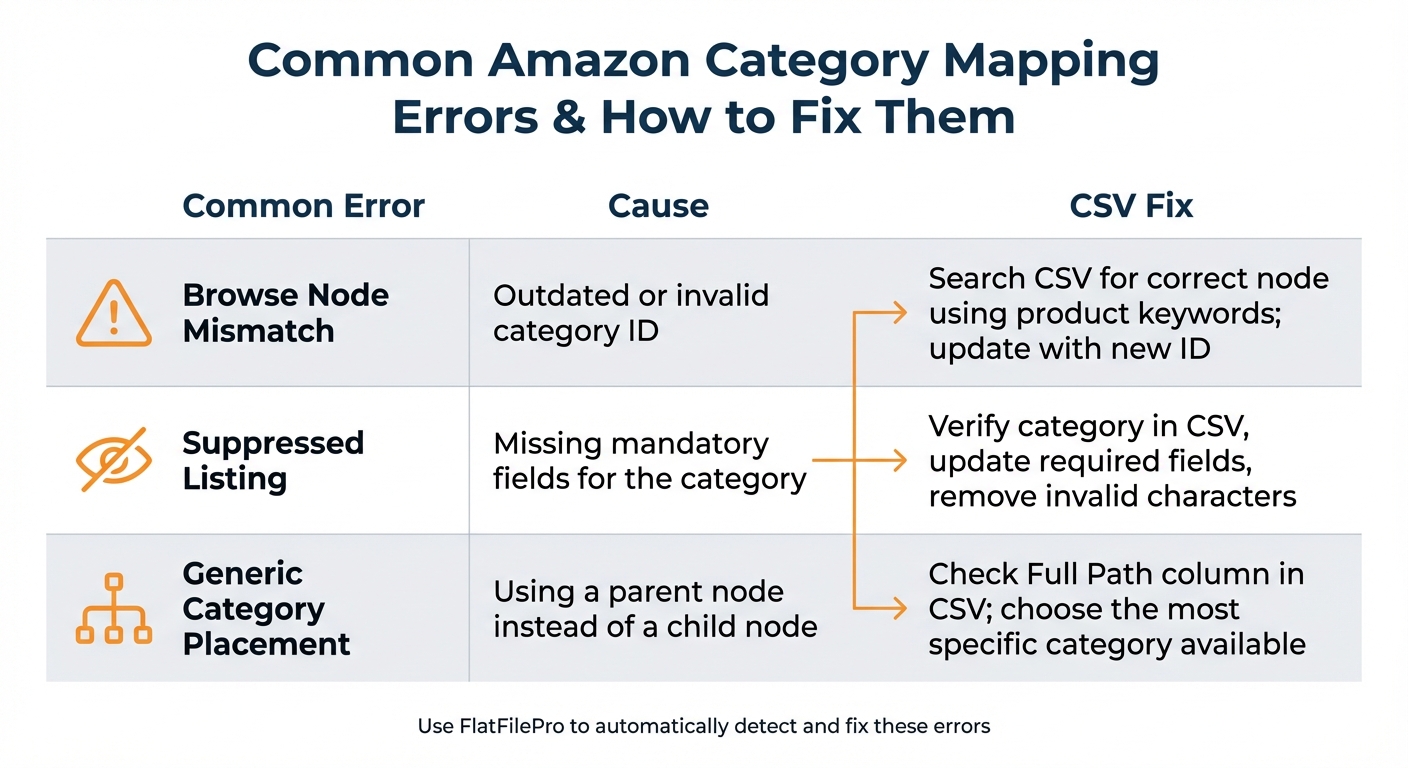
Common Amazon Category Mapping Errors and Solutions
Even with the 2026 CSV, sellers may face errors that affect their product listings. The most frequent problems include browse node mismatches and suppressed listings, both of which can hurt visibility in search results. Left unresolved, these issues might even result in account suspension.
Fixing Browse Node Mismatches
Browse node mismatches occur when a product is assigned an invalid or outdated category ID. Since Amazon frequently updates its taxonomy, older IDs may no longer work in 2026. If you upload a product with an incorrect node, Amazon might reject the listing or place it in a generic category.
To resolve this, open the 2026 CSV file and search for your product type using relevant keywords. Compare the Browse Node ID in the CSV with the one in your inventory file. If they differ, update your file with the correct ID from the CSV. Always check the Full Path column to ensure you’re selecting the most specific category available. Using general parent categories instead of detailed child nodes can reduce visibility because Amazon prioritizes precision when categorizing products.
FlatFilePro simplifies this process by automatically flagging browse node mismatches. It cross-references your nodes with Amazon’s latest taxonomy, saving you from manually reviewing large inventories. This feature also helps prevent suppressed listings caused by incorrect category assignments.
How to Fix Suppressed Listings
Suppressed listings happen when Amazon hides your product due to missing or incorrect information. This often stems from assigning a product to the wrong category, which may trigger additional mandatory requirements (like safety certifications) that aren’t provided.
Start by checking the Suppressed Listings report in Seller Central. Next, confirm the correct category for each product using the 2026 CSV. Once the category is verified, review all mandatory fields – such as UPC, dimensions, and product descriptions. Remove any emojis, non-standard symbols, and double-check pricing and inventory data before resubmitting the listing.
FlatFilePro’s Reflection Engine flags suppression issues and highlights missing fields, enabling bulk fixes across multiple listings. This saves time compared to addressing errors one by one.
Addressing these errors not only improves your workflow for bulk uploads but also boosts your product visibility on Amazon. Here’s a quick reference table summarizing common errors, their causes, and fixes:
| Common Error | Cause | CSV Fix |
|---|---|---|
| Browse Node Mismatch | Outdated or invalid category ID | Search CSV for correct node using product keywords; update with new ID |
| Suppressed Listing | Missing mandatory fields for the category | Verify category in CSV, update required fields, remove invalid characters |
| Generic Category Placement | Using a parent node instead of a child node | Check Full Path column in CSV; choose the most specific category available |
Staying Updated with Amazon’s 2026 Taxonomy Changes
Keeping your product catalog aligned with Amazon’s ever-evolving taxonomy is crucial for maintaining accurate listings. Amazon regularly updates its category taxonomy throughout the year, meaning the CSV file you download today might not match future requirements. Failing to stay on top of these changes can lead to listing errors, product suppressions, and missed sales opportunities. To avoid these pitfalls, make it a habit to monitor updates and adjust your catalog as needed.
How to Track Taxonomy Updates
One of the best ways to keep up with taxonomy changes is by monitoring suppressed listings in Seller Central. When Amazon modifies category requirements or removes browse nodes, the first sign is often product suppressions. Keeping a close eye on these listings can give you an early warning of taxonomy updates.
Another method is to manually verify categories by checking the Best Sellers Rank section on live Amazon product pages. This provides a real-time snapshot of where a product fits within Amazon’s category structure. If you’re managing a large number of products, the Product Classifier tool in Seller Central is a more efficient option. It allows you to confirm the correct categories for multiple items simultaneously.
For an automated approach, consider using tools like FlatFilePro’s Reflection Engine. This tool performs nightly monitoring and sends alerts when updates are needed, giving you a proactive way to stay in sync with Amazon’s taxonomy changes.
Updating Your Catalog for 2026
When you detect taxonomy changes, it’s important to act quickly. Start by downloading the latest taxonomy CSV file from Amazon and comparing it to your current file. Look for new sub-categories that could represent emerging trends or refined classification options. Amazon’s category hierarchy can go up to 7 levels deep, and these CSV files often contain between 25,233 and 30,000 lines of data [2].
Once you’ve identified the updates, tools like FlatFilePro can simplify the process. Use its bulk edit feature to update your product files with the new browse node IDs. The built-in error detection feature will flag any listings that need adjustments, helping you stay compliant with Amazon’s latest requirements.
For new sellers, taxonomy updates can also be a strategic advantage. Roughly 67% of Amazon merchants conduct competitive and market research before choosing products to stock [3]. By keeping an eye on newly introduced sub-categories, you might discover opportunities with less competition and better visibility for your products.
Conclusion
The 2026 Amazon Product Categories CSV is a powerful tool for sellers looking to streamline catalog management. Amazon’s category hierarchy can be complex, with multiple levels to navigate, but using the CSV file simplifies the bulk upload process. This ensures accurate category mapping, keeps you aligned with Amazon’s latest taxonomy, and saves time that would otherwise be spent on manual research.
However, downloading the CSV is only the beginning. To fully leverage its benefits, you need tools that can quickly update product information and automatically track changes. Tools like FlatFilePro make managing product data easier, offering features like a free Image Link Generator to ensure your listings meet Amazon’s technical standards while minimizing manual errors.
Whether you’re managing a handful of products or thousands of SKUs, staying updated on category changes is essential for maintaining visibility and driving sales. By combining an up-to-date CSV file with effective listing management tools, you’ll be better equipped to stay competitive on Amazon in 2026.
FAQs
Which Amazon category should I pick if my product fits multiple categories?
If your product can belong to several categories, pick the one that is the most relevant and specific to boost visibility and improve search rankings. When permitted, you can also add your product to multiple suitable categories to broaden its exposure. However, always focus on accuracy and relevance to stay within Amazon’s guidelines.
How often should I refresh my Browse Node IDs during 2026?
Keeping your product listings accurately categorized on Amazon requires consistent updates to your Browse Node IDs. Amazon frequently revises its category structure, and these changes can directly impact where your products appear. By staying on top of these updates throughout 2026, you’ll ensure your listings align with Amazon’s latest taxonomy, helping customers find your products more easily and maintaining compliance with their guidelines.
What should I do if my listing is suppressed after a bulk upload?
If your listing gets suppressed after a bulk upload, it’s often due to issues like missing required fields, incorrect data formatting, or mismatched categories. To avoid this, use Amazon’s validation tools to catch errors before re-uploading. Tools like FlatFilePro can also help pinpoint and fix problems quickly. After uploading, always check Amazon’s processing reports to identify and resolve any lingering errors, ensuring your listings stay active.