
Creating image links for Amazon is essential to ensure your product images display correctly on listings. Amazon requires publicly accessible URLs that meet strict guidelines, such as specific file formats, dimensions, and permissions. Faulty or non-compliant links can result in upload errors, delays, and suppressed listings.
Key Points:
- Amazon supports JPEG, PNG, TIFF, and non-animated GIF formats but not WebP.
- Images must have a pure white background (RGB 255,255,255) and meet a minimum size of 1,000 pixels on the longest side for zoom functionality.
- URLs must be publicly accessible and hosted on reliable platforms like AWS S3 or Google Drive.
- Issues like broken links or non-compliance can block up to 10% of your catalog from going live.
Methods to Generate Image Links:
- Google Drive: Upload images, adjust sharing settings, and convert to direct URLs using the file ID.
- FlatFilePro: A tool that automates link creation, validates URLs, and updates Amazon listings in minutes.
- Amazon Seller Central: Upload images directly through the platform and retrieve URLs manually.
To avoid errors, validate links before uploading and use tools like FlatFilePro for bulk edit listings and nightly checks. This saves time and ensures compliance with Amazon’s requirements.
How to Create Amazon Image URLs for Flat Files Quickly | Amazon FBA for Beginners
sbb-itb-ed4fa17
What You Need Before Creating Image Links
To successfully create image links for Amazon, you’ll need the right tools and a clear grasp of Amazon’s technical requirements. Skipping these steps can lead to rejected uploads and delayed listings.
Amazon’s Image Requirements and File Formats
Amazon supports JPEG (.jpg or .jpeg), PNG, TIFF (.tif), and non-animated GIF formats. However, WebP is not accepted as of 2026, so don’t use it even if your software suggests it [1]. Images should be at least 1,000 pixels on the longest side to enable the zoom feature, but for optimal display, aim for 2,000 x 2,000 pixels [1][2]. The maximum allowed size is 10,000 x 10,000 pixels [1].
Main product images must have a pure white background with an exact RGB value of 255, 255, 255. Amazon’s system is strict – backgrounds even slightly off-white, like RGB 250, 250, 250, might result in listing suppression [1]. The product should occupy at least 85% of the image frame [1][2]. Use the sRGB color profile and RGB color mode; CMYK is not allowed [1]. To keep file sizes manageable, stay under 1MB by saving JPEGs at quality 85, which balances sharpness and load speed [1].
"Listings with high-quality, compliant images convert at 2-3x the rate of those with mediocre visuals – and Amazon doesn’t just prefer good images, they’ll actively suppress your listing if you break their rules." [1]
File naming is another critical detail. Name files using the product identifier (ASIN, UPC, EAN, ISBN, or JAN) followed by the file extension, like B000123456.jpg. Avoid using spaces, underscores, or dashes in the identifier [2]. Also, never include text, logos, watermarks, or promotional elements like "Best Seller" on main images [1][2].
With these guidelines in mind, ensure you have the tools and expertise to meet Amazon’s standards.
Required Tools and Resources
Once you understand Amazon’s image requirements, gather the tools needed to meet them. First, you’ll need access to Amazon Seller Central to upload flat files or manually update listings with image URLs. If you use third-party hosting, such as Amazon S3, ensure you have the necessary permissions, including s3:PutObject, s3:PutObjectAcl, s3:GetObjectAcl, s3:ListBucket, and s3:GetBucketLocation [4].
Your hosting platform – whether AWS S3, Google Drive, or another service – must allow public access to the image URLs. Amazon won’t accept links from private or restricted sources. Additionally, make sure you own the rights to the images or have written permission to use them. As intellectual property attorney Maria Crimi Speth warns:
"The use, without permission, of a photograph that you did not take is almost always copyright infringement" [3].
If you plan to use stock images from manufacturers or distributors, secure written consent to avoid legal disputes that could jeopardize your listing [3].
Finally, prepare catalog flat files. These spreadsheets include your SKUs and product data, and they’re where you’ll input the image URLs after generating them. Proper preparation will save time and help you create compliant image links efficiently.
3 Ways to Generate Amazon-Compliant Image Links
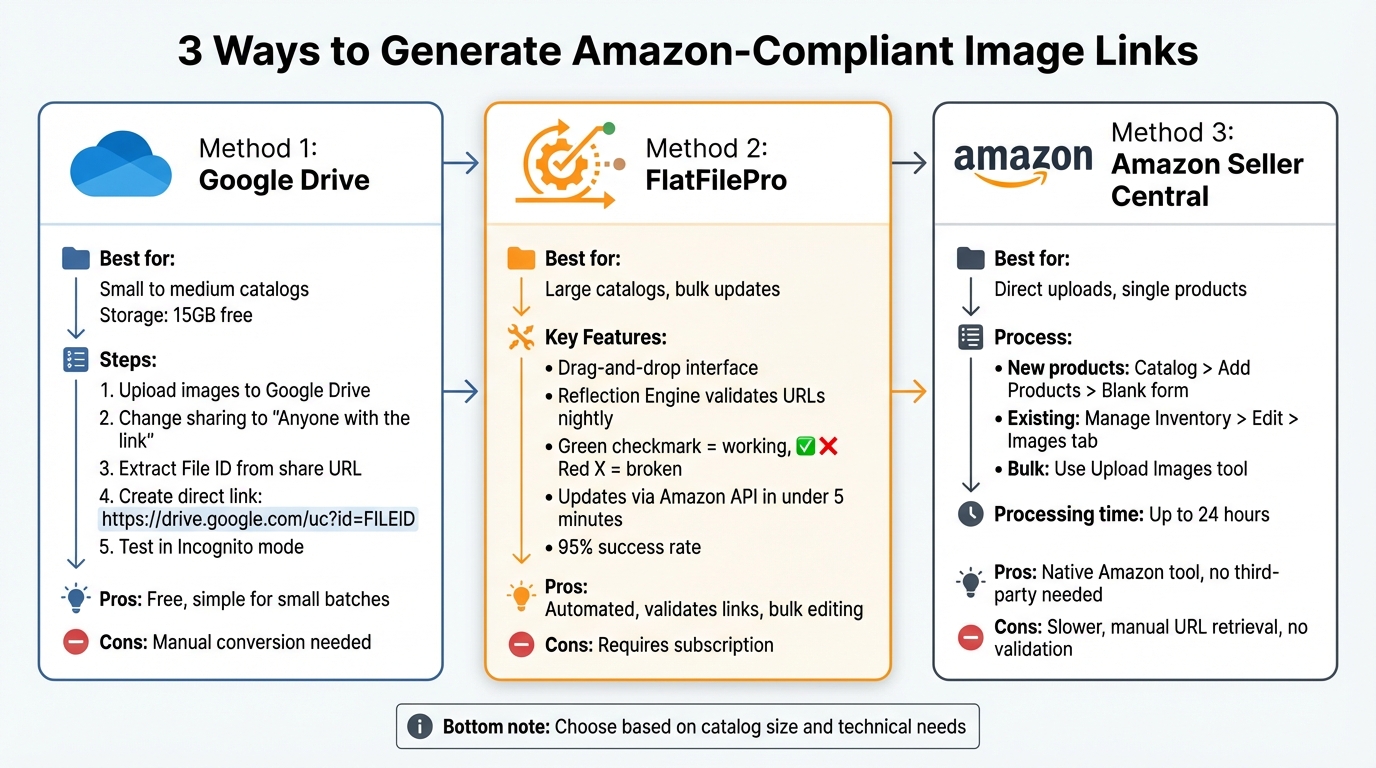
3 Methods to Generate Amazon-Compliant Image Links
If you’ve got your images ready, the next step is turning them into Amazon-compliant URLs. The method you choose will depend on your workflow, technical know-how, and catalog size. Here’s how you can make the process smooth and efficient.
Method 1: Using Google Drive for Image Links
Google Drive gives you 15GB of free storage[5], making it a great option for small to medium-sized image libraries. However, the standard share links won’t work for Amazon uploads – you’ll need to convert them into direct URLs.
Here’s how it works:
- Upload your images to Google Drive.
- Change sharing settings to ‘Anyone with the link.’
- Extract the File ID from the share URL (e.g., in
https://drive.google.com/file/d/FILEID/view, the FILEID is the unique identifier). - Create a direct link using this format:
https://drive.google.com/uc?id=FILEID. - Test the link in Incognito mode. If the image opens directly without login prompts or a preview, it’s ready for Amazon.
For bulk conversions, tools like multi-cursor text editors (e.g., VS Code) can help you process multiple File IDs quickly. Alternatively, you can use the Drive Explorer add-on, which generates URLs with .jpg or .png extensions, such as:
https://storage.googleapis.com/drive-explorer/.../img.jpg.
| Link Type | URL Format | Best Use Case |
|---|---|---|
| Standard Share | https://drive.google.com/file/d/FILEID/view |
Personal sharing; not for Amazon. |
| Direct Render | https://drive.google.com/uc?id=FILEID |
For direct image display in browsers. |
| Direct Download | https://drive.google.com/uc?id=FILEID&export=download |
For forcing downloads. |
| Extension-Based | https://storage.googleapis.com/drive-explorer/.../img.jpg |
When Amazon requires .jpg or .png. |
Looking for something more automated? Let’s move on.
Method 2: Using FlatFilePro‘s Reflection Engine

FlatFilePro makes generating compliant image links a breeze. Once you connect your Seller Central account, all you need to do is drag and drop product images into the relevant SKU fields. The system takes care of the rest.
Here’s what makes it stand out:
- The Reflection Engine validates each URL nightly, ensuring they’re accessible and meet Amazon’s standards.
- A green checkmark confirms working links, while a red X flags broken or non-compliant URLs.
- Changes are pushed directly to Amazon via its API, skipping the need for Amazon flat files. Updates are processed in under 5 minutes, with a 95% success rate.
This tool is particularly useful for managing large catalogs, seasonal updates, or fixing compliance issues across multiple SKUs at once.
Method 3: Generating Links Through Amazon Seller Central

If you prefer to stick with Amazon’s native tools, Seller Central offers built-in image hosting. However, retrieving reusable URLs takes a few extra steps:
- For new products: Go to Catalog > Add Products, select Blank form, and upload your images under the Images tab.
- For existing listings: Navigate to Manage Inventory, click Edit on the product, and upload images through the Images tab.
- For bulk uploads: Use Amazon’s dedicated Upload Images tool.
Keep in mind that uploaded images might take up to 24 hours[6] to go live. Once they’re visible, you can right-click the image on your listing, select "Copy image address", and use this URL for future updates. If you run into Error 15 (Invalid URL format), check Seller Central’s help section for troubleshooting tips.
One thing to note: even if your image uploads successfully, Amazon’s ranking technology determines which images appear in search results and on product detail pages. So, uploading is just part of the equation.
How to Add Image Links with Bulk Edits in FlatFilePro
Updating image links for multiple SKUs can feel overwhelming, especially when you’re dealing with a large product catalog. But with FlatFilePro, you can streamline this process and make bulk updates in just minutes. The platform’s tools not only simplify the task but also help prevent errors before they reach Amazon.
Updating Multiple SKUs at Once
Start by importing your Amazon listings into FlatFilePro using a CSV file. Once your catalog is uploaded, use the search and filter tools to pinpoint the SKUs that need updates – whether it’s a specific product category, seasonal items, or listings flagged for missing images.
After selecting the relevant SKUs, paste your new image URLs directly into the appropriate fields. FlatFilePro allows you to update as many SKUs as needed at once – whether you’re working with 50 or 5,000 listings. These updates are sent to Amazon via its API in under five minutes, avoiding the usual delays caused by flat file uploads to Amazon.
FlatFilePro also keeps a revision history and creates backups, so you can easily undo changes if needed. This feature adds a layer of security, making bulk edits less risky compared to working directly in Seller Central. Once the updates are made, use the built-in tools to confirm that all URLs are error-free.
Validating URLs with Reflection Engine
Before your updates go live, FlatFilePro’s Reflection Engine steps in to validate each URL. It checks for issues like incorrect file extensions, broken links, or formatting errors that could lead to problems with Amazon’s system.
Valid links are marked with a green checkmark, while problematic ones are flagged with a red X. This validation happens before submission and continues nightly, giving you the chance to fix errors proactively. The flagged issues are grouped by category, making it easier to prioritize and resolve potential problems that could suppress your listings or hurt search rankings.
This automated validation is a game changer when managing hundreds or thousands of URLs, ensuring your updates are accurate and compliant with Amazon’s standards.
Testing and Fixing Image Link Problems
After making bulk updates, it’s crucial to test your image links to ensure everything works as expected. Start by testing each image link directly – paste the URL into your browser and confirm the image loads properly.
Before pushing updates live, conduct a staging preview. Take a handful of URLs from your spreadsheet, open them in separate tabs, and check that each image loads correctly, meets the 1,000-pixel minimum, and displays the appropriate product. This quick manual review can help catch common issues like formatting errors, typos, or permission problems before they impact your live listings.
Broken image links often result from issues like incorrect file paths or restricted sharing settings. For example, ensure Google Drive links are set to "Anyone with the link", and verify that your hosting platform allows public access. If a link that initially worked suddenly breaks, it’s often due to changes in the hosting platform’s URL structure or the file being moved to a different folder.
Keep in mind that Amazon has a 24-hour processing delay for updates, so errors might not show up immediately. During this time, updates are queued but inactive. If you notice an issue during this window, you can submit an updated file to override the pending changes. Amazon’s Seller Central Processing Report can help pinpoint errors like invalid formats, broken URLs, or content policy violations.
Tools like FlatFilePro’s Reflection Engine can save you time by validating URLs before submission. Any issues are flagged immediately with red X marks, so you don’t have to wait 24 hours to uncover a problem. Additionally, the tool’s nightly scans can detect issues that arise later, such as hosting permissions being changed or files becoming corrupted. This automated check serves as a final safety net before your bulk updates go live.
Conclusion
Key Takeaways
Managing image links effectively is critical to keeping your Amazon listings competitive. By using the strategies outlined earlier, you can create image links that comply with Amazon’s pixel and file format requirements. Whether you prefer Google Drive, Amazon Seller Central, or FlatFilePro’s Reflection Engine, select a method that aligns with your workflow and adapts to your catalog’s size.
FlatFilePro offers a powerful solution to simplify this process. Its automated tools can validate and monitor your image links, catching issues like broken URLs, formatting errors, or hosting permission changes before they disrupt your listings.
Bulk editing is another game-changer, allowing you to update multiple SKUs quickly. This is especially useful for seasonal updates, compliance adjustments, or rebranding efforts.
Equipped with these tools and practices, you can enhance your listings and stay ahead in the competitive Amazon marketplace.
Next Steps
Start by auditing your current image links. Test several URLs in incognito mode to ensure they load correctly and meet Amazon’s standards. Fix any broken or slow-loading links immediately to avoid losing potential customers.
For a more efficient approach, consider using FlatFilePro to automate the validation process. The time you save can be better spent on refining product photography, expanding your inventory, or focusing on other aspects of your Amazon business.
FAQs
Why does Amazon reject an image URL that opens in my browser?
Amazon might decline an image URL, even if it opens in your browser, if it doesn’t point directly to the image file. This can happen for a few reasons, such as the URL being invalid or inaccessible. Another common issue is that the image doesn’t meet Amazon’s standards, like including text, logos, or watermarks, instead of focusing solely on the product.
How can I tell if my image link is truly public and direct?
To make sure your image link is public and direct, check that it meets these criteria:
- File format: The link should end in
.jpgor.png. - Secure hosting: The URL must use HTTPS.
- No restrictions: The image should load without requiring permissions or logins.
Test the link by opening it in a browser. If the image appears in full resolution without any prompts, it’s good to go. Avoid using links from cloud storage or any source that doesn’t provide a direct path to the image on a reliable, public server.
What should I do if my listing image updates but doesn’t show for 24 hours?
Amazon’s image processing system sometimes experiences delays due to internal checks. To avoid issues, make sure your images align with Amazon’s requirements:
- Use HTTPS links for image URLs.
- Stick to JPEG or PNG formats.
- Ensure your URLs are accessible and properly linked.
If you’re facing delays, try clearing your browser cache and checking the images in incognito mode. Double-check that your images comply with Amazon’s guidelines. If the delay stretches beyond 48 hours, it’s best to reach out to Seller Support for assistance.