
If you’re struggling to manage Amazon product image links, you’re not alone. Broken or non-compliant images can hurt your sales by suppressing listings or reducing visibility. But managing these links doesn’t have to be overwhelming. Here’s a quick summary of three simple ways to handle it:
- Seller Central: Use the Manage Inventory section to manually grab image links for specific products. It’s great for small catalogs but can be time-consuming for larger ones.
- Flat Files: Ideal for bulk extraction, these spreadsheets let you download and manage image URLs for hundreds or thousands of products at once.
- FlatFilePro: A specialized tool that automates image link management. It detects errors, verifies links, and updates variations efficiently, saving time and reducing manual effort.
Each method has its strengths, depending on the size of your catalog and your technical comfort level. Whether you’re managing a few listings or thousands, having a system in place ensures your images load correctly, meet Amazon’s standards, and keep your listings active.
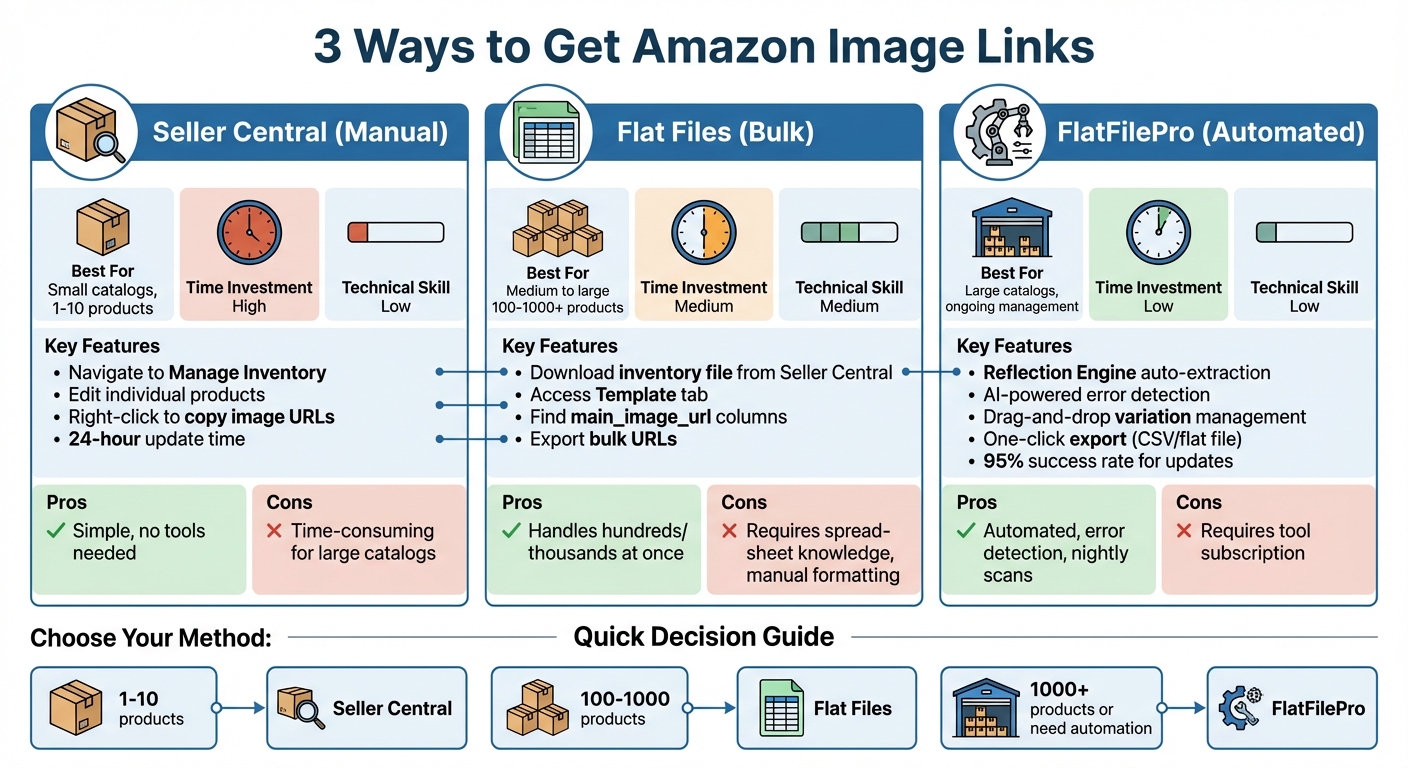
3 Methods to Extract Amazon Product Image Links Comparison
Method 1: Get Image Links from Amazon Seller Central
How to Navigate Seller Central
If you’re looking for a quick way to access your product image links, the Manage Inventory section in Amazon Seller Central is your go-to. This approach is ideal when you only need to grab URLs for a few products or double-check specific images.
Here’s how to do it:
- Log in to your Amazon Seller Central account.
- Click the Hamburger icon in the top-left corner of your dashboard.
- From the navigation menu, select Manage Inventory to see your active product listings.
- Find the product you want and click the Edit button.
Once in the product editor, navigate to the Images tab. Here, you’ll see slots for your main image and any additional images. To get the direct URL for an image, right-click on the preview and choose Copy Image Address (the exact wording may vary depending on your browser). This will give you the Amazon-hosted URL, which you can save for reference or share as needed.
Important: Keep in mind that image updates on Amazon can take up to 24 hours to reflect. Also, uploading an image doesn’t guarantee it will appear, as Amazon uses its own ranking system to decide which images are displayed in search results and on product detail pages.
How to Organize Your Extracted Links
Once you’ve collected your image URLs, it’s smart to organize them in a spreadsheet. Create columns for details like SKU, ASIN, Main Image URL, and Variation-Specific Image URLs. This setup makes it easier to manage updates or changes in the future.
While this manual method works well for smaller catalogs, sellers with larger inventories might find Amazon bulk listing tools more efficient.
sbb-itb-ed4fa17
Method 2: Get Image Links from Amazon Flat Files
For sellers managing hundreds or thousands of products, flat files are an efficient way to extract image URLs in bulk. With a single spreadsheet, you can access all your product data, including every image link tied to your catalog. This method simplifies bulk extraction and automates data handling, making it a go-to solution for managing large inventories.
How to Download and Locate Image URL Columns
Start by logging into Seller Central. Navigate to Inventory > Add Products via Upload > Download an Inventory File. From here, select your product category and choose the file type that suits your needs. Once downloaded, you’ll get an Excel file with multiple tabs, each serving a distinct purpose:
| Flat File Sheet Name | Purpose |
|---|---|
| Instructions | Step-by-step guidance on using the file. |
| Images | Rules and examples for uploading product images. |
| Example | A sample of a correctly completed template. |
| Data Definitions | Detailed explanations of column headings and formatting. |
| Template | The main sheet for entering, editing, or extracting product data, including image URLs. |
| Valid Values | Permissible terms for specific columns. |
Focus on the Template tab to find your product data. Look for columns such as main_image_url, other_image_url1, other_image_url2, and so on. These columns contain the direct URLs hosted by Amazon for your main and additional product images. You can either copy these URLs directly or export them to another spreadsheet for easier organization.
Formatting and Managing Flat File Data
Proper formatting is key to keeping your bulk data accurate and ready for updates. Flat files often contain inconsistencies, especially if your catalog has been updated over time or sourced from various platforms. To clean up your data:
- Remove blank rows.
- Ensure each SKU/ASIN is correctly aligned with its corresponding image URLs.
For variation listings, pay extra attention to child ASINs. Each variation – whether it’s a different color, size, or style – should have its own image URL to help customers easily identify their preferred option. To stay organized, use separate columns for parent and child image links in your working file.
Before making any updates to your live listings, always save a backup copy of the original flat file. This ensures you have a fallback if anything goes wrong during the upload process. A backup also allows you to compare old and new image URLs when resolving any issues.
Method 3: Use FlatFilePro to Manage Image Links
Managing a large inventory can feel overwhelming, especially when it involves sorting through endless spreadsheets and flat files. That’s where FlatFilePro comes in. This tool connects directly to your Seller Central account, offering a user-friendly dashboard to extract, verify, and manage image links efficiently. By simplifying the process, it allows you to spend less time on technical tasks and more time growing your sales.
Extract Bulk Image Links with Reflection Engine
FlatFilePro takes the flat file method to the next level with its Reflection Engine. This feature automates the bulk extraction of image URLs, pulling live data directly from Amazon’s servers. It cross-checks these links with your stored URLs, marking verified images with green checkmarks and flagging issues with red X’s. This means you can extract image URLs for thousands of SKUs in one go, ensuring they match what customers see on your product pages. With nightly scans, the tool helps you quickly identify discrepancies like missing images or mismatched URLs, keeping your listings accurate and up-to-date.
Detect Image Errors Automatically
FlatFilePro uses AI-powered detection to identify and flag issues with your images. It spots missing, broken, or non-compliant links and ensures your images meet Amazon’s requirements, such as the 1,000×1,000px minimum size and the 85% product fill standard. The tool also upgrades outdated HTTP URLs to HTTPS and notifies you when variation listings lack unique images. Instead of manually combing through listings, you’ll get a prioritized list of issues grouped into categories like Product Identity, Details, Shipping, and Safety, making it easier to tackle the most pressing problems first.
Export Links and Manage Variations with Drag-and-Drop
Once you’ve resolved any issues, exporting your updated data is simple. The one-click export feature lets you download all URLs in either CSV or flat file format. For variation listings, the drag-and-drop interface allows you to assign different images to child ASINs quickly, without dealing with complicated spreadsheet formulas. You can update multiple SKUs and push changes through Amazon’s API in just a few minutes. With a 95% success rate for variation updates and a full activity log to track changes, you can even roll back updates if necessary, ensuring smooth management of your catalog.
How to Fix Common Image Link Problems
Even after setting up your image links with FlatFilePro and Seller Central, you might run into occasional snags. Don’t worry – these issues are usually easy to fix. Below, we’ll walk through straightforward solutions for common image link problems.
Fix Missing or Images That Fail to Load
Missing images often result from broken or mistyped URLs, expired links, algorithmic overrides, or policy violations (like not using a compliant white background).
Here’s how to address this:
- Log in to Seller Central and navigate to Image Manager (Catalog > Upload Images > Image Manager tab).
- Delete the problematic images and upload corrected versions.
- For variations, update the parent ASIN’s media set and apply it to all child ASINs using the "Copy media set to siblings" feature. This ensures consistency across your listings and saves you from manually fixing each variation.
Replace All "http://" with "https://"
Amazon requires secure HTTPS links for image hosting. Using outdated HTTP links can lead to browsers blocking content, suppressed listings, and images failing to load. These issues not only hurt your listings but also undermine customer trust.
To fix this:
- Open your flat file and perform a global search and replace to switch "http://" to "https://" in all image URL columns.
- After updating, upload the corrected file and check the Image Manager to ensure the links are live.
Making this update a regular part of your workflow, along with periodic audits of your top-performing listings, will help you avoid similar problems down the line and keep your catalog running smoothly.
Wrapping It Up
Managing Amazon image links doesn’t have to be complicated. You now have three solid methods to handle this: Seller Central’s Image Manager for quick, manual updates; flat files for bulk changes if you’re comfortable with spreadsheets; and FlatFilePro, which automates the process, including error detection, so you can skip the guesswork.
The beauty of automation lies in spotting issues before they hurt your sales. FlatFilePro not only detects errors but also provides instant alerts and one-click solutions to fix them across all your product variations. Instead of manually combing through hundreds of SKUs, you can let the system do the heavy lifting.
For sellers with large catalogs, automation transforms hours of tedious spreadsheet work into just minutes. This ensures your product galleries remain accurate and compliant with Amazon’s standards, including high-resolution images and secure HTTPS links.
The secret to success here is making these tools part of your routine. Regularly audit your top listings, ensure your image URLs are up to date, and rely on FlatFilePro’s Reflection Engine to monitor and adapt to any changes automatically. This proactive approach saves you from launch-day headaches and keeps your catalog running smoothly as your business grows.
With a reliable system in place, you can shift your focus to scaling your business instead of dealing with broken image links or suppressed listings.
FAQs
Which method should I use for my catalog size?
The right approach hinges on the size of your inventory:
- For large catalogs: Flat files are ideal. They allow for bulk exports and make managing image links much easier.
- For mid-sized catalogs: Google Sheets can be a lifesaver. With formulas or add-ons, you can streamline the process without too much hassle.
- For small inventories: Manual methods, like right-clicking and selecting "Copy image address", can work, though they might be time-consuming.
Pick the option that aligns with your inventory size to save time and maintain accuracy.
Why are my Amazon images missing or not updating?
Amazon images might not display or update properly due to issues like broken URLs, outdated links, or failure to meet Amazon’s image requirements. To prevent these problems, make sure your image URLs are direct, hosted on dependable servers, and comply with Amazon’s guidelines. For example, images should be in JPEG format, have a white background, and be at least 1,000 pixels in size. Meeting these standards helps keep your product listings accurate and visually appealing.
How do I bulk switch image links to HTTPS?
To update Amazon image links to HTTPS in bulk, start by manually replacing "http://" with "https://" in your image URLs. This can be done using a flat file or a catalog management system. If you’re managing a larger inventory, automation tools like FlatFilePro can make the process much easier. These tools can handle bulk updates, catch potential errors, and ensure your links meet Amazon’s HTTPS requirements. By using these methods, you can update and verify your image links efficiently.