
Amazon flat file templates are spreadsheets that let you manage product listings in bulk. Instead of updating listings one by one, these templates help you upload, modify, or bulk edit Amazon listings. They’re available for sellers with a Professional selling plan and are tailored to specific product categories, ensuring accurate listings and reducing errors.
Here’s what you need to know:
- Why Use Them? Each category has unique requirements (e.g., electronics need technical specs like voltage, while fashion requires size charts). Using the correct template ensures better visibility in search results and fewer upload errors.
- Where to Find Them? Access templates in Seller Central under Inventory > Add Products via Upload. Use the template generator to select the right category.
- Lite vs. Full Templates: Lite templates cover essential fields for quick updates, while Full templates include all possible attributes for detailed listings.
- Key Fields: Templates include fields like SKU, price, quantity, and category-specific attributes (e.g., power source for electronics or ingredient lists for beauty products).
For those managing large catalogs or wanting to avoid manual spreadsheets, tools like FlatFilePro simplify the process with features like bulk editing, real-time validation, and automated updates – all for $99/month.
Whether you’re uploading new products or updating existing ones, these templates save time and improve listing accuracy. Use Seller Central templates for smaller tasks or FlatFilePro for large-scale catalog management.
How to Create 1000 Amazon Listings in Bulk with Flat Files | Amazon Flat Files Made Simple

sbb-itb-ed4fa17
How to Download Category-Specific Flat File Templates
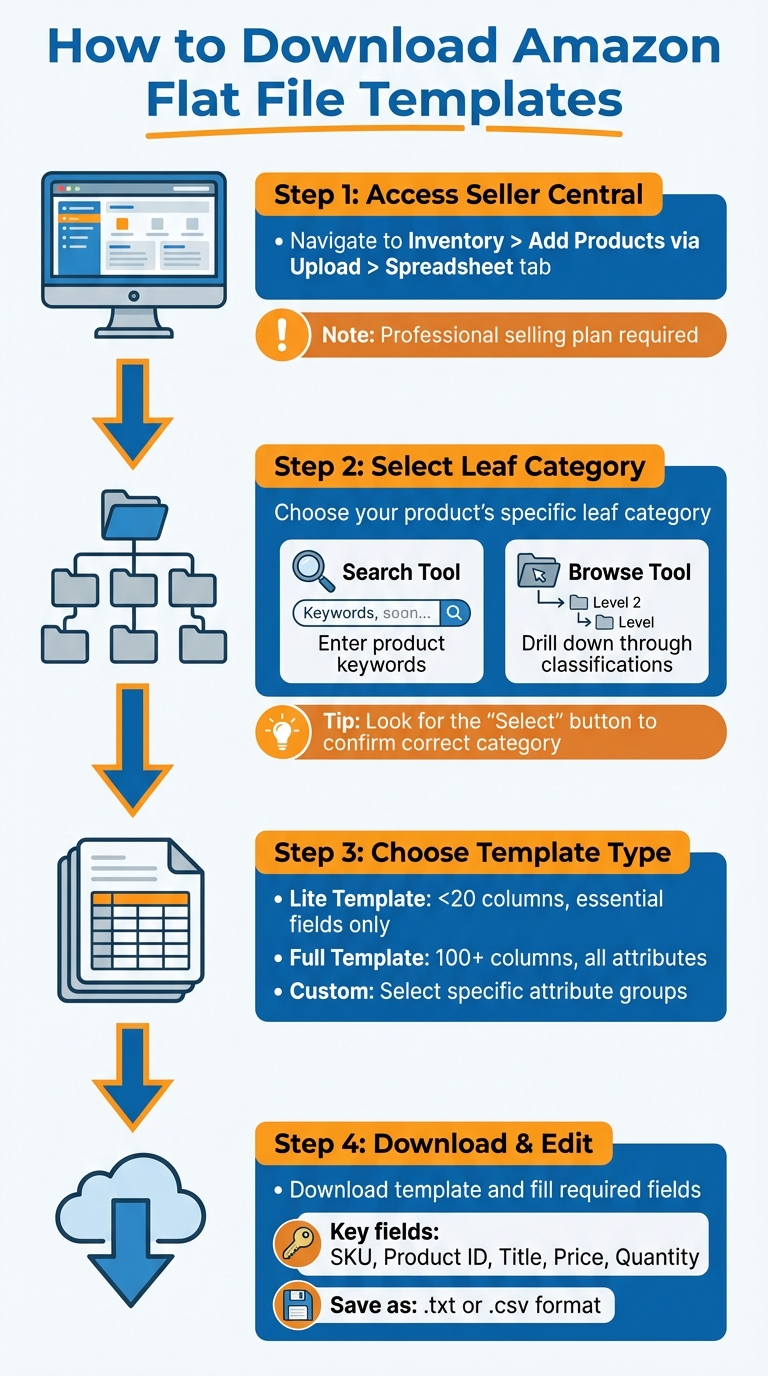
How to Download Amazon Flat File Templates: 4-Step Process
Finding Templates in Seller Central
To access flat file templates in Seller Central, head to Inventory > Add Products via Upload, and then click on the Spreadsheet tab. Here, you’ll find options to either Download a blank template or Download an inventory file. Both choices lead to a template generator. Which option you choose depends on your goal – whether you’re listing new products, updating prices or quantities, or modifying existing details [1][2].
Keep in mind: this feature is available only to sellers with a Professional selling plan [1].
Before proceeding, you’ll need to identify your product’s specific leaf category for accurate placement within Amazon’s catalog.
Selecting the Correct Leaf Category
The leaf category is the most detailed classification for your product within Amazon’s category structure. For instance, Electronics > Electronics Bags & Cases > Laptop Computer Briefcases is an example of a leaf category [3].
There are two ways to find the right category:
- Search Tool: Enter your product title or keywords, like "beanies for women", and Amazon will suggest relevant Item Type Keywords [1].
- Browse Tool: If the search tool doesn’t yield accurate results, use this option. Start with a general category and drill down through the classifications. You’ll know you’ve reached the correct leaf category when the Select button appears [1].
For sellers managing a large number of listings, the Browse Tree Guide (BTG) is a helpful resource. It provides precise node IDs and keywords to streamline the process [3].
Once you’ve pinpointed your leaf category, you’ll need to decide which template mode best suits your listing requirements.
Choosing Between Lite and Full Templates
After selecting your leaf category, you’ll have the option to use either the Default (Lite) or Advanced (Full) template.
- The Lite template focuses on essential fields, including required, conditionally required, and recommended attributes. It typically contains fewer than 20 columns. This version is ideal for quick tasks like creating basic listings or updating key information such as price and quantity [1].
- The Full template includes every available attribute column, which can exceed 100 depending on the category. This version is better suited for launching new products or enhancing existing listings. Completing optional fields – like search terms, bullet points, and technical specifications – can improve search visibility and conversions [1].
Amazon also offers a Custom option, allowing you to select specific attribute groups (e.g., "Images" or "Compliance"). This is useful if you only need to update certain sections without dealing with an overly large spreadsheet.
Category-Specific Flat File Template Checklists
After downloading and selecting your flat file template, it’s time to focus on the category-specific details that can make or break your Amazon listing. While every template includes core fields like SKU, Product Name, Product ID (GTIN/EAN/UPC), Product ID Type, Brand, Manufacturer, Price, and Quantity, the real difference lies in the unique fields tailored to each category. These fields directly impact how your product is displayed and performs in search results.
Electronics Template Checklist
Electronics listings demand precise technical and compliance details to ensure their accuracy and visibility. Beyond the standard fields, you’ll need to include additional technical specs such as power source, connectivity options, battery requirements, and any applicable material regulations. These details are crucial for meeting Amazon’s requirements and customer expectations.
Make sure to consult the Data Definitions tab for a breakdown of mandatory fields specific to electronics subcategories. Check the Images tab to follow Amazon’s strict image guidelines. Before uploading, use the "Check My Data" tool in Seller Central to validate your file. If you’re updating an existing listing, use the "PartialUpdate" option in the update_delete column to modify only the necessary attributes, avoiding accidental overwrites.
Fashion and Apparel Template Checklist
For fashion products, getting variation data right is key to maintaining an organized catalog and delivering a seamless shopping experience. Fashion templates require detailed variation attributes, such as Color, Color Family, Size, Size Family, and Variation Type, to establish parent-child relationships for multi-variation listings.
Before filling out the template, review the Valid Values tab to ensure you’re using Amazon-approved terms for fields like variation_theme. Apparel images must be shot on a white background, with unique image sets for each color variation. Direct URLs are required for submitting images. The template also allows for multiple product images, as well as swatch images to display color variations effectively.
Beauty and Personal Care Template Checklist
When listing beauty products, compliance and safety information are non-negotiable. Beauty templates require you to provide comprehensive details like ingredient lists, product warnings, volume (in fl oz), scent, and skin type suitability. These fields are vital for meeting Amazon’s strict standards and ensuring customer safety.
Refer to the Valid Values tab for approved terms such as scent_name and target_gender. Be cautious when using the full Update function, as it replaces all existing listing data. To avoid losing critical information, ensure all required fields are complete before uploading the file.
Filling and Uploading Flat File Templates
Once you’ve got the right category template, the next step is filling it out and uploading it correctly. This process demands attention to detail – especially with mandatory fields and Amazon’s formatting rules. Even a small mistake can lead to rejected listings or unintended changes to your catalog.
Editing Templates in Excel or Google Sheets
Start by opening your template in Excel or Google Sheets. Be careful not to change the first three header rows – these are essential for Amazon to map your data properly. Focus on filling out the key fields: SKU, Product ID (UPC, EAN, or ISBN), Product ID Type, Title, Price, Quantity, and Condition Type. If you’re updating existing products, make sure your SKUs match exactly with what’s already in Seller Central to avoid creating duplicates.
For fields like variation_theme, feed_product_type, and item_type, use only Amazon-approved terms. You can find these in the secondary tabs of your template. Incorrect values will cause your upload to fail. Double-check for duplicate SKUs – each row must be unique. When you’re done, save the file as a Tab-delimited Text (.txt) or Comma Separated Values (.csv) file. This ensures Amazon processes it correctly. Following Amazon’s formatting rules is crucial for a smooth upload.
Before uploading, validate your file to catch potential issues.
Validating and Troubleshooting Templates
Use the "Check My Data" tool in Seller Central to identify missing fields or formatting errors. If you’re dealing with a large catalog, split your uploads into smaller batches. This makes it easier to find and fix errors without redoing everything.
Once you’ve resolved any issues, you’re ready to upload your file.
Uploading Templates to Seller Central
To upload, go to Inventory > Add Products via Upload in Seller Central and select Upload your spreadsheet. Choose your saved .txt or .csv file and click Upload. After submission, head to the Monitor Upload Status tab to track your file’s progress. Once processing is complete, download the Processing Report. This report highlights any rows that failed and explains why, so you can fix the errors and re-upload only the affected products.
FlatFilePro as an Alternative to Amazon Flat Files

Managing Amazon catalogs through spreadsheets can feel like a never-ending chore. FlatFilePro offers a faster, easier way to handle your listings. This software connects directly to your Seller Central account using Amazon’s API, so you can skip the hassle of downloading, editing, and re-uploading flat files. Instead, everything happens within an intuitive dashboard built specifically for Amazon sellers.
One of its standout features is that it stays up-to-date with Amazon’s ever-changing category requirements. That means no more worrying about outdated templates or manually tracking updates. You can import your existing listings, make bulk edits, and send updates directly to Amazon – all without touching a spreadsheet. Plus, built-in validation checks your data against Amazon’s rules before submission, helping you avoid the upload errors that often plague Seller Central.
Bulk Editing and Real-Time Monitoring
FlatFilePro makes bulk editing a breeze. Through a centralized dashboard, you can update multiple listings at once without the headache of scrolling through endless Excel rows. Just select the products you want to modify, make your changes, and apply them across your entire catalog in minutes. Every update is logged, so you can track exactly what was changed and when.
The platform also keeps an eye on your listing health in real time. It flags issues like missing data, formatting errors, or other problems before they can hurt your sales. From stock levels and pricing to product variations, everything is managed in one place. You can even set user permissions to ensure team members can collaborate without accidentally overwriting each other’s work.
Simplified Variation Management
Managing parent-child relationships in Amazon listings is notoriously tricky with flat files. FlatFilePro simplifies this process with a drag-and-drop interface. You can easily move child products between parent ASINs without dealing with complicated spreadsheet formulas. With a 95% success rate for variation updates and changes completed in under 5 minutes, you’ll save hours compared to troubleshooting in Seller Central. Whether you’re reorganizing product families, fixing broken variations, or creating new groups, the platform helps prevent duplicate listings and orphaned SKUs.
Daily Listing Checks with Reflection Engine
FlatFilePro’s Reflection Engine takes the guesswork out of catalog monitoring. Each night, it scans your listings and compares them to what’s live on Amazon. Any discrepancies – whether from competitors, Amazon’s algorithm, or system errors – are flagged with clear visual cues. This daily check ensures your updates are accurately reflected and protects your catalog from content hijacking, so you don’t have to manually verify everything.
To make things even better, FlatFilePro offers a free trial, so you can test these features with your own catalog. If you’re ready to commit, the $99/month standard plan includes unlimited ASINs and two marketplace connectors.
Wrapping It Up
Category-specific flat file templates simplify bulk listing tasks by zeroing in on the most important fields. These tailored templates ensure you’re working with clear, defined data points so you can focus on essentials like SKU, pricing, and key attributes. Whether you’re creating new listings or making partial updates within specific categories, these templates cut down on unnecessary steps and make the process smoother.
Here’s a quick breakdown of the main points.
Key Highlights
Flat file templates save time by offering pre-structured frameworks tailored to specific categories. Instead of wasting time figuring out which fields are relevant, you get a format that aligns with Amazon’s requirements. That said, the manual process of editing, downloading, and re-uploading can still take hours, especially if you’re managing hundreds – or even thousands – of SKUs across multiple marketplaces.
FlatFilePro takes the hassle out of spreadsheets. With built-in validation, you can catch errors before submission. Bulk editing tools let you update prices and inventory for your entire catalog in minutes. Plus, the drag-and-drop variation manager makes updates a breeze, completing tasks in less than 5 minutes with a 95% success rate. Its Reflection Engine keeps an eye on your listings nightly, flagging any changes caused by competitors or Amazon’s algorithm. And at $99/month, which includes unlimited ASINs and two marketplace connectors, it’s designed to let you focus on growing your business – not wrestling with files.
This approach ties directly to the guide’s goal: making Amazon catalog management easier and more efficient.
What to Do Next
Here’s how you can start applying these benefits:
- If you’re managing a smaller catalog, download the free category-specific templates from Seller Central. Go to the Inventory tab, select "Add Products via Upload", and grab the template that fits your product type.
- For larger catalogs or frequent updates, test out FlatFilePro’s free trial. It’s a chance to experience bulk editing, variation management, and automated listing checks – all without touching a spreadsheet. Plus, the platform adapts to Amazon’s evolving requirements, saving you the headache of dealing with outdated templates or formatting issues after uploads.
FAQs
Which flat file template should I use for my product?
To streamline your bulk uploads, pick the flat file template that aligns with your product category. These templates are tailored to include essential attributes like SKU, title, price, and more, helping ensure your data is accurate and well-organized.
To get started, head over to Seller Central > Inventory > Add Products via Upload. From there, choose your product category and download the appropriate file. If you’re uncertain about which category fits your product, consult Amazon’s guidelines for clarity.
What’s the fastest way to find the right leaf category?
The fastest way to identify the right leaf category for your product is by using the Product Classifier tool in Seller Central. You can either search using product keywords or navigate through category trees to locate the most precise category. Once you’ve chosen a category, Amazon generates a customized flat file template for it. This template includes all the necessary attributes, helping you reduce errors when listing products in bulk.
How can I avoid overwriting listing data during updates?
To avoid accidentally overwriting listing data during updates, it’s best to use category-specific flat file templates. Update only the fields you need to change, and leave all other fields untouched. Be sure to follow Amazon’s guidelines for each template closely – this approach helps ensure your updates are precise and reduces the chance of overwriting important data.