
Amazon stores product images on its servers with specific URLs, which can be modified to access different image sizes and qualities. These URLs follow a predictable structure, making it possible to extract and resize images for various uses. Here’s a quick summary of what you need to know:
- URL Structure: Amazon image URLs typically look like this:
https://m.media-amazon.com/images/I/[Unique-ID].[Suffix].jpg. - Suffixes for Resizing: Modify suffixes like
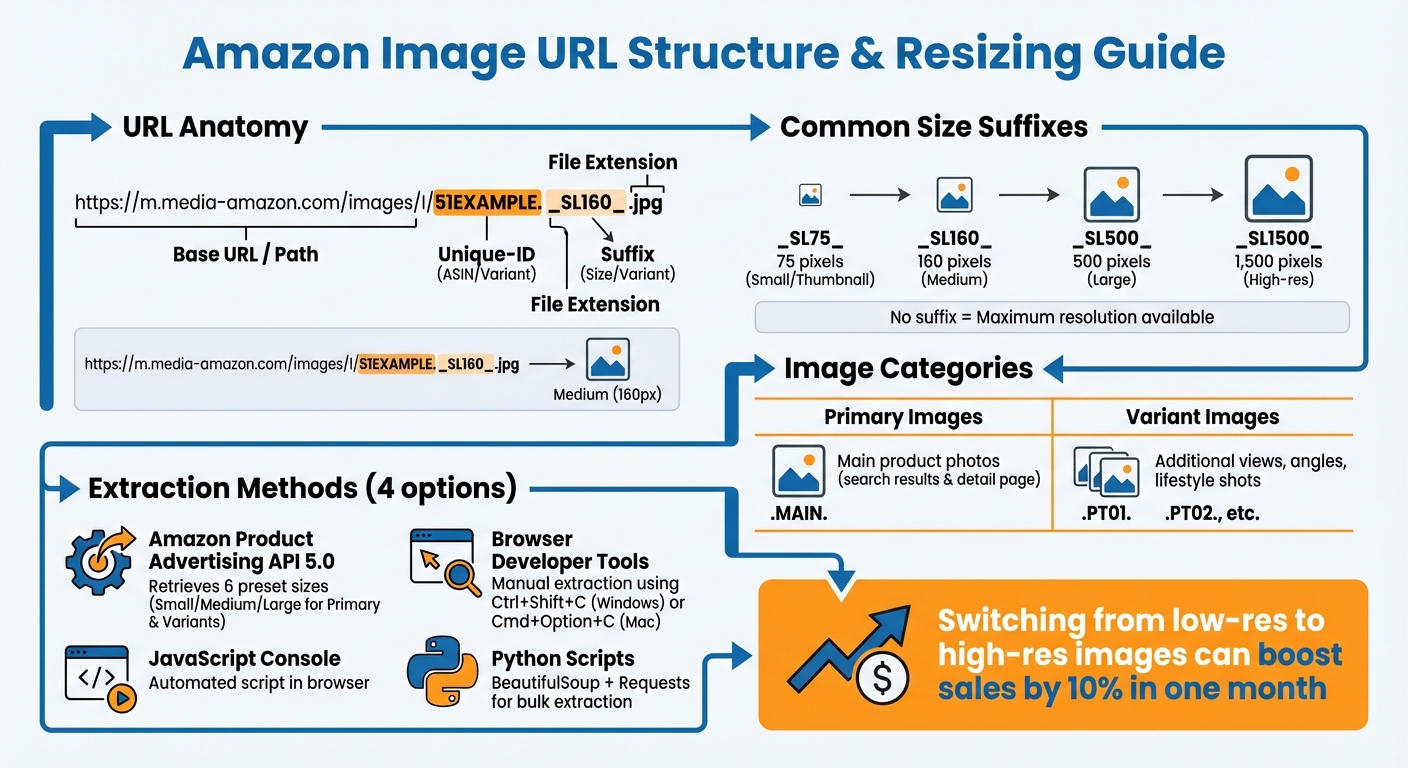
_SL160_(160 pixels on the longest side) or_SL1500_(1,500 pixels) to adjust image dimensions. - Primary vs. Variant Images: Primary images are the main product photos, while variant images include additional views or angles.
- Extraction Methods:
- Use Amazon’s Product Advertising API to retrieve URLs in bulk.
- Manually extract URLs using browser developer tools.
- Automate extraction with JavaScript or Python scripts.
- Tools for Bulk Management: Platforms like FlatFilePro simplify URL extraction, resizing, and updating for large catalogs.
Amazon Image URL Structure and Resizing Guide
How Amazon Image URLs Are Structured
Amazon Image URL Format
Amazon product images follow a straightforward and predictable format:
https://m.media-amazon.com/images/I/[Unique-ID].[Suffix].jpg.
Here, the unique ID is a combination of letters and numbers that identifies the specific image, while the suffix tells Amazon’s servers how to resize or reformat the image. For example, in the URL https://m.media-amazon.com/images/I/51EXAMPLE._SL160_.jpg, 51EXAMPLE is the unique identifier, and ._SL160_ resizes the image so its longest side is 160 pixels.
If you remove the suffix, the URL typically points to the highest-resolution version of the image – often with up to three times the pixel count. Additionally, removing extra parameters like _AC_USC_ can help reveal the image’s maximum quality[2].
This basic structure is essential to understanding how Amazon organizes its images into primary and variant types.
Primary vs. Variant Images
Amazon separates its product images into two categories: primary images and variant images. Primary images are the main photos you see in search results and at the top of product pages. Variant images include additional views, such as different angles, lifestyle shots, or close-ups. The Amazon Product Advertising API 5.0 provides a clear definition:
"The Primary image denotes the image which is displayed in search results and on the detail page. Variants include everything else"[1].
Both primary and variant images share the same m.media-amazon.com domain and URL structure. However, the API organizes them into Primary and Variants containers. When uploading images, Amazon distinguishes between these categories using specific file naming conventions. For example, primary images are labeled with .MAIN., while variant images use codes like .PT01. or .PT02.[3].
This consistent framework makes it easier to manage and manipulate images, especially when adjusting their size.
Changing URL Suffixes to Get Different Sizes
Amazon allows dynamic resizing of product images by altering the URL’s suffix. For instance, adding _SR300,300_ generates a 300×300 pixel image, while _SL1500_ scales the longest side to 1,500 pixels[2]. The server handles the resizing process automatically.
However, requesting a size larger than the original image won’t upscale it. Instead, Amazon fills the extra space with whitespace. While you can’t enhance resolution beyond the source file, you can always scale down from the highest-quality version. Interestingly, studies show that switching from low-resolution to high-resolution images through URL adjustments can boost sales by 10% in just one month[2].
Methods to Extract Amazon Image URLs
Using Amazon Product Advertising API 5.0
Amazon’s Product Advertising API 5.0 makes it easy to access image URLs in three preset sizes: Small (75 pixels on the longest side), Medium (160 pixels), and Large (typically 500 pixels or more) [1]. You can request all six image resources, including:
Images.Primary.SmallImages.Primary.MediumImages.Primary.LargeImages.Variants.SmallImages.Variants.MediumImages.Variants.Large[1].
Each image object in the response includes its URL, height, and width. For instance, if a product has one primary image and three variants, the API will return 12 unique URLs [1].
To retrieve image data, use the GetItems operation with the ItemIds parameter, allowing you to query up to 10 ASINs in a single request [4]. Amazon also provides official SDKs for programming languages like Python, Node.js, Java, and PHP, which simplify the process of signing requests [5]. Make sure to match the ASIN in the response to your products to confirm the correct image URLs are linked [4].
If coding isn’t your thing, check out the manual browser-based methods below.
Finding Image URLs with Browser Developer Tools
For a hands-on approach, browser tools let you manually extract image URLs. Open the Developer Tools by pressing Ctrl + Shift + C on Windows or Cmd + Option + C on Mac [6]. Click on the main image or a thumbnail to highlight its <img> tag in the Elements panel. Here, you’ll find the src attribute, which contains the image URL. For high-resolution images, also check attributes like data-old-hires or data-a-dynamic-image.
To grab all variant images, locate the container with the ID #altImages and inspect its <img> tags [6]. If you need a larger version of an image, you can often tweak the URL by modifying the suffix to ._SL1500_.
Using FlatFilePro Image Management Dashboard

FlatFilePro offers a no-code solution with its Reflection Engine, which syncs your Amazon listings nightly. This tool displays image URLs for both primary and variant images directly in its dashboard. It organizes these URLs by listing and variation, making it easy to match URLs to specific ASINs. You can extract, download, or replace image URLs for hundreds of listings in one go, saving time and effort.
Additionally, the dashboard includes an Activity Log to track when image URLs are added or updated, helping you maintain consistency across your entire catalog. This feature is perfect for managing large inventories without needing to write a single line of code.
Automated URL Extraction with Scripts
JavaScript in Browser Console
You can extract image URLs directly from an Amazon product page using a quick JavaScript snippet in your browser console. Start by opening the product page, pressing F12 to access Developer Tools, and navigating to the Console tab. From there, you can run a script to locate the colorImages object or the data-a-dynamic-image attribute, which store URLs for all variant images.
Here’s an example script:
JSON.parse(document.getElementById('colorImages').textContent).colorImages.initial.forEach(img => console.log(img.hiRes)); This script pulls high-resolution image URLs from the page’s embedded JSON data, bypassing the need to inspect individual <img> tags [7]. Once the URLs appear in the console, you can copy them for later use. Keep in mind, Amazon occasionally updates its URL structure, so scripts may need adjustments over time.
Python Scripts with BeautifulSoup and Requests

For a more scalable solution, Python is a great choice. To handle larger catalogs, use Python 3.8+ along with libraries like requests, beautifulsoup4, and lxml. To avoid Amazon’s anti-bot measures (which may return a 503 error), include a custom User-Agent header in your requests, such as:
Mozilla/5.0 (Windows NT 10.0; Win64; x64) After fetching the HTML content, parse it using BeautifulSoup with the lxml parser. For example, you can locate the primary image via the #landingImage ID and extract its URL using:
image_element.attrs.get('src') However, high-resolution images are often embedded in <script> tags as JSON data. To extract these, use Python’s re library to search for patterns like "hiRes":"(.+?)" in the raw HTML. This approach captures dynamically loaded images that standard parsing might miss [7].
sbb-itb-ed4fa17
Extract hundreds of Amazon product images directly to Google Sheets
Using Extracted Image URLs for Catalog Management
Managing image URLs effectively can make catalog updates smoother and improve listing performance.
Downloading and Resizing Images
Once you’ve extracted image URLs, you can adjust the "SLXXX" suffix to set the image dimensions you need [1]. This trick is especially helpful when dealing with large catalogs. For example, if your main product page requires images at 500 pixels or your thumbnails need to be 75 pixels, just tweak the suffix to match those dimensions. It’s a quick way to ensure your images are ready without extra steps.
Uploading Images via FlatFilePro
After resizing your images, you can use FlatFilePro to integrate them into your catalog effortlessly. With its bulk editing dashboard, you can upload optimized images to hundreds – or even thousands – of listings at once. Instead of manually updating each ASIN in Seller Central, simply input the updated image URLs into FlatFilePro and push the changes through Amazon’s API. This process not only speeds up uploads but also provides real-time status updates. Plus, FlatFilePro’s Reflection Engine checks your listings nightly, flagging any discrepancies between your catalog and what’s live on Amazon. The platform also makes it easy to replicate your optimized images across multiple marketplaces.
Maintaining Image Quality Across Listings
To keep your catalog consistent, standardize image dimensions across all listings by applying a uniform "_SL" suffix to your URLs. High-quality images (500 pixels or larger) should be prioritized, especially for primary images, as they directly impact click-through rates in search results. To avoid confusion, organize your extracted URLs by separating primary images from secondary or lifestyle shots. This could mean placing them in different folders or database columns, ensuring search-optimized images are always used correctly. Maintaining this level of organization helps your listings look polished and professional.
Conclusion
Gaining control over Amazon image URLs can make managing your catalog much more efficient. By understanding how the _SLXXX_ suffix works, you can easily adjust image sizes to suit your needs. For instance, swapping _SL160_ for _SL500_ instantly generates a larger image without the need for manual resizing.
The strategies outlined – using browser developer tools, leveraging the Product Advertising API 5.0, or relying on FlatFilePro’s dashboard – offer options tailored to different needs. For smaller catalogs, manually inspecting listings might work fine. But when dealing with hundreds or thousands of ASINs, automation becomes a necessity.
Consistency matters. High-quality images, ideally at least 1,000 x 1,000 pixels, not only enhance your listings’ professional appearance but also improve conversion rates and search rankings [8]. Standardizing image dimensions through precise URL modifications ensures your catalog stays uniform and polished.
FlatFilePro takes things a step further by simplifying bulk updates. Its Reflection Engine reviews your listings nightly, flagging any discrepancies between your data and the live Amazon catalog. This automated monitoring helps you quickly fix unauthorized changes. Plus, bulk upload tools make it easy to deploy optimized images across thousands of listings, saving time and effort.
FAQs
How can I use Amazon image URLs to enhance my product listings?
Amazon image URLs play a key role in enhancing your product listings by ensuring your visuals are clear, consistent, and aligned with Amazon’s image requirements. These URLs link directly to images hosted on Amazon’s servers, guaranteeing they are sharp, properly sized (a minimum of 1,000 pixels on the longest side), and optimized for shoppers’ viewing experiences.
You can easily retrieve these URLs by right-clicking on a product image and selecting “Copy image address”. Alternatively, you can use your browser’s developer tools to find the image source. For sellers managing a large inventory, organizing these URLs in bulk can simplify updates and help maintain a professional, polished catalog. This not only ensures compliance with Amazon’s guidelines but also enhances customer confidence, which can directly contribute to higher sales.
What are the best tools to automate finding Amazon image URLs?
If you’re aiming to simplify the process of fetching Amazon product image URLs, FlatFilePro provides a dependable tool for the job. Their Amazon Image Link Generator integrates directly with Amazon’s API, enabling you to quickly access and export image URLs in multiple sizes. This is particularly handy for tasks like managing bulk images, performing quality checks, or updating product catalogs.
Another useful option is the Amazon Product Advertising API, which allows you to programmatically retrieve image URLs in various resolutions, such as Small, Medium, and Large. Using these tools can help you save time, minimize manual work, and keep your listings accurate while adhering to Amazon’s guidelines.
How can I maintain high image quality when resizing Amazon product images?
To keep your Amazon product images looking sharp during resizing, always begin with high-resolution files that meet Amazon’s standards. The platform recommends a minimum size of 1,000 x 1,000 pixels, but for optimal zoom and clarity, aim for 2,000 x 2,000 pixels.
Avoid shrinking images below these dimensions, as it can result in pixelation or a noticeable loss of detail. Stick to formats like JPEG or PNG, and ensure your files are saved in the sRGB color profile and RGB color mode, as per Amazon’s specifications. By following these steps, your images will maintain a polished and professional appearance across all devices.