
Generating Amazon-compatible image URLs is essential for efficiently managing product listings at scale. Instead of manually uploading images, you can use direct URLs in flat files to save time and avoid errors. Here’s how to ensure your image URLs meet Amazon’s strict requirements:
- Use Direct URLs: Amazon only accepts direct links ending in
.jpgor.pngand hosted on HTTPS. Links from cloud storage (e.g., Google Drive) must be converted to direct-access URLs. - Image Guidelines: Files must be 1,000–10,000 pixels, under 10MB, and use a pure white background for main images.
- Steps for Google Drive:
- Set sharing permissions to "Anyone with the link can view."
- Extract the File ID from the share link.
- Build a direct URL:
https://drive.google.com/uc?export=view&id=FILE_ID.
- Flat File Integration: Place URLs in designated columns like "Main" or "PT1–PT8" for additional images. Match each URL to the correct SKU.
- Organize and Maintain: Keep images in structured folders and never delete source files to prevent broken links.
How to Create Amazon Image URLs for Flat Files Quickly | Amazon FBA for Beginners
Amazon Image URL Requirements Explained
Before uploading images via flat files, it’s crucial to understand Amazon’s specific requirements for image URLs. Amazon doesn’t accept just any link – you’ll need URLs that meet precise technical standards. Let’s dive into how flat files and direct URLs function together in Amazon’s catalog management system.
How Flat Files Work in Amazon Catalog Management
Flat files, typically in CSV or Excel format, allow you to update large volumes of product listings at once. Since these files are text-based, you can’t include images directly within them. Instead, you provide direct image URLs in designated columns. Amazon’s system then fetches the image data from these URLs and uses it to populate your product detail pages [1][4].
This method is a major time-saver compared to uploading images individually through Seller Central. However, the process only works if Amazon’s system can successfully access and download the images from the URLs you supply.
Amazon’s Technical Rules for Image URLs
Once you understand the basics of flat files, it’s important to follow Amazon’s strict guidelines for image URLs. Direct links are a must – Amazon only accepts direct URLs ending in .jpg or .png. Links to preview pages, like those from shareable cloud storage, won’t work because they don’t point to the raw image file [1][4].
Additionally, your URLs must use HTTPS and be publicly accessible. For example, if you’re hosting images on Google Drive, ensure the permissions are set to "Anyone with the link can view." Without public access, Amazon’s servers will return "Access Denied" errors when attempting to fetch your images [1].
| Requirement | Specification |
|---|---|
| Preferred Format | JPEG (.jpg or .jpeg) |
| Minimum Size | 500 pixels (1,000+ recommended for zoom) [3] |
| Maximum Size | 10,000 pixels [3] |
| Max File Size | 10MB (recommended) [1] |
| Background | Pure White (RGB 255, 255, 255) for Main Images [1][3] |
| Protocol | HTTPS |
In addition to these technical requirements, images should be high-resolution and free from pixelation. The product itself must take up at least 85% of the image frame [3]. Adhering to these guidelines ensures your images meet Amazon’s standards and display correctly on product detail pages.
How to Generate Amazon Image URLs (Step-by-Step)
How to Convert Google Drive Links to Amazon-Compatible Image URLs
Now that you’re familiar with Amazon’s image requirements, let’s dive into how to create direct image URLs that work seamlessly with flat files. Below, you’ll find two straightforward methods to convert cloud storage links into Amazon-compatible URLs.
Method 1: Convert Google Drive Links to Direct URLs
Google Drive is a popular choice for hosting product images, but its default share links won’t work with Amazon flat files. Why? Because those links direct users to a viewer page instead of the raw image file. Amazon’s system, on the other hand, needs direct access to the image.
Here’s how you can make it work:
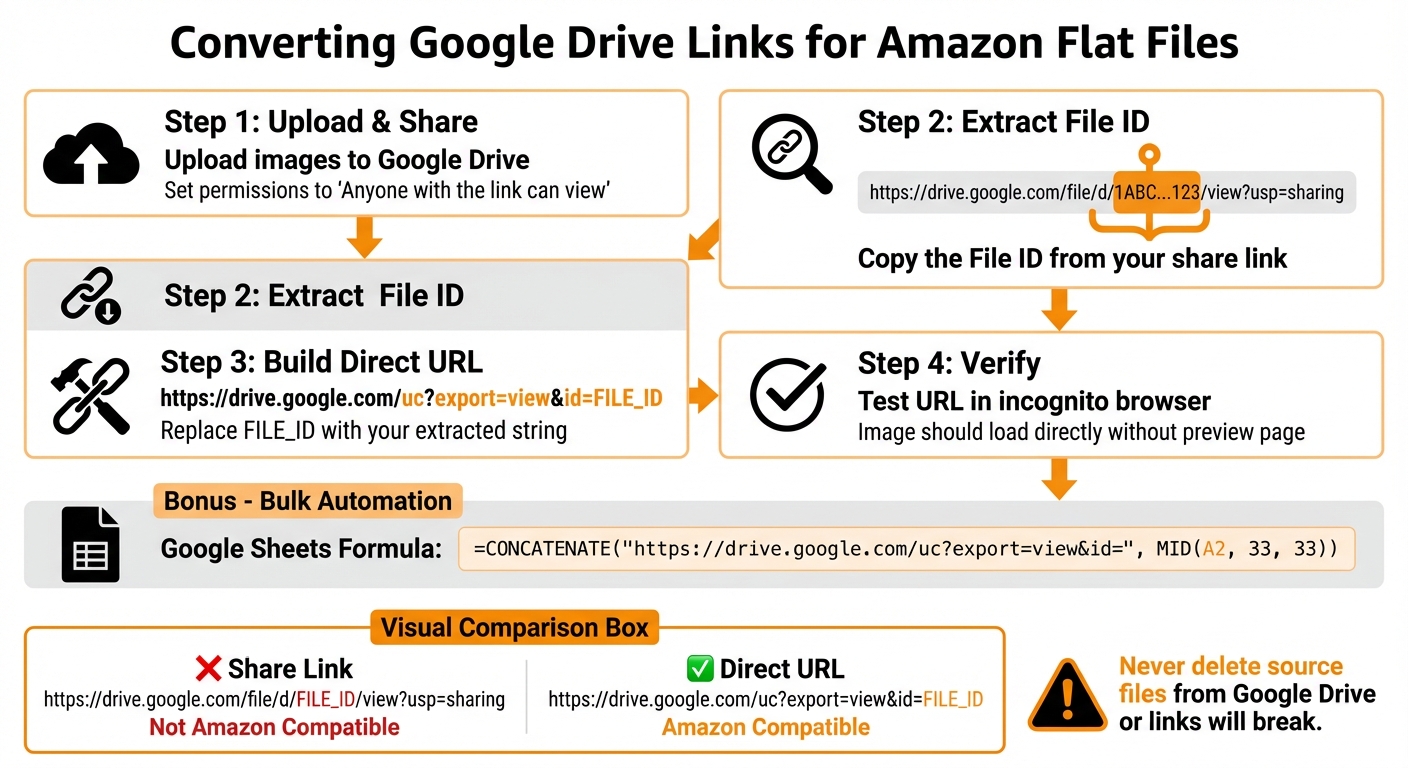
- Upload your images to Google Drive and set the sharing permissions to "Anyone with the link can view."
- Extract the File ID from the share link. A typical Google Drive link looks like this:
https://drive.google.com/file/d/1ABC...123/view?usp=sharing
The part between/d/and/viewis the File ID. - Build a direct URL using this format:
https://drive.google.com/uc?export=view&id=FILE_ID
ReplaceFILE_IDwith the unique string you extracted. This URL will now point directly to the image file, making it compatible with Amazon’s system.
For bulk conversions, you can automate the process using Google Sheets. Use this formula in your spreadsheet:
=CONCATENATE("https://drive.google.com/uc?export=view&id=", MID(A2, 33, 33))
Place your share link in cell A2, and the formula will generate the direct URL for you. This method is a huge time-saver when working with large batches of images.
| Link Type | URL Format Example | Amazon Compatible? |
|---|---|---|
| Share Link | https://drive.google.com/file/d/FILE_ID/view?usp=sharing |
No (Points to a viewer page) |
| Direct Image URL | https://drive.google.com/uc?export=view&id=FILE_ID |
Yes (Directly accesses the file) |
"By using Google Drive links, sellers can: Save time on bulk image uploads, Reduce dependency on third-party services, [and] Minimize errors in the Amazon flat file image upload process."
– Shaival Choksi, Founder, YourSeller [1]
Important Tip: Do not delete the images from Google Drive after uploading your flat file. If the source file is removed, the link will break, and the image will disappear from your Amazon listing.[1]
For even greater efficiency, consider using pre-built templates to automate the process further.
Method 2: Use Pre-Built Templates for Automation
If manual conversions feel like too much hassle, pre-built spreadsheet templates can simplify everything. These templates are designed to automate the process, allowing you to generate valid image URLs in bulk with minimal effort.
Here’s how they work:
- Paste your Google Drive share links into a specific column.
- The template automatically extracts the File ID and builds the direct-access URL (
https://drive.google.com/uc?export=view&id=) for each link.
This approach eliminates the need to extract File IDs manually and ensures consistent formatting. It’s especially useful for handling hundreds of images, reducing the risk of errors like broken links or incorrect URLs.
Before using a template, double-check a few things:
- Ensure your images are in supported formats (JPEG, PNG, or WebP).
- Keep file sizes under 10MB to avoid slow processing.
- Confirm that your Google Drive permissions are set to allow public viewing – templates can’t fix access issues if your files are private.[1][5]
How to Insert Image URLs into Amazon Flat Files
Once you’ve converted your links to direct URLs, the next step is integrating them into Amazon’s flat file templates. These templates include specific columns for different types of images. Placing your links in the correct columns ensures your images display properly and avoids upload errors.
Where to Find Image URL Columns in Flat Files
Amazon’s flat file templates are structured to keep image URLs organized. The Main column is for your primary product image – the one customers see first in search results. For additional images, like alternate angles or lifestyle shots, you’ll use the columns labeled PT1 through PT8. These columns let you showcase more of your product’s features. If your product has variations, such as different colors or patterns, the Swatch column is where you’ll add the thumbnail image that helps customers choose between options.
For items that aren’t brand-new, like used or refurbished products, look for columns like MainOfferImage and OfferImage1 through OfferImage5. These allow you to upload images that reflect the current condition of the product. If you’re selling in European marketplaces, certain categories require regional product fiche images. These go into columns such as PFUK, PFDE, PFFR, PFIT, and PFES[6].
Heads up: Starting July 31, 2025, Amazon’s Feeds API will no longer support the older flat file listing feeds for images. If you manage large catalogs or use automated systems, it’s time to prepare for the transition to the Listings Items API or JSON-based feeds[6].
How to Organize Image Data Correctly
Once you’ve identified the right columns, it’s important to organize your data carefully to avoid errors. Before adding your URLs to the flat file, make sure each link opens directly to the image itself – not to a preview page or a site that requires a login. A quick way to check is by opening the URL in an incognito browser window to confirm it loads properly[1].
Amazon has specific image requirements: files must be under 10MB and at least 1,000 x 1,000 pixels[1]. Pay close attention to matching each image URL to the correct SKU in your spreadsheet. For example, don’t accidentally place a blue shirt’s image in the row for a red shirt – it can confuse customers and hurt your sales. For products with multiple variations, consider using a master spreadsheet to organize all your URLs by SKU before transferring them into the flat file. This method reduces manual errors and keeps your data consistent, even when managing hundreds or thousands of products[1].
Once you’ve uploaded your flat file, hold onto your original source files. This ensures you can quickly fix any broken links if needed. Keep in mind that Amazon’s system may take up to 24 hours to process and display your updated images[1].
sbb-itb-ed4fa17
How to Upload and Fix Flat File Errors
How to Upload Your Completed Flat File
To upload your flat file, log in to Amazon Seller Central and navigate to Catalog > Add Products via Upload. From there, click "Upload your spreadsheet", select your file, and hit "Submit products." Keep in mind, these inventory file templates are only available for sellers using the Professional selling plan.
Once you’ve submitted your file, head over to the "Spreadsheet upload status" tab to track its progress. Make a note of the Batch ID and the listing counts – these can be helpful if you need support later. Keep in mind that updates can take up to 24 hours to process. If you’re managing a large catalog for the first time, it’s a good idea to start small. Upload just a few SKUs as a test to catch any formatting issues before scaling up to your full inventory.
After submitting, keep an eye on your upload progress. If errors pop up, here’s how to address them.
How to Fix Common Upload Errors
If your upload has failed listings, download the Processing Summary (available via the Actions dropdown) to identify the specific errors for each row. One frequent issue is the "Invalid Image URL" error, which happens when your image link isn’t formatted as a direct URL. For example, if you’re using Google Drive, make sure your link follows this structure: https://drive.google.com/uc?export=view&id=FILE_ID. Avoid using the standard share link format.
Another common issue is the "Broken Image Link" error. This usually means the file is either set to private or has been deleted. Double-check your image hosting settings and ensure they allow public access (set to "Anyone with the link can view"). If images still don’t load after 24 hours, open each URL in an incognito browser window to confirm the link works directly without requiring a login or redirect. As Amazon Seller Central Help explains, "A pop-up or a redirecting URL will not be accepted, and the upload will not be processed."
For other errors, like Product ID mismatches or missing attributes, refer to the Processing Summary for detailed guidance on which cells need corrections.
How to Manage Image URLs Long-Term
How to Organize Image Storage for Easy Access
Keeping your image library organized is key when managing large inventories. Use a structured folder system in Google Drive, sorting images by category, brand, or SKU. For example, you might create folders like Electronics/Headphones or Apparel/Summer-2026. This setup makes it much easier to locate specific images when needed.
Rename your files with clear, descriptive names. Instead of using generic names like "IMG_1234.jpg", opt for something like "red-handbag-ruby-clasp.jpg." This not only makes files easier to identify at a glance but also helps with searches. To stay on top of everything, maintain a master spreadsheet that maps SKUs to file IDs and direct URLs. This spreadsheet becomes an invaluable tool for tracking and managing images across hundreds – or even thousands – of SKUs.
For team collaboration, take advantage of Google Drive’s access controls. Restrict permissions to prevent accidental deletions or file movements. This precaution ensures that critical images remain intact and accessible, avoiding disruptions to your live Amazon listings.
How to Keep URLs Working Long-Term
To keep your image URLs functional, never delete source images from your cloud storage. Amazon relies on these original URLs even after your product images are live. If the source file is removed, the image disappears from your listing.
Regularly review your sharing settings to avoid "Access Denied" errors. A quick way to test this is by opening the link in an incognito window. Treat your Google Drive as a permanent storage solution, not a temporary one. Even after your flat file uploads successfully, Amazon still references the original URL to display your product images. Removing the file – even months later – can instantly break the link and impact your listings.
Conclusion
This guide has covered the key steps to create compliant Amazon image URLs effectively. Having valid image URLs is critical for managing Amazon listings – without them, your products may not display properly [2]. Amazon requires at least one image per product, and valid images for at least 50% of entries are necessary to avoid catalog rejection [2]. By following these streamlined methods, you can simplify your workflow and minimize the risk of errors in your listings.
These approaches save time and reduce common mistakes, such as broken links or incorrect formats, while eliminating the need for unreliable third-party hosting services. Properly converting and organizing your image URLs ensures a smoother catalog management process.
High-quality images are also a powerful tool for boosting sales. As Shaival Choksi, Founder of Your Seller, explains:
"High-quality images are essential for Amazon listing optimization… Clear, professional images increase sales [and] Amazon’s algorithm favors listings with high-quality images" [1].
Better images not only enhance conversion rates but also improve search rankings and build customer trust.
FAQs
How do I make sure my Google Drive images work for Amazon listings?
To make your Google Drive images work with Amazon, start by ensuring the file is publicly accessible. Here’s how: right-click the image in Google Drive, select Share, adjust the access setting to Anyone with the link can view, and copy the shareable link. Next, transform this link into a direct image URL. To do this, replace the file ID in this format: https://drive.google.com/uc?id=FILE_ID. The file ID is the unique string that appears after d/ in the original link.
If you’re handling bulk uploads with a flat file, you can simplify the process using a spreadsheet. Place the original link in one column (e.g., column A) and use a formula in another column (e.g., column B) to generate the direct URL automatically. Once all the URLs are ready, upload the file to Amazon. Keep in mind that it might take up to 24 hours for your images to show up.
Finally, double-check that your images meet Amazon’s standards: they should be high-resolution JPEG or PNG files, have a white background, and be free of text or watermarks. By following these steps, you can ensure your Google Drive images integrate smoothly into your Amazon listings.
What are the common issues with uploading image URLs to Amazon?
When adding image URLs to Amazon, a few hiccups can crop up. Some of the most frequent issues include missing required fields, URLs with invalid formats, and duplicate entries. For instance, Amazon might reject a URL if it doesn’t start with https://, includes spaces or invalid characters, or is reused across multiple listings.
Formatting problems can also trigger errors. These include linking to unsupported file types, exceeding character limits, or submitting images that don’t meet Amazon’s size or resolution standards. To sidestep these challenges, double-check that your image URLs are properly formatted, use secure HTTPS links, and adhere to Amazon’s specific image requirements.
How can I organize and manage image URLs for my Amazon product listings?
To keep your Amazon image URLs organized and dependable, start by setting up a spreadsheet – something like a CSV file works perfectly. Dedicate one column specifically for Image URLs and include unique identifiers like SKUs. If your product has multiple images, create additional columns (e.g., ImageURL1, ImageURL2) and ensure the headers align with Amazon’s template guidelines.
Host your images on a reliable, publicly accessible platform, such as Google Drive. Adjust the sharing settings so that anyone with the link can view the image, then copy the direct link into the appropriate row in your spreadsheet. For listings with several images, use the extra columns in a consistent order to keep everything neat.
Before uploading the file to Amazon, double-check the URLs, image dimensions, and formatting to ensure everything is correct. It’s also a good idea to regularly back up your spreadsheet and confirm that all links are still active. This way, your image links will stay organized and meet Amazon’s hosting standards.