
If you’re still taking screenshots of Amazon product images, it’s time to stop. Screenshots often result in low-quality, pixelated images that hurt your listings and can lead to compliance risks. Instead, use Amazon’s direct image URLs to access high-resolution images straight from their servers. This method saves time, ensures consistent image quality, and keeps your workflow organized.
Key Takeaways:
- Screenshots reduce image quality and create messy file management.
- Direct URLs provide sharp, high-resolution images directly from Amazon.
- Proper image quality boosts sales and reduces returns.
- Tools like FlatFilePro can simplify bulk image management.
Switching to image URLs is faster, avoids errors, and ensures your product images meet Amazon’s strict guidelines. Let’s explore how it works.
What Amazon Image URLs Are and Why They Matter

What Amazon Image URLs Are
An Amazon product image URL is essentially a direct link to a product image stored on Amazon’s servers [1]. This allows you to access Amazon’s original high-resolution images effortlessly.
These URLs act as a "single source of truth" for your product visuals [1]. Whether you’re browsing on a desktop, scrolling on a phone, or sharing the image on social media, the same high-quality image will appear consistently across all platforms. For sellers, using these URLs in bulk flat files eliminates the need for time-consuming manual uploads [4][5]. Plus, it keeps you from cluttering your computer with large image libraries [2].
And here’s the kicker: high-resolution images don’t just look good – they help drive sales. Let’s dive into why image quality can make or break your success.
Why Image Quality Affects Your Sales
The quality of your product images directly influences your sales. Three out of four online shoppers rely primarily on product images to make their buying decisions [12]. Combine that with the fact that the human brain processes visuals 60,000 times faster than text, and it’s clear why sharp, detailed images build trust with potential buyers [11]. On the flip side, blurry or low-quality images can raise doubts and send customers running to competitors.
The data is hard to ignore. Sellers who increase their image count from 4 to 7 or more experience a 32% boost in conversion rates [9][11]. And using 2,000-pixel images instead of the 1,000-pixel minimum can increase mobile conversion rates by 18% [9][11]. High-quality visuals also help reduce returns and negative reviews stemming from misleading or unclear images [9][10][1]. By relying on direct Amazon image URLs, you ensure that your images consistently meet these high standards while preserving their original resolution.
"Clear, high-quality images will help sell your products by showing potential customers exactly what they’ll receive. Conversely, weak images can negatively impact your listings." – Brian Connolly, Ecommerce Expert, Jungle Scout [9]
Amazon’s algorithm rewards listings that maximize all available image slots (ideally 6 images and 1 video), improving search visibility and enhancing the buyer experience [10][5]. Additionally, adhering to Amazon’s strict guidelines – like using pure white backgrounds with RGB values of 255, 255, 255 for main images – helps prevent listing suppression [9][10].
Amazon Image Formats and Sizes Explained
Understanding Amazon’s technical requirements is key to optimizing your product images. Amazon supports JPEG (.jpg or .jpeg), PNG (.png), TIFF (.tif), and GIF (.gif) formats, though JPEG is preferred for faster processing on their servers [9][10].
| Requirement Type | Specification |
|---|---|
| Minimum Size (Site) | 500 pixels on the longest side [9][12] |
| Minimum Size (Zoom) | 1,000 pixels on the longest side [9][10] |
| Optimal Size (Zoom) | 1,600 to 2,000 pixels on the longest side [9][11][12] |
| Maximum Size | 10,000 pixels on the longest side [9][11][12] |
| Product Frame Fill | 85% or more of the image area [9][10][11] |
For best results, aim for at least 1,600 pixels on the longest side to enable Amazon’s zoom feature [9][10]. This feature is a game-changer for customers who want to inspect your product closely before purchasing. Amazon image URLs often include size indicators, such as _SL160_, where the number specifies the image’s pixel size on the longest side [6][8]. This makes it easy to adjust URLs for different image sizes without needing to download multiple files.
How to Create Amazon Image URLs for Flat Files Quickly | Amazon FBA for Beginners
How to Get Amazon Image URLs: Step-by-Step
If you’re looking to extract Amazon image URLs, here’s a straightforward guide to help you through the process.
Finding the Main Product Image
Start by opening the product detail page on Amazon using a desktop browser. Click on the main product image – this is typically the largest image displayed on the left side of the page. Clicking it will open a full-size, high-resolution version of the image [1] [2].
Copying the Image URL
To grab the image URL, right-click on the full-size image. From the menu, select either "Open image in new tab" or "Copy image address" to get the direct link [1] [8]. For a more precise approach, use your browser’s developer tools. Right-click the image and choose "Inspect" to open the Elements tab. Look for the <img> tag and copy the URL from its src attribute. This ensures you’re capturing the direct image path rather than a page link, which is especially helpful for more complex product pages [1].
Verifying Your Image URLs Work
Once you’ve copied the URL, paste it into a new browser tab to confirm the image loads in full resolution. If the image doesn’t appear, go back and re-extract the URL [1] [8]. Before using the URL, make sure the image complies with Amazon’s guidelines: it should be free of text overlays, watermarks, or inset images, and the product itself should occupy at least 85% of the frame [4] [5]. Note that any changes to product images can take up to 24 hours to reflect on the live product page [3] [5].
"Once you have the image URL, you can bring it up in the browser by placing it in the address bar." – Amazon Hacks [8]
sbb-itb-ed4fa17
Getting Multiple Image URLs at Once
If you’re handling a large product catalog, extracting multiple image URLs efficiently is key. Here’s how you can streamline the process.
Using Browser Tools to Extract Multiple URLs
Your browser’s developer tools are a handy way to grab multiple image URLs from Amazon search results or category pages. Open the developer console, search for <img> tags, and look for the src attributes containing the product’s ASIN. These ASINs make it easier to organize images and identify specific products later on [8].
For larger-scale operations, third-party tools can take the heavy lifting off your hands. These tools can scan your inventory files and extract image URLs in various sizes – thumbnail, medium, or large – and export them for your use [7]. Once you have the URLs, keep them organized for easy access and bulk editing.
Organizing Your Image URLs
A spreadsheet is your best friend here. Record URLs alongside their corresponding SKU or ASIN for better organization. If you’re using Google Drive images, you can use a formula to convert sharing links into direct URLs. Just don’t forget to set the sharing permissions to "Anyone with the link can view" [4]. This setup ensures your listings meet Amazon’s strict image requirements.
How FlatFilePro Handles Bulk Image Updates

FlatFilePro simplifies managing image URLs across large catalogs, making it possible to update or replace hundreds – even thousands – of listings in one go [13]. The software connects directly to your Amazon account, pulling in all your product data into a single dashboard. From there, you can manage image URLs alongside other listing details.
For sellers with extensive catalogs (1,000+ products), FlatFilePro automates the validation and upload process, helping you avoid common flat file errors [13]. Many sellers report saving over 10 hours a week by switching from manual updates in Seller Central to FlatFilePro’s automated system. It’s especially helpful for resolving broken listings at scale [13].
Fixing Common Image URL Problems
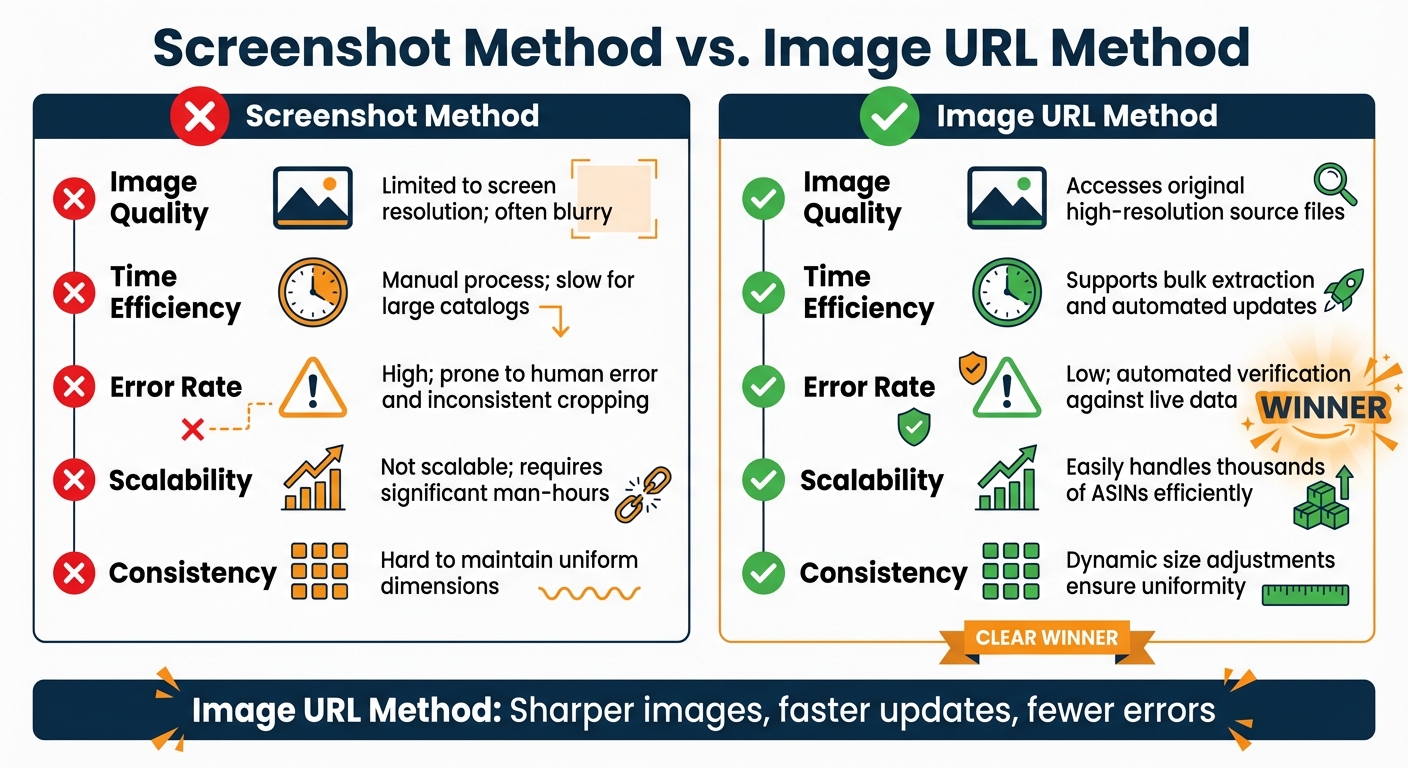
Screenshot vs Amazon Image URL Method Comparison
Once you’ve mastered extracting Amazon image URLs, the next step is tackling the common issues that can crop up with these URLs. Keeping your image URLs in top shape is essential for maintaining a polished, optimized catalog.
Common Amazon Image URL Problems
Even when you’ve correctly extracted URLs, problems can still arise. For example, Error 15 often occurs when a URL is improperly formatted and doesn’t point directly to an image file [16][3]. Missing main images can also be a major headache, as they prevent Amazon from displaying any product visuals in your store [16].
Another common issue is broken links. This typically happens when files stored on Google Drive are deleted or their sharing permissions aren’t set to "Anyone with the link can view" [4]. Shaival Choksi from YourSeller Agency explains:
"If you delete the images from Google Drive, the direct links will break, and your Amazon product images will not display correctly" [4].
Amazon also suppresses listings for images that don’t meet their strict guidelines. For instance, images with anything other than a pure white background (RGB 255, 255, 255) or those containing promotional text or watermarks can lead to search suppression [14].
Duplicate image detection is another challenge. Amazon may flag identical images from earlier submissions, refusing to update your listing [16]. Additionally, in variation families, Amazon sometimes pulls images from one child product to display across all variations, which can create mismatches if not properly managed [16]. Finally, Amazon only accepts images in .jpg, .tif, or .gif formats, so using PNG or webp files in bulk uploads can result in rejections [15][16].
How FlatFilePro Finds and Fixes Image Issues
FlatFilePro offers a practical solution to these challenges. Its Reflection Engine performs nightly audits of your image URLs, comparing stored links with Amazon’s live data. This system flags problems like expired links, low-quality images, or data mismatches directly on your dashboard.
But it doesn’t stop at detection – FlatFilePro automatically resolves these issues, ensuring your catalog stays in sync with Amazon’s live environment. Instead of manually checking hundreds of SKUs, you’ll get instant alerts when something goes wrong. Plus, FlatFilePro manages image dimensions dynamically by appending Amazon-specific suffixes like ".SX" or ".SY" to URLs. This clever approach ensures consistent product thumbnails without the hassle of manual resizing. The result? A catalog that stays polished and error-free with minimal effort.
Screenshot Method vs. Image URL Method
Here’s a quick comparison of the screenshot method versus the image URL method to show why URL management is the better choice:
| Feature | Screenshot Method | Image URL Method |
|---|---|---|
| Image Quality | Limited to screen resolution; often blurry | Accesses original high-resolution source files |
| Time Efficiency | Manual process; slow for large catalogs | Supports bulk extraction and automated updates |
| Error Rate | High; prone to human error and inconsistent cropping | Low; automated verification against live data |
| Scalability | Not scalable; requires significant man-hours | Easily handles thousands of ASINs efficiently |
| Consistency | Hard to maintain uniform dimensions | Dynamic size adjustments ensure uniformity |
The screenshot method might work for small-scale tasks, but it quickly becomes a bottleneck for larger catalogs. On the other hand, the image URL method delivers sharper images, faster updates, and fewer errors, making it the clear winner for managing extensive product catalogs effectively.
Conclusion
Switching from screenshots to direct Amazon image URLs can transform how you manage your product catalog. By using dynamic URL tags like ._SX160_ or ._SY160_, you’ll enjoy higher-quality images, faster bulk updates, and consistent dimensions across all listings [7]. This approach eliminates the hassle of cropping and uploading individual images, while also reducing errors caused by broken links or formatting issues.
The benefits go beyond convenience. Direct URLs ensure your listings feature sharp, high-resolution images, which help reinforce a professional brand image. Amazon advises using images that are at least 1,000 x 1,000 pixels and under 10MB for the best results [4]. Meeting these standards becomes much easier when you work directly with original source files instead of relying on lower-quality screenshots.
Tools like FlatFilePro take this efficiency to another level. The platform automates nightly audits, identifying and fixing problems – resolving up to 10,000 broken listings in just 30 days for a single seller [13]. Its Reflection Engine compares your stored URLs with Amazon’s live data, automatically correcting discrepancies to keep your catalog synchronized. For instance, in 2025, personal care brand Dr. Squatch managed over 500 SKUs with FlatFilePro, moving away from manual updates in Seller Central to a scalable, automated system [13].
FAQs
How can I quickly get high-quality Amazon image URLs for my listings?
To get high-quality Amazon image URLs, start by finding the product’s ASIN – a 10-character code in the product’s URL. Once you have the ASIN, you can create the image URL using Amazon’s standard URL format. Adjust the image size by changing the suffix, such as ._SL1600_ for larger images or ._SL500_ for medium-sized ones. Open the URL in your browser to confirm it works.
After verifying the URL, add it to the ‘image URL’ column in your inventory file and upload it through Seller Central. This approach saves time, avoids the hassle of taking screenshots, and ensures your images are clear and properly formatted. Be sure to double-check both the URL and file format to prevent upload issues.
Why is having high-quality images important for selling on Amazon?
High-quality, sharp images are essential for catching shoppers’ eyes and driving sales on Amazon. They give your product a polished, professional appearance, which builds trust and reassures potential buyers about their purchase. Since customers can’t physically examine the product, clear and detailed photos help convey important details like size, texture, and features – making it easier for them to make informed decisions and reducing the likelihood of returns.
Amazon also rewards listings with top-notch images by giving them better placement in search results and product carousels. This increased visibility leads to more clicks and, ultimately, higher conversion rates. To make the most of this, ensure your photos align with Amazon’s image requirements – focus on proper lighting, clean backgrounds, and crisp resolution to maximize your sales potential.
What are the common problems with Amazon image URLs, and how can I fix them?
Amazon image URLs can sometimes be tricky due to formatting errors or missing elements. Common issues include leaving out essential parts like the ASIN, using incorrect size codes, or choosing unsupported file extensions. These mistakes often result in broken links or missing images when uploading.
To avoid these headaches, make sure your URL sticks to Amazon’s standard format: https://images.amazon.com/images/P/<ASIN>._<SIZE>_.jpg. Replace <ASIN> with the product’s unique identifier and choose a valid size code, such as SL75 or SL500. It’s also a good idea to double-check for typos, ensure the size codes are correct, and test the URLs in a browser to confirm they work. If you’re handling multiple URLs, tools like FlatFilePro can simplify the process by validating and organizing them efficiently, saving you time and reducing errors.