
If you’re tired of manually updating product images for your Amazon listings, the Amazon Image Link Generator Tool is here to save you time. This tool converts hosted image files into direct URLs that Amazon accepts, making bulk updates simple and efficient. Here’s why this matters:
- Direct URLs streamline bulk uploads: Essential for managing large catalogs with hundreds or thousands of SKUs.
- Compliance with Amazon’s 2026 image policies: Ensures your images meet updated resolution, format, and background requirements.
- Faster workflows: Tools like FlatFilePro integrate with Amazon’s API for error-free bulk updates.
Key benefits include:
- Generating direct URLs for images hosted on platforms like Google Drive or AWS S3.
- Mapping images to SKUs for bulk uploads via flat files.
- Automated error detection for formatting and compliance issues.
Whether you’re a small seller or managing a global catalog, this tool simplifies image management, helping maintain accurate and compliant listings.
HOW TO CREATE IMAGE URL FOR AMAZON FLAT FILES! QUICK AND EASY
Amazon Image Requirements in 2026
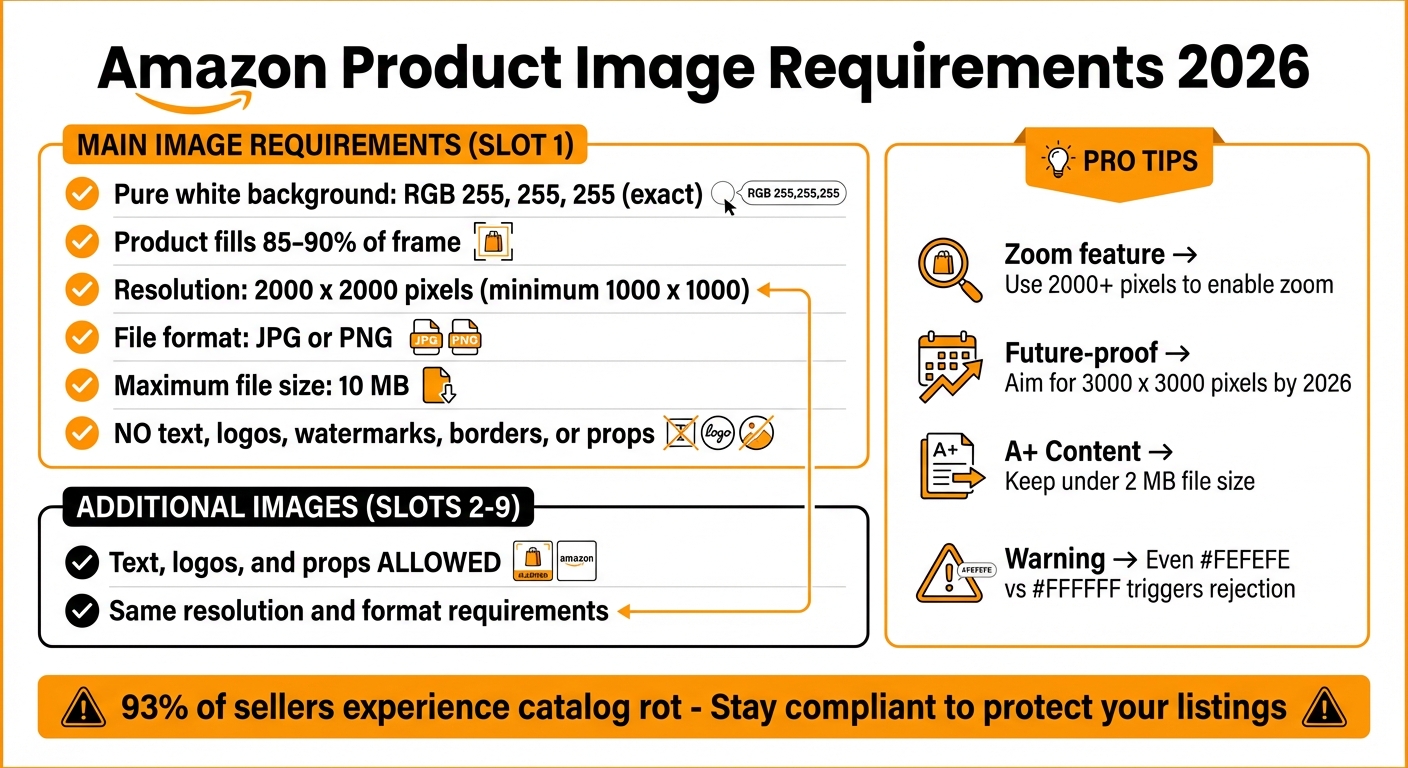
Amazon Product Image Requirements 2026 Compliance Checklist
Amazon has tightened its image policies, making it essential to follow their rules if you want to avoid listing suppression. The platform now uses automated algorithms to scan for compliance, so even minor errors can lead to your listing being taken down.
Amazon’s Product Image Policies for 2026
Your main image must have a pure white background with the exact RGB value of 255, 255, 255. Even a slight variation – like using #FEFEFE instead of #FFFFFF – can trigger Amazon’s detection system and result in suppression [6]. Additionally, the product should fill 85%–90% of the image frame for optimal visibility in search results [6].
While Amazon accepts images with a resolution of 1000 x 1000 pixels, 2000 x 2000 pixels is now the standard in 2026. This higher resolution enables the zoom feature, which enhances image clarity and improves the customer experience [6]. Images must be in JPG or PNG format, with a maximum file size of 10 MB [1][6]. For main images, Amazon prohibits the use of text, logos, watermarks, borders, or props – though these elements are allowed in the additional image slots (2-9) [6][7]. Following these guidelines ensures your images meet Amazon’s standards, helping your listings perform better.
Now, let’s look at when to use image URLs versus direct uploads for managing your listings efficiently.
When to Use Image URLs vs. Direct Uploads
For single listings, direct uploads work perfectly fine. However, when managing large catalogs with hundreds or thousands of SKUs, image URLs are the way to go [1][2]. URLs allow for bulk flat-file uploads, making it easier to handle large-scale operations while staying compliant with Amazon’s strict image requirements [1][2].
Using image URLs also integrates seamlessly with Product Information Management (PIM) systems and AWS S3 buckets. These systems validate images every four hours, reducing the risk of "catalog rot" – a problem that affects 93% of sellers and occurs when images or listing details become outdated or broken [2]. Reliable hosting solutions like Google Drive (with properly formatted URL links) or AWS S3 help prevent broken link errors, which are common with less dependable third-party hosts [1][2].
This method is particularly helpful for sellers in the US, as outlined in the next section.
Common Use Cases for US Sellers
For US sellers juggling multi-marketplace operations, image URLs are invaluable. If you’re selling on Amazon, Shopify, and eBay simultaneously, standardizing your images at 2000 x 2000 pixels with white backgrounds can save time and ensure compliance across platforms [6].
Bulk inventory management also benefits from URL mapping, especially during seasonal promotions or catalog updates. This approach is ideal for teams that need controlled access to image updates – design teams can refresh images without risking accidental changes to product descriptions or pricing [2][3].
Preparing Images for URL Generation
Getting your images ready for Amazon is a must to avoid issues like listing suppression or broken links. Here’s how to ensure your images meet Amazon’s standards.
Image Preparation Checklist
First, check your image resolution. While Amazon accepts a minimum of 500 pixels, you’ll need at least 1,600 pixels on the longest side for the zoom feature. To future-proof your listings, aim for 3,000 x 3,000 pixels by 2026 [8][10]. Your main image should have a pure white background (RGB 255, 255, 255) and the product must fill at least 85% of the frame [8].
When it comes to file formats, choose the right one for your needs:
- JPG (.jpg): Ideal for photos due to smaller file sizes.
- PNG: Best for graphics with transparency.
- TIFF and non-animated GIF: Also accepted by Amazon [8][9].
Keep file sizes under 10 MB for general listings and below 2 MB for A+ Content [10][11]. Avoid adding text, logos, watermarks, or props to your main image – these are only allowed in additional image slots [8][10].
Once your images meet these standards, organize them for easy bulk processing.
Organizing and Labeling Files
After confirming your images meet Amazon’s technical requirements, focus on structuring and labeling your files to simplify bulk URL generation.
Use clear and consistent file naming. Include your SKU in the file name, such as SKU12345-main.jpg or SKU12345-angle2.jpg. For swatch images, follow the naming format [Product SKU].swatch.jpg to enable automatic recognition [9]. Keep your files organized in folders by product or category to streamline the mapping process. If you’re preparing files for bulk flat-file uploads, make sure special characters like commas or quotation marks are properly escaped to avoid errors [4].
This structured approach not only makes URL generation easier but also ensures smooth integration with tools like FlatFilePro.
Optimizing Images for Speed and Performance
Large image files can slow down load times, particularly on mobile devices. Compress your images to keep them under 10 MB while maintaining clarity, and use JPG format for quicker loading speeds [1][8].
If you’re hosting images on Google Drive for URL generation, adjust the sharing settings to "Anyone with the link can view" to avoid broken links during Amazon’s ingestion process [1]. Convert your Google Drive share link into a direct download link using this format:
https://drive.google.com/uc?export=view&id=FILE_ID [1]. Be sure not to delete the source file from your hosting location, as this will break the URLs.
"Showcasing the product in action is essential, especially for fashion, apparel, and tech gadgets. Displaying the product in different contexts and use cases effectively highlights its size, proportions, and versatility."
- Yashar Aktunch, Graphic Designer [10]
How to Use the Free Amazon Image Link Generator Tool
Setting Up and Accessing the Tool
To begin, you’ll need to register and link your account to Amazon Seller Central using the SP-API [3]. The setup process is straightforward and follows a "Sync/See/Save" workflow. First, sync all your product listings with just one click. Next, let the tool pinpoint any catalog errors. Finally, use the dashboard to make and push updates [3,4]. Rest assured, your data remains encrypted during the sync process [3].
Once you’re logged in, use the one-click sync feature to back up your listing data and highlight any existing errors [2]. You can also customize permissions during setup, ensuring team members like designers or writers can only access the specific elements they need, such as images or product descriptions [3,4]. For added safety, enable multi-factor authentication and approval workflows within the tool [3]. This setup simplifies bulk catalog updates, making it easier to manage images while meeting Amazon’s requirements. The tool offers a 7-day free trial with no credit card needed, and the monthly subscription costs $99 once the trial ends [3,4].
Generating Single Image URLs
After syncing your listings, head to the image management section of the dashboard. You can upload images using the upload button or a drag-and-drop feature. The tool will instantly generate a direct URL that Amazon can use. Simply copy the URL and paste it into your Amazon flat file under the correct image column, or add it directly in Seller Central.
To ensure the URL works, test it by pasting it into a private or incognito browser window. If the image loads without requiring a login, the URL is ready for Amazon [1].
Bulk Uploads and Mapping to SKUs
For bulk image uploads, use the dashboard’s drag-and-drop interface to add multiple images at once. If your image files follow a consistent naming convention (like SKU12345-main.jpg), the tool will automatically map them to the correct SKUs [5]. You can also manually assign images to specific ASINs or SKUs using the dashboard’s mapping feature.
Once everything is mapped, export the generated URLs in formats like CSV, TSV, or XLSX [5]. These files can then be uploaded directly to Amazon through Seller Central’s flat file system. This API-based approach is 17 times faster than manually working with inventory spreadsheets [3]. It also includes automated error checking to catch typos or unsupported URL formats before you finalize the upload [4,6]. After exporting and mapping your URLs, double-check their functionality before submitting them to Amazon.
Verifying and Testing Generated URLs
After generating your URLs, test each one by pasting it into a private browser window. The image should display without requiring a login [1]. If you’re hosting files on Google Drive, make sure the sharing settings are adjusted to "Anyone with the link can view"; otherwise, Amazon may reject the URL as broken [1].
Once you’ve uploaded your flat file, check your listings in Seller Central within 24 hours, as Amazon’s system can take some time to process and display image updates [1]. The tool also includes a built-in validation feature to ensure your images meet Amazon’s compliance guidelines and appear correctly on product pages [4,6]. If any issues arise, revisit the image preparation steps, fix the errors, and re-upload the corrected files.
sbb-itb-ed4fa17
Adding Image URLs to Amazon Workflows
Using URLs in Amazon Flat Files
Amazon flat files, like CSV or Excel spreadsheets, make it easier to manage product details in bulk. Each row represents a product, including its associated image URLs. To add these URLs, map them to the correct flat file columns – usually "main_image_url" for the primary product image and "other_image_url" for additional photos.
Start by downloading the flat file template from Seller Central (go to Inventory and select "Download Flat File of Inventory"). Paste your image URLs into the appropriate columns for each SKU, ensuring the formatting is correct. Once completed, upload the file through the Bulk Upload interface to finalize the changes [4].
Using FlatFilePro for Workflow Optimization

FlatFilePro streamlines the process by connecting directly to Amazon Seller Central via API. This allows you to update image URLs for hundreds of SKUs in just one click [3]. After syncing your account, use the bulk editor to simplify your workflow.
One standout feature is the Reflection Engine, which monitors your catalog and alerts you if any image changes disappear – an issue that impacts 93% of Amazon sellers [2]. To avoid accidental edits, restrict editing privileges to specific team members. If errors occur, the version control feature lets you restore previous image versions instantly.
For international sellers, FlatFilePro ensures consistent branding by enabling image updates across multiple marketplaces at once. Once your updates go live, the tool continues to monitor your listings, ensuring everything stays in place.
"This is the tool that powers our ops and analytics teams. We used to do everything manually, such a pain! Now we don’t have to think about anything and our listings update like magic!" – Jack Haldrup, Founder, Dr. Squatch [2]
Monitoring and Maintaining Image Links
Once your listings are updated, keeping them in top shape requires regular monitoring. Avoid deleting images from your hosting platform (like Google Drive) after they’ve been added to your listings, as this will break the links and cause the images to disappear from Amazon [1]. To stay organized, securely back up your source files.
FlatFilePro’s Reflection Engine can help by monitoring your listings nightly, flagging any discrepancies between your catalog and live Amazon data. For images that load slowly, check that file sizes are under 10MB [1]. If you’re running seasonal promotions or making product updates, use bulk editing tools to replace image URLs across multiple listings efficiently.
Consistent monitoring ensures your image updates remain effective, keeping your Amazon catalog management smooth and reliable.
Fixing Common Image URL Issues
When working with image URLs, several common issues can arise. Here’s how to tackle them effectively:
Broken or Non-Functional URLs
One of the most frequent problems is incorrect URL formatting. Sharing links from platforms like Google Drive or Dropbox often lead to preview pages instead of directly linking to the image file. These links are usually rejected by Amazon’s system. To fix this, convert Google Drive share links into direct URLs using the following format:
https://drive.google.com/uc?export=view&id=FILE_ID
Always verify that your URLs provide direct access to the images. Test them in an incognito browser session to ensure they work as intended. Remember, if the source file is deleted, the link will break. Also, keep in mind that Amazon’s system may take up to 24 hours to process updates to your images. If you encounter persistent "Failed to upload" errors despite correct formatting, check your Seller Central user permissions. Occasionally, Amazon may create new permissions for its Image Manager without notifying you, which could cause upload issues. [1][12]
Amazon Policy Violations
Compliance with Amazon’s image requirements is non-negotiable. Be aware of the following guidelines to avoid policy violations:
- Main images must have a pure white background (RGB 255, 255, 255). Any deviation could result in rejection.
- The primary listing image cannot include text, watermarks, or overlays.
- Images should be at least 1,000 x 1,000 pixels in resolution and under 10MB in file size.
- Avoid adding promotional text or logos, as these may breach Amazon’s content policies. [1]
Slow Loading Images
Large image files can cause slow loading times, which might prevent Amazon from processing your uploads. To address this, compress high-resolution images to reduce their file size while maintaining quality. Ensure the file size stays under 10MB and meets the minimum resolution requirements. If images hosted on external platforms still load slowly, check whether your hosting provider imposes download speed limits. Use reliable image compression tools to optimize performance. [1]
Mapping Errors in Bulk Workflows
Mapping errors often occur when image URLs don’t match the correct SKUs. For Google Drive links, you can use this formula to convert standard share links into direct URLs:
=CONCATENATE("https://drive.google.com/uc?export=view&id=", MID(A2,33,33))
(A2 refers to the cell containing the share link.)
Be cautious of special characters that might disrupt data alignment during uploads. Before finalizing your submission, manually verify a sample of your listings to ensure accuracy. Tools like FlatFilePro can assist with error checking and version control, helping you catch and resolve mapping errors before they affect your live listings. Following these steps will help streamline your bulk workflows. [1][4][2][3]
Conclusion
Key Takeaways
Handling Amazon product images doesn’t have to be complicated. Using a free Amazon Image Link Generator Tool can simplify the process by converting cloud-hosted images into direct URLs that Amazon’s system accepts immediately. Pair this with proper image preparation – such as meeting Amazon’s technical requirements – and you can sidestep common rejection issues.
For those dealing with large inventories, bulk workflow integration is a lifesaver. By using flat files, you can map hundreds or even thousands of image URLs in one go. This method is especially useful during peak seasons or when updating global catalogs across multiple marketplaces. Tools like FlatFilePro make it easier to bulk update listings while also identifying mapping errors or policy violations before they become problems [3].
Keeping your listings compliant is crucial. With nearly 93% of Amazon sellers facing "catalog rot" – where listings break or images disappear – automated systems that verify image URLs can safeguard your revenue [2]. Regularly testing URLs in incognito browser sessions and ensuring proper file hosting permissions are simple but effective ways to keep your images live and accessible.
By adopting these strategies, you can maintain consistent listings and make catalog management much smoother.
Next Steps
To take advantage of these strategies, start by organizing your image library and converting your cloud storage links into direct URLs using the methods outlined in this guide. Begin with a small test batch of 10–20 SKUs to get comfortable with the workflow before scaling up to your entire catalog.
If you’re managing a large catalog or multiple marketplaces, consider adding a catalog management tool to your workflow. FlatFilePro offers a free version with essential bulk listing features, along with a 14-day trial for advanced options like automated error checks, version control, and continuous monitoring [2].
"With FlatFilePro, I’ve been able to streamline my Amazon listing process significantly. What used to take hours now takes just minutes. It’s a game-changer for my business." – Ian Sells, Founder, Million Dollar Sellers [2]
FAQs
How does the Amazon Image Link Generator Tool ensure compliance with Amazon’s 2026 image policies?
The Amazon Image Link Generator Tool is designed to keep you aligned with Amazon’s 2026 image policies by providing dependable, direct image URLs that adhere to Amazon’s hosting requirements. These permanent links can be effortlessly incorporated into your product listings, minimizing the chances of policy breaches due to broken or non-compliant image links.
On top of that, the tool works alongside FlatFilePro’s audit features to automatically scan your listings for errors, including image-related problems, before they are uploaded. This proactive approach ensures your product images meet Amazon’s latest standards, saving you time and helping you steer clear of potential penalties.
What are the advantages of using image URLs for bulk uploads on Amazon?
Using image URLs for Amazon bulk uploads streamlines the process of attaching product images. Instead of manually uploading each image through Seller Central, you simply include direct links in the flat file. Amazon’s system then automatically retrieves the images during the upload, cutting down on repetitive tasks and reducing potential errors.
By storing image URLs in the flat file, managing thousands of SKUs becomes much easier. You can update, add, or remove images for your entire catalog by editing a single spreadsheet. This not only saves time but also ensures you’re meeting Amazon’s image-hosting requirements without hassle.
This approach enhances efficiency, reduces errors, and keeps your catalog well-organized. It frees up your time to focus on more critical aspects of your business, rather than getting bogged down by tedious upload processes.
How can I keep my Amazon image URLs reliable and compliant?
To keep your image URLs working smoothly and aligned with Amazon’s standards, always use reliable, directly hosted links from reputable sources. Steer clear of untrustworthy third-party tools that could lead to broken links. Make it a habit to periodically check and update your listings to ensure all image links remain functional and meet Amazon’s requirements. Staying on top of this helps create a smooth shopping experience for buyers while safeguarding your seller account from potential problems.