
Managing Amazon product images for bulk uploads can be challenging. Amazon requires image URLs, not file uploads, for its flat files. Tools like Amazon image link generators convert local image files into URLs that meet Amazon‘s requirements, saving time and reducing errors. Here’s what you need to know:
- Why URLs Matter: Listings fail without valid image URLs. High-quality, compliant images can improve search rankings and conversions.
- Image Link Generators: These tools create direct URLs from hosted images (e.g., Google Drive, Amazon S3). They speed up bulk uploads and reduce errors.
- Amazon’s Image Requirements: Images must meet specific guidelines (e.g., JPEG format, pure white background, 1,000+ pixels for zoom).
- Common Issues: Broken links, incorrect permissions, or non-direct URLs can cause rejections. Tools like FlatFilePro help validate and manage URLs.
- Hosting Options: Google Drive (manual link conversion), Amazon S3 (scalable for large catalogs), and ImgBB (quick direct links) are popular choices.
Using tools like FlatFilePro simplifies managing image URLs, ensuring smooth uploads, reducing errors, and keeping listings consistent across marketplaces.
How to Create Amazon Image URLs for Flat Files Quickly | Amazon FBA for Beginners
Amazon’s Image URL Requirements
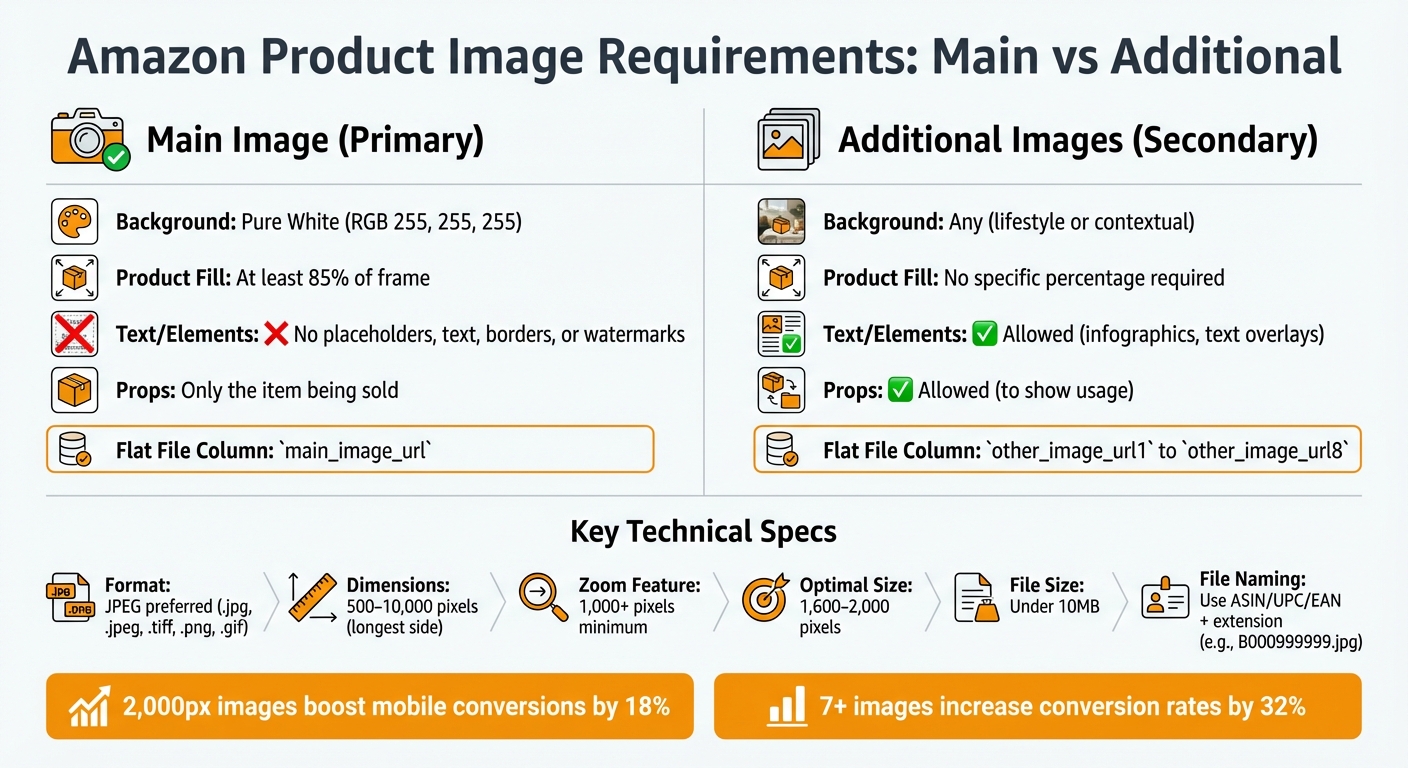
Amazon Product Image Requirements: Main vs Additional Images
Understanding Amazon’s image URL requirements is crucial for ensuring your product listings meet their standards. Amazon enforces specific guidelines for image uploads, and failing to comply can lead to upload errors or suppressed listings.
Amazon’s Image Specifications
Amazon supports several file formats, including JPEG (.jpg or .jpeg), TIFF (.tif or .tiff), PNG (.png), and non-animated GIF (.gif), with JPEG being the preferred choice [7][8]. Images should measure between 500 and 10,000 pixels on the longest side [7]. To activate the zoom feature, images need to be at least 1,000 pixels on their longest side, but for better results, aim for 1,600 to 2,000 pixels [7][8].
Why does this matter? Higher-quality images can make a big difference. For example, using 2,000-pixel images instead of 1,000-pixel ones has been shown to boost mobile conversion rates by 18% [7]. Keep file sizes under 10MB to ensure smooth processing [1].
File naming is another critical detail. Use a product identifier like ASIN, ISBN, EAN, JAN, or UPC, followed by the file extension (e.g., B000999999.jpg) [8]. Avoid spaces, dashes, or special characters in file names, as these can interfere with image display on Amazon [8].
Main Image vs. Additional Images
Amazon has different rules for main images and additional images.
The main image must have a pure white background (RGB 255, 255, 255), and the product should fill at least 85% of the frame. Amazon prohibits placeholders, promotional text, borders, watermarks, or mannequins in the main image [7][8].
For additional images, you have more flexibility. These images can include lifestyle shots, infographics, text overlays, or contextual backgrounds to highlight product features and benefits [7][8]. Interestingly, increasing the number of images from 4 to 7 or more can raise conversion rates by 32% [7].
When uploading images via a flat file, the main image URL should be placed in the main_image_url column. Additional image URLs go into columns labeled other_image_url1 through other_image_url8 [6].
| Requirement | Main Image (Primary) | Additional Images (Secondary) |
|---|---|---|
| Background | Pure White (RGB 255, 255, 255) | Any (e.g., lifestyle or contextual) |
| Product Fill | At least 85% of the frame | No specific percentage required |
| Text/Elements | No placeholders, text, borders, or watermarks | Allowed (e.g., infographics) |
| Props | Only the item being sold | Allowed (e.g., to show usage) |
| Flat File Column | main_image_url |
other_image_url1 to other_image_url8 |
These distinctions help ensure your images align with Amazon’s technical standards while also improving the chances of converting potential buyers.
Why Amazon Rejects Image URLs
Amazon may reject image URLs for a variety of reasons, often technical in nature. One common issue is using non-direct links. To fix this, convert links to direct download formats, such as:
https://drive.google.com/uc?export=view&id=FILE_ID [1].
Incorrect permission settings can also cause problems. For example, if a Google Drive file isn’t set to "Anyone with the link can view", Amazon will reject it [1]. Other issues include broken links, redirects, or slow hosting, all of which can lead to rejections [1].
Content violations are another frequent cause of rejection. Amazon suppresses listings if the main image includes placeholders, promotional text, borders, watermarks, or mannequins [7][8]. Even subtle errors, like using an off-white background instead of pure white, can result in rejection. Always double-check that the background meets Amazon’s RGB requirements [7][8].
Sometimes, delays in processing – up to 24 hours for image updates – can mimic URL rejections [1]. Next, we’ll explore how to efficiently extract image URLs from Amazon listings.
How to Extract Image URLs from Amazon Listings
There are times when pulling image URLs from Amazon listings becomes necessary – whether you’re sizing up competitors, updating your product catalog, or working with flat files. The good news? You can do this easily using just your browser.
Extracting URLs Using Your Browser
The simplest way to grab an image URL is to right-click on the product image and select "Copy Image Address." For higher-resolution images, like those shown in Amazon’s zoom viewer, you’ll need to dig a little deeper. Open your browser’s developer tools (usually by right-clicking and selecting "Inspect"), then look for the <img> tag and its src attribute. This will contain the full URL of the image [11].
Want the original high-resolution version? Look at the URL for any size modifiers, such as ._SL160_. Delete these modifiers, leaving just the source file and its extension. This tweak gives you access to the unmodified, high-quality image.
How Amazon Image URLs Are Structured
Amazon image URLs follow a predictable format:
https://m.media-amazon.com/images/I/[ImageID].[Modifiers].jpg [9].
Here’s how it works:
- Image ID: A unique alphanumeric string that identifies the image.
- Modifiers: These control the image’s size and dimensions.
The most common modifier is _SLXXX_, where XXX specifies the pixel count for the image’s longest side [9]. For example:
_SL160_creates a 160-pixel image ("Medium")._SL75_generates a 75-pixel image ("Small") [9].
By understanding these modifiers, you can adjust the URL to get images in various sizes.
| Modifier | Function | Outcome |
|---|---|---|
._SX[N]_ |
Sets Width | Resizes the image to N pixels wide, with height adjusted proportionally [5] |
._SY[N]_ |
Sets Height | Resizes the image to N pixels high, with width adjusted proportionally [5] |
._SL[N]_ |
Longest Side | Sets the larger dimension (width or height) to N pixels [5] |
._SS[N]_ |
Square Crop | Resizes to N x N pixels, adding white borders if needed [5] |
These patterns make it easy to customize image sizes, but many sellers prefer external hosting for more stability.
Risks of Using Amazon-Hosted Links
While pulling image URLs directly from Amazon is convenient, it comes with risks. Amazon-hosted links can change without notice – whether due to listing updates, changes in Amazon’s Content Delivery Network (CDN), or if the source image is moved or deleted [11]. This can result in broken links and missing product images [1].
Additionally, manually constructing URLs using ASINs isn’t foolproof. This method works for some products but fails for others, making it unreliable [10]. Combined with Amazon’s bandwidth protection measures, these challenges highlight why many sellers opt for external hosting. It offers a more dependable solution, especially for managing large product catalogs.
Creating Image URLs with External Hosting
Hosting your product images externally gives you more control and reduces the risk of broken links compared to relying on Amazon-hosted URLs. To keep your links stable and reliable, upload your images to a hosting platform you manage and generate direct links from there.
Preparing Product Images for Hosting
Before uploading, ensure your images meet Amazon’s specific requirements. The product should occupy at least 85% of the image frame, and main images must have a pure white background (RGB 255, 255, 255) [12][13]. Amazon prefers JPEG format due to its balance of quality and fast loading times, though TIFF, PNG, and GIF are also acceptable [12][13]. Keep file sizes below 10MB and use dimensions that align with Amazon’s recommendations to avoid unnecessary bulk.
File naming is equally important. Use your product identifier (ASIN, UPC, EAN, JAN, or ISBN) followed by the file extension. For example: B000123456.jpg. For additional images or variations, add consistent suffixes like B000123456.MAIN.jpg for the primary image or B000123456.PT01.jpg for a supplemental one [13]. If managing a large number of products, consider using bulk renaming tools to streamline the process and reduce errors [13][6].
Selecting a Hosting Solution
The right hosting platform depends on your needs and scale. Here are three popular options:
- Google Drive: A great choice for small to medium sellers, offering up to 15GB of free storage [1]. However, standard sharing links won’t work in Amazon flat files. To create direct links, use the formula:
https://drive.google.com/uc?export=view&id=FILE_ID
ReplaceFILE_IDwith the unique string from your share link, and ensure permissions are set to "Anyone with the link can view" [1].
"By using Google Drive links, sellers can save time on bulk image uploads, reduce dependency on third-party services, and minimize errors in the Amazon flat file image upload process."
– Shaival Choksi, Amazon Marketing Expert [1]
- Amazon S3 (AWS): Ideal for enterprise sellers or large catalogs. This professional-grade solution offers scalable storage through "buckets" and features like Transfer Acceleration for faster file transfers [15]. While new users may qualify for the AWS Free Tier, S3 operates on a pay-as-you-go model after that [15]. Its integration with the AWS ecosystem makes it a standout option for high-volume operations.
- ImgBB: A straightforward image hosting service with a free tier. The Pro version supports larger files and provides reliable direct links [14]. Before uploading your flat file, test your URLs in an incognito browser to ensure they load without requiring a login [1].
| Hosting Solution | Best For | Key Advantage | Potential Drawback |
|---|---|---|---|
| Google Drive | Small to medium sellers | Free basic storage; easy to use | Requires manual link conversion |
| Amazon S3 | Enterprise/large catalogs | Secure and scalable; AWS integration | Steeper learning curve |
| ImgBB (Pro) | Quick direct links | Reliable hosting with Pro features | Subscription cost |
Organizing URLs for Product Variations
Once your images are hosted, structure your URLs to efficiently manage product variations like color, size, or material. Use a single spreadsheet to consolidate all variation data (SKU, attributes, and URLs) [6][16]. This ensures consistency across your catalog and simplifies bulk URL generation.
Amazon’s flat file templates for specific categories (e.g., Apparel, Kitchen) already include headers for variations [6]. Map each child SKU (e.g., "Red, Large" shirt) to its corresponding image URL using spreadsheet formulas [6][16]. For example, if your Google Drive links are in column A, you can use:
=CONCATENATE("https://drive.google.com/uc?export=view&id=", MID(A2, 33, 33)) [1].
Consistency in terminology across listings is key. Uniform terms not only make shopping easier for customers but also help reinforce your branding [16]. Importantly, never delete images from your hosting platform after linking them to Amazon. If the source file is removed, the link will break, causing the image to disappear from your listing [1]. Keep in mind that Amazon may take up to 24 hours to process and display images after a flat file upload, so plan ahead [1].
sbb-itb-ed4fa17
Managing Image URLs with FlatFilePro

FlatFilePro takes the hassle out of managing image URLs, building on the essentials of image URL requirements and extraction. Once your images are hosted, this tool can map URLs across thousands of SKUs up to 17 times faster [3].
Adding Image URLs to Flat Files
FlatFilePro’s "Map Fields" tool makes assigning hosted image URLs to the correct Amazon flat file headers, like main_image_url and other_image_url1–8, incredibly straightforward. Using dropdown menus, you can easily match your data columns to Amazon’s headers. Simply select the listings you want to update in the Products tab, and the field mapper takes care of the rest, allowing you to update multiple listings in one go.
For added security, FlatFilePro supports role-based permissions, so you can control which team members have access to edit image data. This ensures smooth collaboration while protecting your catalog from unauthorized changes.
Checking Image URLs Before Upload
FlatFilePro doesn’t just stop at mapping – it also validates your URLs before you upload them to Amazon. Its built-in validation tool scans for common issues like invalid formats, missing data, or broken links. By catching these problems in real time, it helps you avoid the headaches of rejected uploads or suppressed listings.
This is a game-changer compared to manual flat file uploads, where errors are often only revealed after Amazon rejects the file. With FlatFilePro, you can fix issues before submission, saving you time and frustration.
Once your URLs are validated, FlatFilePro’s Reflection Engine steps in to ensure ongoing accuracy.
Using FlatFilePro’s Reflection Engine
The Reflection Engine is a standout feature for managing image URLs. It continuously monitors your catalog, comparing your internal data to what’s live on Amazon. If an image URL changes or breaks – a problem that affects 93% of sellers [2] – you’ll get an instant alert.
"Our Reflection Engine monitors every heartbeat of your catalog, alerting you the moment rot spreads." – FlatFilePro [2]
This tool follows a "Sync/See/Save" workflow. First, it synchronizes your current Amazon listings to create an automatic backup. Then, it identifies mismatches between your catalog and live listings. Finally, it allows you to push corrections confidently.
This proactive monitoring prevents silent listing failures, which can go unnoticed for weeks and negatively impact sales. Plus, FlatFilePro’s automatic backup system lets you quickly roll back to previous image versions if an update doesn’t go as planned. It’s a safety net that keeps your listings running smoothly, even when issues arise.
Fixing Common Image Link Problems
Image URL issues can still pop up, and addressing them is crucial to maintain consistent listings and avoid disruptions. By applying the strategies mentioned earlier, you can keep your image links stable across all marketplaces.
Identifying Common Errors
One of the most frequent issues is invalid URLs. These often happen when hosting providers change server structures, remove files, or stop offering free services. You’ll typically notice these problems when Amazon flags your listing as incomplete or when customers report missing product images.
Another common issue is incorrect field mapping. This occurs when URLs are placed in the wrong columns during bulk uploads. For instance, your main product image might mistakenly end up in other_image_url3 instead of main_image_url. Without a primary image, Amazon may suppress your listing. Many sellers face this type of "catalog rot" without realizing it – often only noticing when sales begin to decline [2].
FlatFilePro offers tools to detect and resolve these errors automatically.
Using FlatFilePro to Fix Errors
FlatFilePro’s error detection system scans your inventory files before they’re uploaded, catching broken listings before they hit Amazon. With Listing Error Reports, you can quickly identify invalid URLs, missing data, and mapping mistakes [4][3].
The platform’s Activity Logs feature keeps track of every change – what was edited, when it happened, and who made the adjustment. If an image disappears, you can pinpoint the exact edit and fix it swiftly.
When errors do occur, FlatFilePro’s one-click restore feature allows you to revert to a previous, stable version of your listing instantly. This is especially handy during bulk edits. Instead of manually fixing hundreds of SKUs, you can roll back the entire batch within seconds [2][4]. Plus, changes are processed through Amazon’s SP-API, delivering better results than manual uploads [3].
Syncing Images Across Multiple Marketplaces
Beyond fixing errors, FlatFilePro simplifies managing images across international platforms. A URL that works well in one marketplace might not function properly in another.
With FlatFilePro’s global dashboard, you can push image content from one marketplace to another in just a few clicks. For example, you can select the US as your source marketplace and transfer URLs to other regions without needing to re-upload files for each country. This process ensures your existing listings remain unaffected [2][4].
The Reflection Engine keeps an eye on your catalog across all connected marketplaces. It alerts you immediately if synced images fail to appear or if variations break during transfers. This proactive monitoring helps ensure that listings remain consistent across regions, avoiding situations where one marketplace functions smoothly while another encounters issues [2]. Additionally, you can use partial updates to modify only the image URLs while keeping localized content, like region-specific product descriptions, intact [2].
Conclusion
Managing image URLs efficiently is essential to avoid listing errors and potential revenue loss. By addressing challenges like broken links and misaligned fields, sellers can ensure their product listings remain accurate and functional. Whether you’re updating thousands of SKUs, hosting images externally, or fixing existing listings, having the right system in place saves both time and money by preventing issues like silent listing failures and incorrect field mapping.
FlatFilePro simplifies this entire process, cutting out tedious, error-prone tasks. With its ability to speed up listing edits by up to 17 times and built-in error detection that flags problems before they reach Amazon[3], sellers can focus on scaling their business instead of troubleshooting catalog mishaps. Plus, the platform’s Reflection Engine actively monitors your listings, sending alerts if images go missing or variations break – an essential safeguard, especially since 93% of sellers experience catalog rot without even realizing it[2].
Key Takeaways
Here’s a quick recap: maintaining a proper image URL structure, using reliable hosting, and leveraging advanced catalog management tools are key to ensuring consistent, high-performing listings. FlatFilePro’s API-based integration makes updates seamless, while features like one-click rollbacks and detailed activity logs provide peace of mind when errors occur. For those managing listings across multiple marketplaces, the platform streamlines updates and keeps global synchronization on track, helping you maintain a consistent brand presence[2].
Want to take the stress out of catalog management? Try FlatFilePro free for 7 days – no credit card required. With automated error detection, bulk editing capabilities, and real-time monitoring, you can protect your listings and speed up updates. At $99/month, it’s an investment that could save you from the cost of even one suppressed listing impacting your sales.
FAQs
How can I make sure my Amazon image URLs meet all the technical requirements?
To make sure your Amazon image URLs meet all necessary technical standards, stick to these essential steps:
- Use the correct URL format: Follow Amazon’s standard structure, which includes the product’s ASIN and size suffix. This ensures the URL points to the correct image file. Double-check that the link is publicly accessible and uses HTTPS for security.
- Follow Amazon’s image requirements: Images should be at least 1,000 pixels on the longest side (1,000 × 1,000 pixels works best). The product should fill at least 85% of the frame, and the main image must have a pure white background. Save the file as a JPEG, TIFF, or GIF in RGB color mode.
- Name your files appropriately: Use the product’s ASIN, UPC, or another identifier as the file name (e.g.,
B07C9MPJCM.jpg). Before uploading, open the URL in a browser to confirm the image loads properly and meets Amazon’s quality standards.
These steps will help ensure your image URLs are fully aligned with Amazon’s requirements, making them ready for smooth integration into your product listings.
What mistakes should I avoid when generating image links for Amazon listings?
When you’re creating image links for Amazon, a common pitfall is using URLs that are temporary, unstable, or require a login. Amazon requires permanent, public URLs that end with the correct image file extension – like .jpg or .png – and are served over HTTPS. Using links that are temporary or restricted often results in upload errors or rejected images, which can derail your listing process.
Another frequent mistake is improper URL formatting in the flat file. Leaving the image column blank, adding unnecessary parameters, or using the wrong delimiter can trigger errors like “missing fields” or “formatting issues.” On top of that, your images must meet Amazon’s size and resolution requirements. Otherwise, you risk having blurry images or even rejected listings.
To avoid these headaches, always validate your URLs before submission. This simple step can help you catch broken or incorrect links early. By following these guidelines, you can ensure your product images show up as intended and make your bulk uploads much smoother.
What are the benefits of using external hosting for Amazon product images?
Using an external hosting service for your Amazon product images gives you more control and stability than relying solely on Amazon’s native image URLs. Amazon’s servers aren’t built for hot-linking, which can lead to broken images or slower load times if links are throttled or blocked. By hosting your images externally, you can keep your URLs consistent and avoid issues caused by Amazon’s bandwidth limits or changes to their URL structure.
External hosting services often come with faster content delivery networks (CDNs), bulk upload tools, and the ability to store high-resolution images while delivering optimized versions to shoppers. This not only speeds up page load times but also creates a smoother shopping experience for your customers. Plus, managing your product catalog becomes simpler and more efficient. In short, external hosting ensures your product images remain reliable and consistent, reducing potential risks and improving the overall performance of your listings.