
If you want to increase your Amazon sales, start by using analytics to identify and fix problems in your listings. Many sellers lose potential buyers because they don’t know what’s causing low conversions – poor images, weak descriptions, or bad pricing. Analytics tools like Amazon Brand Analytics, Business Reports, and Manage Your Experiments can show you exactly where your listings are falling short and how to improve them.
Key steps to boost conversions:
- Track Metrics: Focus on Unit Session Percentage, Click-Through Rate, Add-to-Cart Rate, and Buy Box Percentage.
- Identify Weak Listings: Target high-traffic items with low conversions for quick wins.
- Test Changes: Use A/B testing tools like Manage Your Experiments to refine titles, images, and descriptions.
- Monitor Results: Check performance weekly and act fast to fix issues.
With tools like FlatFilePro, you can automate error checks, bulk-edit listings, and track changes to save time and stay competitive. Data-driven adjustments can lead to sales increases of 20% or more. Stop guessing – use analytics to make smarter decisions and improve your Amazon performance.
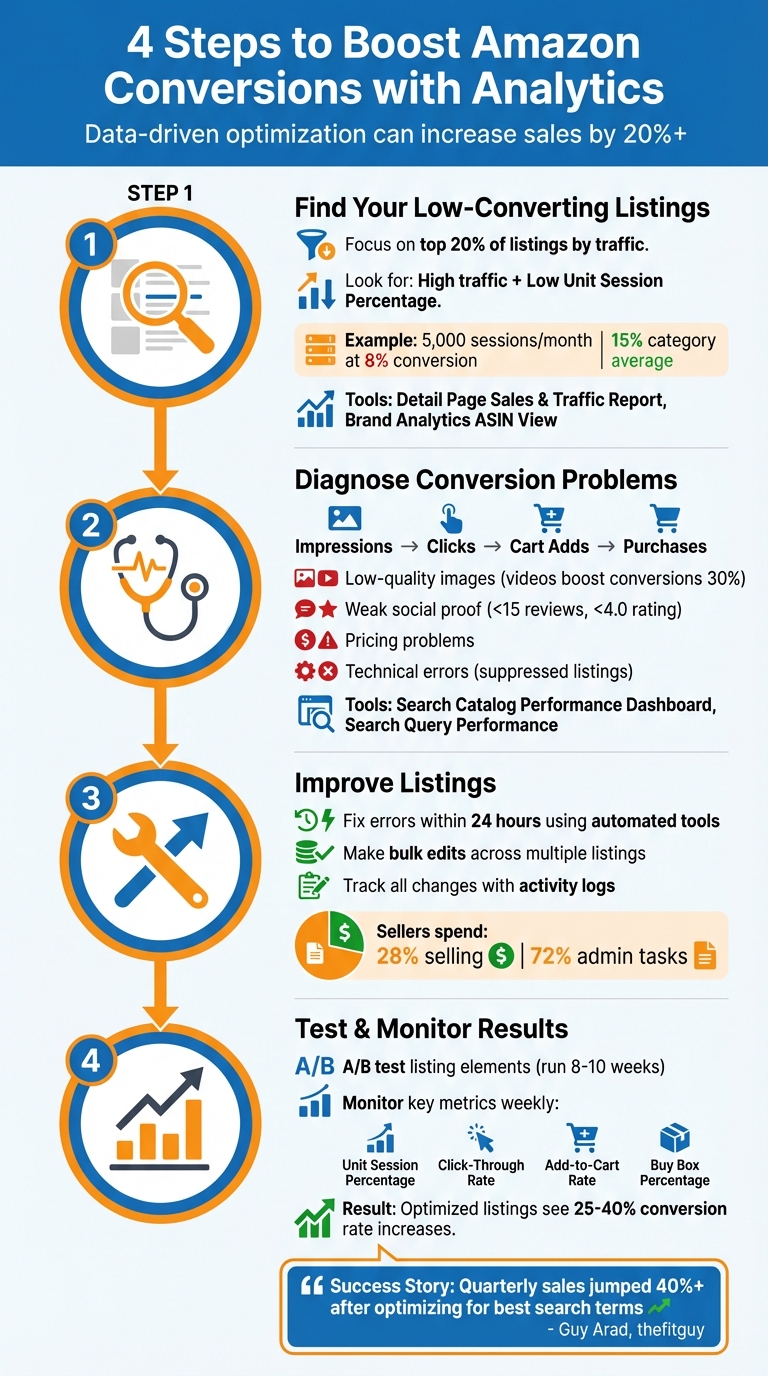
4-Step Process to Boost Amazon Conversions Using Analytics
Amazon Analytics: Tools and Metrics You Need to Track
Amazon’s Built-In Analytics Tools
Amazon provides a variety of free analytics tools through Seller Central to help sellers monitor and improve their performance. For Professional sellers ($39.99/month), Business Reports offer detailed traffic and sales data for each listing. Meanwhile, Amazon Brand Analytics (ABA) is available at no additional cost to brand-registered sellers and includes robust dashboards like Search Catalog Performance, which tracks the customer journey from impressions to purchases, and Search Query Performance, which evaluates your brand’s performance against competitors for specific keywords [2][6].
If you’re testing listing changes, Manage Your Experiments (MYE) is a valuable tool for brand-registered sellers. It allows A/B testing on titles, images, bullet points, and A+ Content by splitting traffic between two versions to see which performs better [4][7]. For advertising insights, the Advertising Console provides key PPC metrics like Click-Through Rate (CTR) and Advertising Cost of Sale (ACoS) for sponsored ads. These tools can be accessed under the "Brands" or "Reports" tabs in Seller Central, though advanced features require a Professional account and brand registration [5][4].
Together, these tools form the foundation for tracking the metrics that directly influence your conversion rates.
Core Metrics for Tracking Conversion Rates
Amazon’s Unit Session Percentage (USP) acts as a primary indicator of your listing’s conversion rate [1]. This metric, found in Business Reports, highlights potential issues – like low USP paired with high traffic – which could signal that your images, descriptions, or pricing aren’t effectively converting shoppers into buyers.
Click-Through Rate (CTR) measures how often shoppers click on your listing after seeing it in search results. A low CTR suggests that your main image or title may not be grabbing attention [1]. Once shoppers click, the Add-to-Cart Rate reveals their level of interest. If clicks are high but cart additions are low, it might be time to refine your product descriptions, bullet points, or address concerns in reviews [6].
Another critical metric is the Buy Box Percentage, which directly impacts conversions. If your offer isn’t featured in the Buy Box, customers may struggle to make a purchase, often due to pricing or fulfillment issues [1]. Additionally, ABA provides Click Share and Conversion Share metrics, helping you see how you stack up against competitors for specific keywords. Given the fast-paced nature of the Amazon marketplace, tracking these metrics weekly is a smart strategy [2].
Here’s a quick summary of the key metrics and what they reveal:
| Metric | What It Measures | What Low Numbers Mean |
|---|---|---|
| Unit Session Percentage | Overall conversion rate | Listing content or pricing isn’t convincing [1] |
| Click-Through Rate | Appeal of main image and title | Failing to stand out in search results [1] |
| Add-to-Cart Rate | Quality of product details | Descriptions or reviews need work [6] |
| Buy Box Percentage | Featured Offer ownership | Pricing or fulfillment issues [1] |
"Quarterly sales jumped over 40% after optimizing for best search terms using the Amazon Brand Analytics Search Terms and Search Query Performance dashboard." – Guy Arad, Co-Founder of thefitguy [5]
sbb-itb-ed4fa17
Step 1: Find Your Low-Converting Listings
Focus on High-Revenue or High-Traffic Listings First
Start by identifying your key products. Use the "Detail Page Sales and Traffic by Child Item" report in Seller Central. Sort the data by Sessions and compare it to Total Sales [1][3]. Concentrate on the top 20% of your listings – these are the ones that have the potential to deliver the best return on your efforts [1][2].
Zero in on listings with a lot of traffic but a low Unit Session Percentage. For example, if a product gets 5,000 sessions a month but converts at only 8%, while the category average sits at 15%, that listing is ripe for improvement [1]. These listings already attract visitors, so optimizing them could lead to immediate revenue gains.
For a more detailed view, switch to the ASIN View in Brand Analytics. This feature helps you pinpoint specific ASINs that are dragging down your overall conversion rates [2]. By focusing on these problem areas, you can address the exact factors affecting performance. Use funnel metrics to understand where potential buyers are dropping off in the process.
Use Funnel Metrics to Find Problems
Dive into the Search Catalog Performance Dashboard to analyze the buyer journey from Impressions → Clicks → Cart Adds → Purchases [5][2]. This data helps you locate the weak points in your funnel. For instance, if your listing gets plenty of clicks but a low "Cart Add Rate", the issue likely lies in your product images, descriptions, or pricing [2][6].
The Search Query Performance dashboard provides even more detail, down to the keyword level. Watch for search terms where your ASIN gets clicks but fails to generate cart adds or purchases [5][2]. For example, if a keyword drives 200 clicks but results in only 10 cart adds, your listing might not be meeting the shopper’s expectations. Also, keep an eye out for keywords with high click share but low impression share – this indicates demand but poor visibility. In such cases, increasing your PPC bids could help you capture more traffic [2].
Make it a habit to review this data weekly instead of monthly. The Amazon marketplace is constantly changing due to competitor price adjustments, new product launches, and seasonal trends [2]. Regular monitoring allows you to catch and address conversion issues before they significantly hurt your revenue.
Step 2: Diagnose and Fix Conversion Problems
Leverage Brand Analytics Dashboards for Insights
Once you’ve identified listings with low conversion rates, it’s time to dig deeper. Brand analytics dashboards can help you uncover the root causes and guide you toward actionable solutions. For example, the Search Catalog Performance Dashboard breaks down your funnel into key stages – Impressions, Clicks, Cart Adds, and Purchases [5][6]. If you notice high clicks but low cart adds, it might mean your product images, descriptions, or pricing aren’t resonating with shoppers [6][1]. On the other hand, if customers add items to their carts but abandon them before completing the purchase, factors like high shipping costs or long delivery times could be to blame [6].
The Search Query Performance Dashboard provides keyword-level performance data, using a "Search Query Score" to compare your click and purchase share to overall query performance [6][2]. Keywords with high click share but low impression share suggest strong shopper interest but low visibility [2]. In such cases, consider increasing your PPC bids or fine-tuning your SEO strategy.
Another valuable tool is the Market Basket Analysis dashboard. This feature highlights products frequently purchased together, including competitor items, allowing you to explore bundling or cross-selling opportunities [5][6][3]. Jason Panzer, President of HexClad, shared how this tool helped his team identify ideal products for virtual bundles:
"It [Market Basket Analysis] helped us determine which items we should try to cross-sell or upsell because we can identify typical purchase combinations." – Jason Panzer, President, HexClad [5]
Once you’ve pinpointed problem areas using these dashboards, it’s time to tackle common conversion challenges head-on.
Common Conversion Problems and Their Solutions
Visual shortcomings – such as low-quality images, missing lifestyle photos, or limited product angles – can significantly hurt conversions [8][13]. Adding short product videos can increase conversion rates by up to 30% [13].
Weak social proof – fewer than 15 reviews, ratings below 4.0, or outdated reviews – can erode customer trust [10][12]. Programs like Amazon Vine can help, as products with Vine reviews have been shown to boost sales by up to 30% [11].
Pricing issues arise when a product’s price feels unjustified. Adding value through coupons, bundles, or other incentives can help [10][13]. Healthy Amazon conversion rates typically fall between 10% and 15%, while rates below 5% signal serious problems [10]. Keep an eye on your Buy Box percentage in Business Reports – low percentages often indicate pricing inconsistencies or shipping delays that could be costing you sales [1][12].
Technical problems – like search-suppressed listings, inactive statuses, or attribute mismatches (e.g., incorrect product IDs) – can completely derail conversions [9]. Use your Unit Session Percentage in Business Reports to gauge listing performance; rates below 7–10% may point to issues with your content, pricing, or images [1][12]. Guy Arad, Co-Founder of thefitguy, shared how optimizing for top search terms led to a dramatic improvement in his business:
"Quarterly sales jumped over 40% after optimizing for best search terms using the Amazon Brand Analytics Search Terms and Search Query Performance dashboard." – Guy Arad, Co-Founder, thefitguy [5]
Step 3: Improve Listings with FlatFilePro

Fix Listing Errors Fast with Reflection Engine
Once analytics reveal conversion issues, quick action is essential. Did you know Amazon sellers spend just 28% of their time selling, while the other 72% goes to tasks like data analysis, logistics, and inventory management? [2]. That’s where FlatFilePro’s Reflection Engine steps in – it reviews your listings nightly and flags discrepancies between your data and the live listing. Green checkmarks mean all is well, while red X’s signal areas needing attention.
This tool helps you stay ahead of problems that can hurt conversions. For instance, if Amazon suppresses a listing due to missing fields or if a competitor alters your bullet points, you’ll know within 24 hours instead of weeks later. The Reflection Engine categorizes errors – like Product Identity, Details, Shipping, or Safety – so you can prioritize and resolve issues efficiently.
Make Bulk Edits to Save Time
Fixing multiple listings can be time-consuming, but FlatFilePro makes it easier with its bulk editing feature. You can update titles, bullet points, descriptions, prices, and images across hundreds – or even thousands – of listings in one go. Forget the tedious process of manually editing each listing in Seller Central; with FlatFilePro, you can make sweeping updates in just minutes.
For example, if your analytics suggest several product descriptions need improvement or images need updating, you can apply those changes across your entire catalog quickly. Since the tool connects directly to Amazon’s API, there’s no need for flat file uploads, and you’ll get real-time updates on the status of your changes.
Track Changes with Activity Log
After making updates, it’s critical to see how they affect performance. FlatFilePro’s Activity Log tracks every change made to your listings. This feature helps you pinpoint the root cause of conversion drops – for instance, whether they’re tied to specific keywords (often due to increased competition) or broader issues like outdated content or listing quality [14].
"Data analytics is at the heart of building a profitable Amazon business. It gives sellers visibility into buyer behavior and market trends so they can stop guessing." – Ken Zhou, COO, My Amazon Guy [2]
Step 4: Test and Monitor for Long-Term Results
A/B Test Different Listing Elements
Once you’ve identified and addressed conversion issues, the next step is ensuring sustained improvement through regular testing and monitoring. Optimization isn’t a one-and-done process – it requires ongoing effort. This is where A/B testing becomes invaluable. Amazon’s Manage Your Experiments (MYE) tool allows you to compare different versions of your product listings using actual customer data, removing the need for guesswork [15][7].
The MYE tool, available for free to brand-registered sellers, randomly splits traffic between the two versions being tested. This ensures that external factors, like seasonal fluctuations, don’t skew the results. To get the most actionable insights, focus on high-traffic or high-revenue listings, as these provide enough data to ensure statistical accuracy [15][4]. A great example comes from Onkata Hardware Sales, Inc., which saw an 8% sales boost in 2024 by simply tweaking one word in their product content using MYE [4].
When conducting A/B tests, make sure the variations between Version A and Version B are significant enough to yield meaningful results. Tests should typically run for 8–10 weeks, but Amazon’s "to significance" setting can sometimes produce results in as little as four weeks [4][7]. Internal Amazon data highlights the potential impact: optimized content can increase sales by up to 20%, while fully optimized listings often see conversion rates jump by 25% to 40% [4][16].
"With Manage Your Experiments, we can explain what’s going on in a customer’s marketplace. We justify the changes or recommendations we want to make thanks to the data Manage Your Experiments produces." – Ben Huge, Brand Manager, Onkata Hardware Sales, Inc [4]
Once you’ve gathered insights from these tests, you can shift focus to automated monitoring to maintain your gains.
Automate Monitoring with FlatFilePro
After optimizing your listings, it’s essential to safeguard those improvements. Automated tools like the Reflection Engine are designed to monitor your listings continuously. This tool alerts you within 24 hours if a listing is suppressed due to policy changes or if a competitor modifies your content – helping you address issues before they impact sales.
The Reflection Engine also conducts real-time audits of your listings, flagging problems like forbidden words, compliance errors, or missing elements [16]. Considering that Amazon sellers spend only 28% of their time on actual selling (the rest is consumed by administrative tasks) [2], automating these checks frees you up to focus on strategic growth.
Track Weekly Performance Benchmarks
To keep your momentum going, regular performance reviews are essential. The Amazon search landscape evolves quickly, so monitoring key metrics weekly can help you stay ahead [2]. Metrics like Unit Session Percentage and Buy Box Percentage provide valuable insights into shifts in your performance [1].
Amazon’s Search Query Performance dashboard is another powerful tool. It allows you to track impressions, clicks, cart adds, and purchases for specific keywords, helping you measure whether your optimizations are improving search visibility [5][2]. You can also cross-reference high-performing keywords from Brand Analytics with your active PPC campaigns to identify missed opportunities.
"Quarterly sales jumped over 40% after optimizing for best search terms using the Amazon Brand Analytics Search Terms and Search Query Performance dashboard." This data is most effective when paired with conducting keyword research to identify high-intent terms. – Guy Arad, Co-Founder, thefitguy [5]
FlatFilePro’s Activity Log adds another layer of convenience by clearly documenting what changes were made and when. This makes it easier to pinpoint whether a drop in conversions is tied to a specific update or reflects broader market trends.
How Amazon Sellers Can Boost Sales with Brand Analytics Insights? Answered Live!
Conclusion
Improving your Amazon conversion rates starts with leveraging data to pinpoint and address problems. The four-step process we’ve covered – identifying low-performing listings, diagnosing their issues, implementing targeted improvements, and tracking results – provides a straightforward way to tackle this challenge.
Practical examples highlight how a methodical, data-focused strategy can lead to measurable success. Case studies show that optimizing your Amazon listings with this approach can boost sales by as much as 20% [4].
Interestingly, Amazon sellers dedicate only 28% of their time to actual selling, with the remainder spent on administrative tasks [2]. By combining these data-driven strategies with tools designed for efficient listing management, like FlatFilePro, you can save time and focus on growing your business. Features like automated error checks, bulk edits, and change tracking simplify the process, freeing you up for more strategic efforts.
Make it a habit to check your Search Catalog Performance dashboard, experiment with A/B testing using the Manage Your Experiments tool, and keep an eye on key metrics weekly. In Amazon’s ever-evolving marketplace, regular monitoring and adjustments are what set thriving businesses apart from those that lag behind.
FAQs
How can I find out which Amazon listings need improvement?
To spot underperforming Amazon listings, start by diving into your Seller Central account and checking out the Business Reports. Pay close attention to metrics like conversion rates, page views, and Buy Box percentages. If you notice listings with lots of traffic but few sales or low conversion rates, that’s a red flag something needs fixing.
Next, take advantage of Amazon Brand Analytics to dig into keyword performance. Look for listings tied to high-traffic keywords that aren’t converting well. These could benefit from adjustments to titles, bullet points, or backend keywords. Don’t forget to scan customer reviews for recurring complaints – issues like missing details or incorrect information often highlight areas that need improvement.
If you’re looking to speed up the process, tools like FlatFilePro can be a game-changer. Its Reflection Engine scans your listings nightly, flagging errors or inconsistencies automatically. Once you’ve identified problem areas, focus on updating the listings with the biggest potential impact first. This way, you can boost your conversion rates more effectively and efficiently.
What key metrics should I track to improve Amazon conversions?
Unit Session Percentage (conversion rate) is a key metric to keep an eye on because it reflects the percentage of visitors who actually make a purchase. If this number is low, it could point to problems with your product images, descriptions, pricing, or even your Buy Box eligibility. Sessions and Page Views tell you how many people are checking out your listing. If your views are high but conversions are lagging, it’s a clear sign that your listing might need some fine-tuning.
Another critical factor is your Buy Box Percentage. Since most sales happen through the Buy Box, a drop here can have a noticeable impact on your conversions.
To dig deeper, Amazon Brand Analytics provides tools like Search Query Performance, which breaks down traffic and conversions by keyword. This can help you spot underperforming keywords and refine your strategy. Additionally, running A/B tests with Amazon’s Manage Your Experiments tool can show how tweaks to your titles, images, or pricing affect conversions – sometimes leading to sales increases of up to 20%.
What is A/B testing, and how can it improve Amazon listings?
A/B testing, or split testing, is a powerful way to compare two versions of your Amazon product detail page to determine which one performs better. With Amazon’s Manage Your Experiments tool, you can test different variations of key elements like the title, main image, bullet points, description, or even the price. Amazon handles the heavy lifting by randomly showing these versions to shoppers and providing clear data on which one leads to more conversions.
This approach takes the guesswork out of improving your listings. By focusing on one change at a time, you can make decisions based on real data. Testing elements like images, titles, and pricing often leads to measurable results – think higher click-through rates or sales increases of up to 25%. Even small tweaks can make a big difference, transforming a decent listing into a standout performer.
A/B testing also helps you spot areas where your listing might be underperforming. By refining these weak points based on actual shopper behavior, you can boost your sales and get the most out of your Amazon listings.